> ## Documentation Index
> Fetch the complete documentation index at: https://developers.criteo.com/llms.txt
> Use this file to discover all available pages before exploring further.
# Get Your Credentials
export const EndpointBadge = ({method = "GET", children}) => {
const METHOD_STYLES = {
GET: {
bg: "mint-bg-[#2AB673]"
},
POST: {
bg: "mint-bg-[#3064E3]"
},
PUT: {
bg: "mint-bg-[#C28C30]"
},
PATCH: {
bg: "mint-bg-[#DA622B]"
},
DELETE: {
bg: "mint-bg-[#CB3A32]"
},
API: {
bg: "mint-bg-black"
}
};
const key = method.toUpperCase();
const styles = METHOD_STYLES[key] ?? METHOD_STYLES.API;
return
{key}
{children}
;
};
## Introduction
To get started with Criteo API, you need to get **credentials** to be able to make API requests.\
Your credentials are made up of an **API Key** and an **API Secret**.
These allow you to access the API without needing to provide a username and password each time you make a call. Your credentials determine which permissible actions your app can perform.
To get your credentials, follow the steps indicated below.
You can find more information about the OAuth implementation on [this page](/marketing-solutions/docs/oauth-implementation).
***
## Credential Request Process
### Step 1
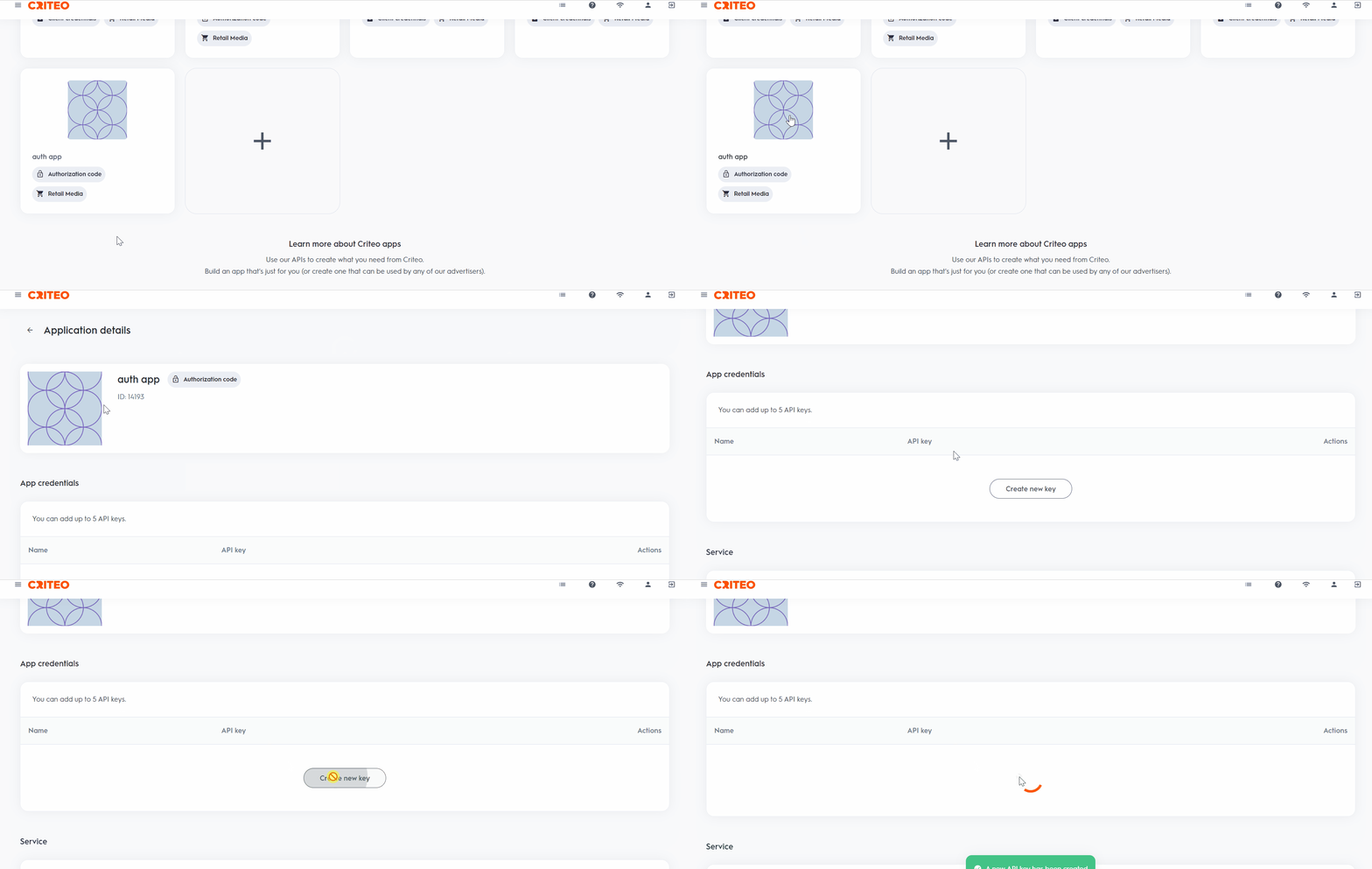
Log in to the [Criteo Partner Dashboard](https://partners.criteo.com/) and go to your app page (`My Apps` and click on `view` to select an app) and click on **Create new key** to generate your set of credentials.
 ### Step 2.
A text file will be automatically downloaded with both your API Key and API Secret. You can copy your key from the credentials' dashboard as often as you need, but we can only share the secret with you once.
Make sure to save it somewhere safe!
### Step 3
You can then authenticate using the key and the secret using the `POST` `/oauth2/token` endpoint to get your token.
```http theme={null}
https://api.criteo.com/oauth2/token
```
More information about the Auth endpoint is available in [the API Reference documentation](/marketing-solutions/reference/authorization/get-token) and in [our dedicated guide](/marketing-solutions/docs/authentication).
***
## Manage and Delete API Keys
You can use the dashboard to manage your API keys.
You can also delete an API key from this dashboard. The key will stay valid for fifteen minutes before deactivating.
***
## Best Practices
* Use the dashboard to manage your API keys. You can delete a key, and it will remain valid for 15 minutes before deactivating.
* Rename your credentials directly in the dashboard for easy identification, such as "Troubleshooting Credentials" or "Production Credentials."
* You are limited to five API credentials per app, allowing for flexibility (e.g., 1 for production, 1 for troubleshooting, and others for various use cases).
### Step 2.
A text file will be automatically downloaded with both your API Key and API Secret. You can copy your key from the credentials' dashboard as often as you need, but we can only share the secret with you once.
Make sure to save it somewhere safe!
### Step 3
You can then authenticate using the key and the secret using the `POST` `/oauth2/token` endpoint to get your token.
```http theme={null}
https://api.criteo.com/oauth2/token
```
More information about the Auth endpoint is available in [the API Reference documentation](/marketing-solutions/reference/authorization/get-token) and in [our dedicated guide](/marketing-solutions/docs/authentication).
***
## Manage and Delete API Keys
You can use the dashboard to manage your API keys.
You can also delete an API key from this dashboard. The key will stay valid for fifteen minutes before deactivating.
***
## Best Practices
* Use the dashboard to manage your API keys. You can delete a key, and it will remain valid for 15 minutes before deactivating.
* Rename your credentials directly in the dashboard for easy identification, such as "Troubleshooting Credentials" or "Production Credentials."
* You are limited to five API credentials per app, allowing for flexibility (e.g., 1 for production, 1 for troubleshooting, and others for various use cases).
## What's next
* [Send an Authorization Request to Your Users](/marketing-solutions/docs/send-an-authorization-request-to-your-users)
* [Start Using Your API Connection](/marketing-solutions/docs/start-using-your-api-connection)