> ## Documentation Index
> Fetch the complete documentation index at: https://developers.criteo.com/llms.txt
> Use this file to discover all available pages before exploring further.

# OAuth App implementation

## Introduction

The Criteo API allows you to build custom apps that help the world's advertisers grow their businesses.

In order for your app to function, your users will have to delegate permissions for one or more of the Criteo advertisers that they oversee.

To do this, you will need to direct the user to a unique consent delegation page using a standard OAuth integration (Authorization Code Grant Type). Below we describe how to implement this flow.

These guides assume you have created a developer account, are part of an organization. Instructions for getting started can be found [here](/marketing-solutions/docs/onboarding-checklist).

## Creating an Authorization code app

Once you have logged in to the Criteo Partners Portal, create a new App  by clicking on "+"  in the My apps section.

<Frame>
  <img src="https://mintcdn.com/criteo-e1682996/-a_Zn-jb9gMTKnuK/images/marketing-solutions/docs/285ba4d-52f9f11-app-card.PNG?fit=max&auto=format&n=-a_Zn-jb9gMTKnuK&q=85&s=618745f20964cd1d6c3674ac2cb4afc8" alt="1278" width="1278" height="437" data-path="images/marketing-solutions/docs/285ba4d-52f9f11-app-card.PNG" />
</Frame>

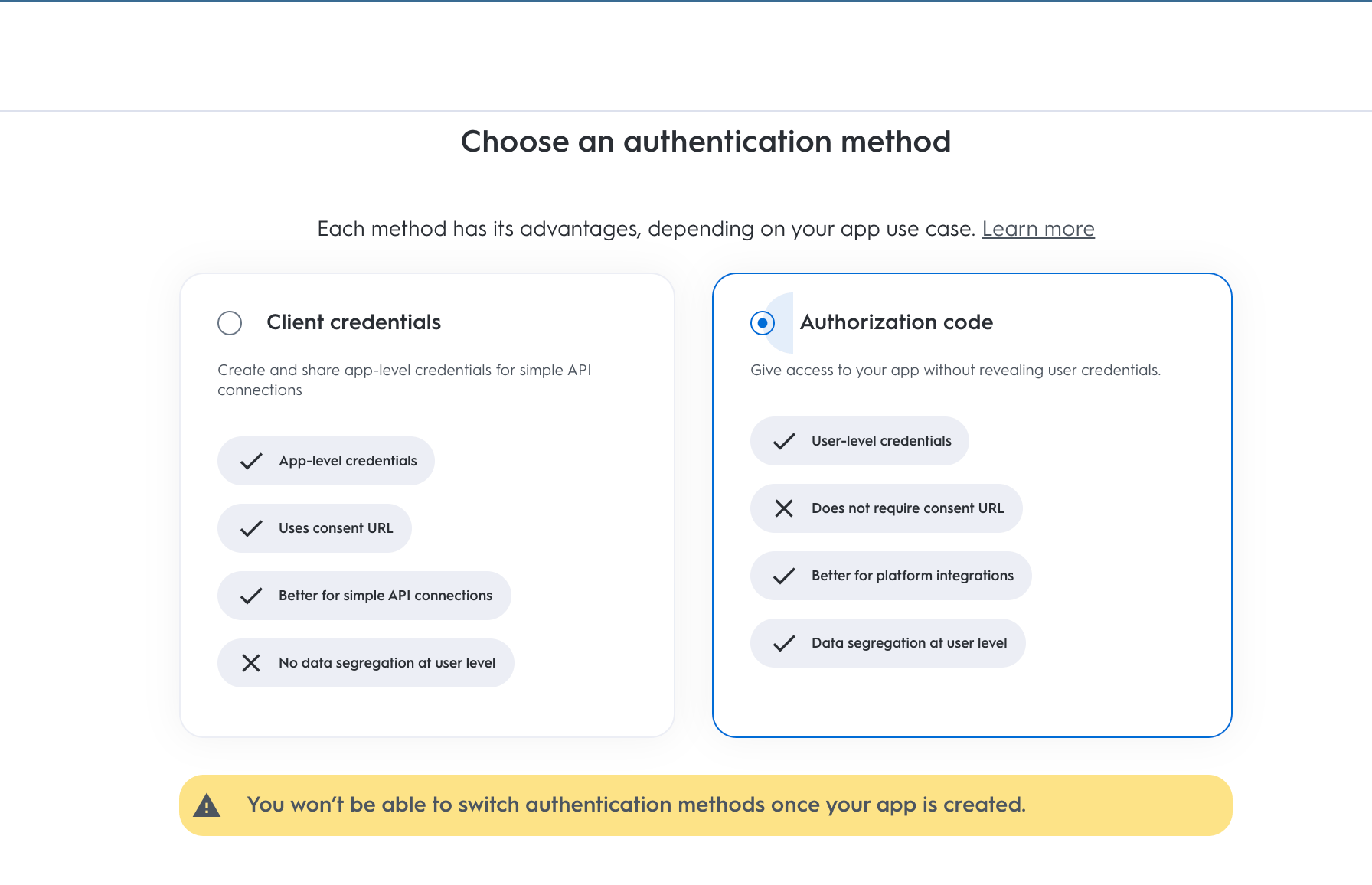
This will open a modal where you can select type of application. To create an OAuth app use the "Authorization code" app.
<Frame>
  <img src="https://mintcdn.com/criteo-e1682996/-a_Zn-jb9gMTKnuK/images/marketing-solutions/docs/c497078-Capture_decran_2022-01-19_a_16.27.20.png?fit=max&auto=format&n=-a_Zn-jb9gMTKnuK&q=85&s=083176e30b49f8d9462f5db983b6c457" alt="1792" width="1792" height="1156" data-path="images/marketing-solutions/docs/c497078-Capture_decran_2022-01-19_a_16.27.20.png" />
</Frame>

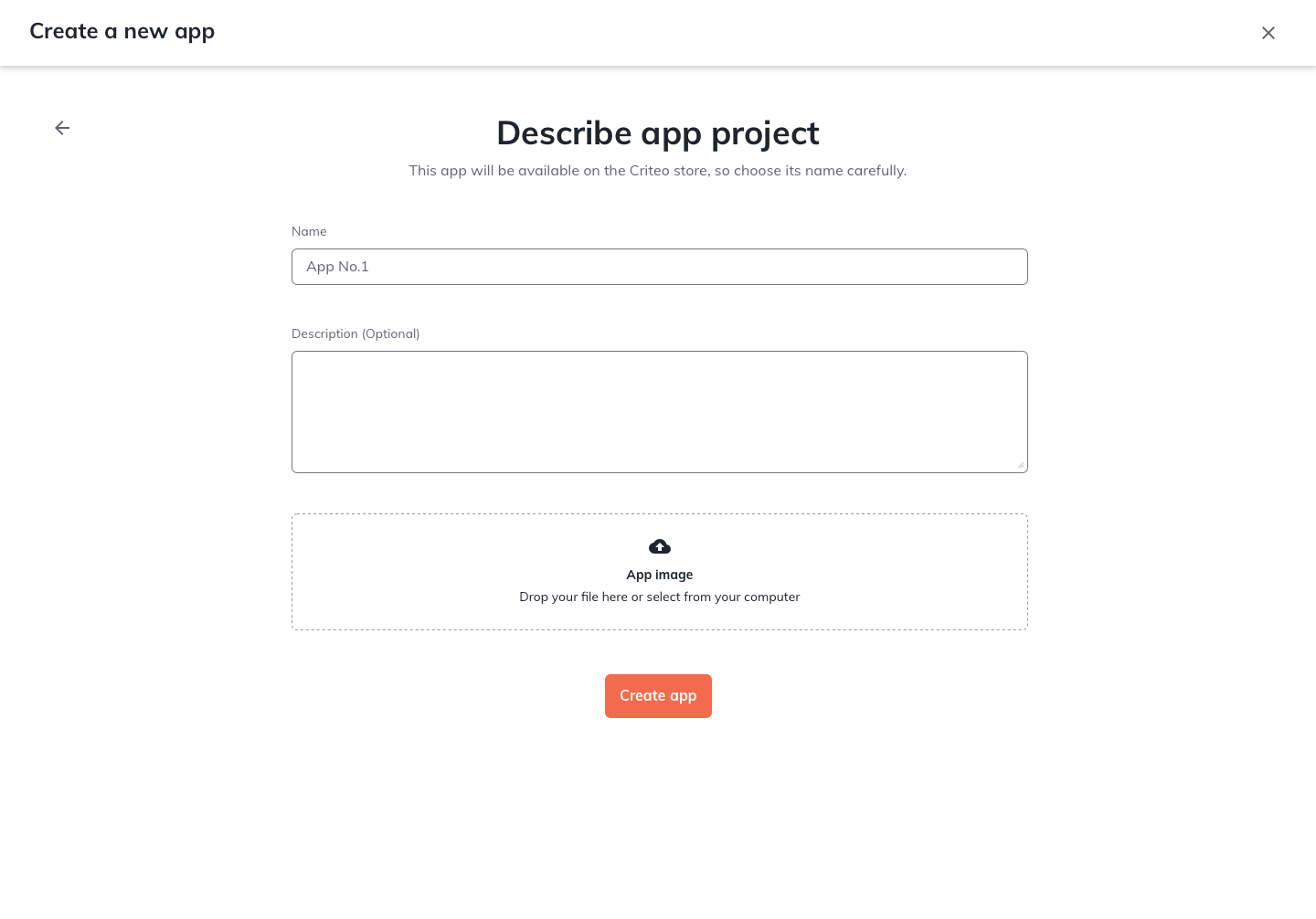
Define the name, description and image of your app. This will create your App page.
<Frame>
  <img src="https://mintcdn.com/criteo-e1682996/-a_Zn-jb9gMTKnuK/images/marketing-solutions/docs/8f935e1-Modale_App_creation_Copy_1.png?fit=max&auto=format&n=-a_Zn-jb9gMTKnuK&q=85&s=012abe10d02c425431056256860adf87" alt="1440" width="1440" height="1006" data-path="images/marketing-solutions/docs/8f935e1-Modale_App_creation_Copy_1.png" />
</Frame>

In your App page you will be able to define the scope of your application and the OAuth parameters. Please see this [page](/marketing-solutions/docs/onboarding-checklist#3-define-your-app-scope) to see more details on how to define your app scope.
<Frame>
  <img src="https://mintcdn.com/criteo-e1682996/-a_Zn-jb9gMTKnuK/images/marketing-solutions/docs/03e2204-image2021-4-19_11-40-46.png?fit=max&auto=format&n=-a_Zn-jb9gMTKnuK&q=85&s=c63be03575c6bd1288bab14cc667afb0" alt="197" width="197" height="300" data-path="images/marketing-solutions/docs/03e2204-image2021-4-19_11-40-46.png" />
</Frame>

## Set up your OAuth parameters

Once you have defined the scope of your application, you will be able to setup what you need for the OAuth workflow

<table>
  <thead>
    <tr>
      <th>
        <p>
          Parameters
        </p>
      </th>

      <th>
        <p>
          Description
        </p>
      </th>
    </tr>
  </thead>

  <tbody>
    <tr>
      <td>
        <p>
          <code>
            client\_id
          </code>
        </p>
      </td>

      <td>
        <p>
          Your public key accessible in app credentials section.
        </p>

        <p>
          You can add up to 5 pairs of credentials. Can be added and managed also once the App has been activated.
        </p>
      </td>
    </tr>

    <tr>
      <td>
        <p>
          <code>
            client\_secret
          </code>
        </p>
      </td>

      <td>
        <p>
          Your secret key, accessible only once when creating a pair of client\_id and client\_secret in credentials section.
        </p>

        <p>
          You can add up to 5 pairs of credentials. Can be added and managed also once the App has been activated.
        </p>
      </td>
    </tr>

    <tr>
      <td>
        <p>
          <code>
            redirect\_uri
          </code>
        </p>
      </td>

      <td>
        <p>
          The URL to redirect the user to after consent delegation. Https protocol required.
        </p>

        <p>
          You can add up to 30 redirect URIs. Can be added and managed also once the App has been activated.
        </p>
      </td>
    </tr>
  </tbody>
</table>

You can now publish the app, and start an authorization code workflow.

## Consent URL creation

Once you have defined the parameters of your App you can start implementing your authorization code flow.

To request access to a user to access their data, you will create a Consent link (to be sent to the user or implemented through a button in your platform that will redirect the user to the link) with the following structure and parameters:

```http Consent URL Example theme={null}
https://consent.criteo.com/request
?response_type=code
&client_id=6e75a
&redirect_uri=https%3A%2F%2Fyourwebsite.com%2Fauth%2Fredirect
&state=4lr4e
```

<table>
  <thead>
    <tr>
      <th>
        <p>
          Parameters
        </p>
      </th>

      <th>
        <p>
          Description
        </p>
      </th>
    </tr>
  </thead>

  <tbody>
    <tr>
      <td>
        <p>
          <code>
            response\_type=code
          </code>
        </p>
      </td>

      <td>
        <p>
          Indicates that an authorization code is expected as outcome.
        </p>
      </td>
    </tr>

    <tr>
      <td>
        <p>
          <code>
            client\_id
          </code>
        </p>
      </td>

      <td>
        <p>
          Your public key accessible in app credentials section.
        </p>
      </td>
    </tr>

    <tr>
      <td>
        <p>
          <code>
            redirect\_uri
          </code>
        </p>
      </td>

      <td>
        <p>
          The URL to redirect the user to after consent delegation. Https protocol required. Defined in the redirect URI section in Developer Dashboard.
        </p>
      </td>
    </tr>

    <tr>
      <td>
        <p>
          <code>
            state
          </code>
        </p>
      </td>

      <td>
        <p>
          A string that you can provide and that will be returned as-is in the final redirection (usually used to prevent Cross-Site Request Forgery attacks).
        </p>
      </td>
    </tr>
  </tbody>
</table>

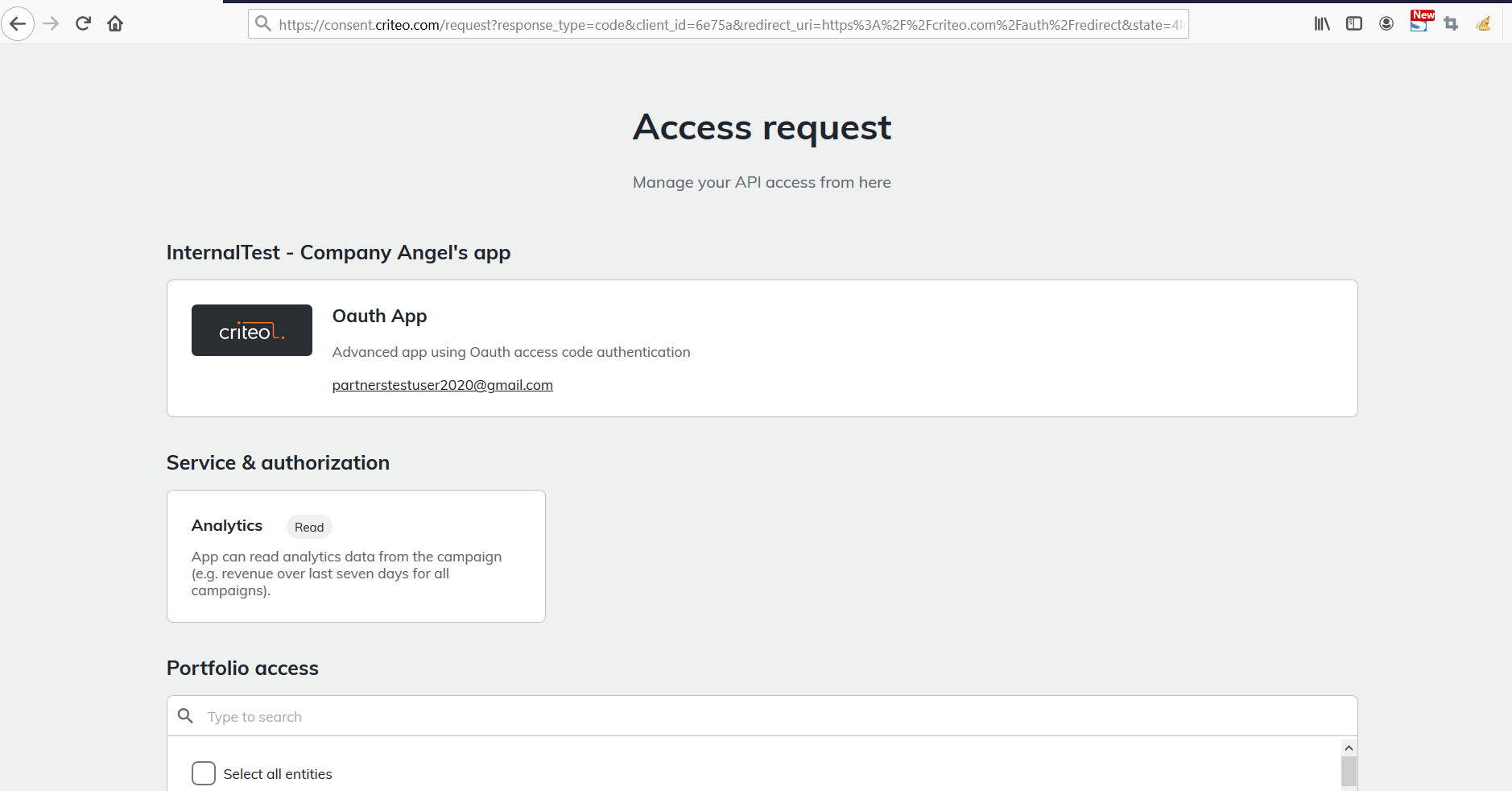
The Consent link will direct your user to Criteo Consent page:

<Frame>
  <img src="https://mintcdn.com/criteo-e1682996/-a_Zn-jb9gMTKnuK/images/marketing-solutions/docs/9fa7ca3-image2021-4-19_12-11-58.png?fit=max&auto=format&n=-a_Zn-jb9gMTKnuK&q=85&s=29ac0a562b2455e88b64a9455c0b8880" alt="1878" width="1878" height="982" data-path="images/marketing-solutions/docs/9fa7ca3-image2021-4-19_12-11-58.png" />
</Frame>

They can choose what advertisers from their portfolio they want to give access to.

They approve the request by clicking on "Approve".

A consent request is displayed to a user in all cases except in the following:

* The client\_id does not match any published API app.
* The redirect\_uri is not authorized (e.g not accessible from public network)
* An unexpected error occurred in our backend.

In any of the cases above an error message will be displayed.

## Redirection and access code

Once the user has completed the Consent Delegation flow, we redirect your user to the following URL:

```http Redirect URL theme={null}
https://yourwebsite.com/auth/redirect
?code=eyJ.abc.def
&state=4lr4e
```

This URL is forged with the authorized redirect\_uri and the following query parameters:

<table>
  <thead>
    <tr>
      <th>
        <p>
          Parameter
        </p>
      </th>

      <th>
        <p>
          Description
        </p>
      </th>
    </tr>
  </thead>

  <tbody>
    <tr>
      <td>
        <p>
          <code>
            code
          </code>
        </p>
      </td>

      <td>
        <p>
          An authorization code valid for 30 seconds, usable only once.
        </p>
      </td>
    </tr>

    <tr>
      <td>
        <p>
          <code>
            state
          </code>
        </p>
      </td>

      <td>
        <p>
          The state parameter that you originally provided (returned as-is).
        </p>
      </td>
    </tr>
  </tbody>
</table>

If the consent request is denied, we redirect to the same redirect-uri but with an 'error' query parameter instead of a 'code'.

## Exchanging access code for access token

Now that you have an authorization code, you can trade it for an access token with the following request:

```http Access token request theme={null}
POST https://api.criteo.com/oauth2/token
 
grant_type=authorization_code
&code=eyJ.abc.def
&redirect_uri=https://yourwebsite.com/auth/redirect
&client_id=6e75a
&client_secret=j7MfAp
```

<table>
  <thead>
    <tr>
      <th>
        <p>
          Parameter
        </p>
      </th>

      <th>
        <p>
          Description
        </p>
      </th>
    </tr>
  </thead>

  <tbody>
    <tr>
      <td>
        <p>
          <code>
            grant\_type=authorization\_code
          </code>
        </p>
      </td>

      <td>
        <p>
          Indicates that you are providing an authorization code.
        </p>
      </td>
    </tr>

    <tr>
      <td>
        <p>
          <code>
            code
          </code>
        </p>
      </td>

      <td>
        <p>
          Authorization code returned during redirection.
        </p>
      </td>
    </tr>

    <tr>
      <td>
        <p>
          <code>
            redirect\_uri
          </code>
        </p>
      </td>

      <td>
        <p>
          Must match the redirect\_uri used for the authorization request.
        </p>
      </td>
    </tr>

    <tr>
      <td>
        <p>
          <code>
            client\_id
          </code>
        </p>
      </td>

      <td>
        <p>
          Your public key accessible in app credentials section.
        </p>
      </td>
    </tr>

    <tr>
      <td>
        <p>
          <code>
            client\_secret
          </code>
        </p>
      </td>

      <td>
        <p>
          Your secret key, accessible only once when creating a pair of client\_id and client\_secret in credentials section.
        </p>
      </td>
    </tr>
  </tbody>
</table>

The response from Criteo API will be the following:

```json Access token response theme={null}
{
  "access_token": "eyJ.fiZfef.dls",
  "refresh_token": "eyJ.ela4a9e.afd",
  "token_type": "Bearer",
  "expires_in": 900
}
```

<table>
  <thead>
    <tr>
      <th>
        <p>
          Parameter
        </p>
      </th>

      <th>
        <p>
          Description
        </p>
      </th>
    </tr>
  </thead>

  <tbody>
    <tr>
      <td>
        <p>
          <code>
            access\_token
          </code>
        </p>
      </td>

      <td>
        <p>
          A short-lived (valid for 900 seconds) access token\*
        </p>
      </td>
    </tr>

    <tr>
      <td>
        <p>
          <code>
            refresh\_token
          </code>
        </p>
      </td>

      <td>
        <p>
          A long-lived refresh token (that expires after 6 months) that can be used to renew the access token (see next section).
        </p>
      </td>
    </tr>

    <tr>
      <td>
        <p>
          <code>
            token\_type=Bearer
          </code>
        </p>
      </td>

      <td>
        <p>
          Type of token.
        </p>
      </td>
    </tr>

    <tr>
      <td>
        <p>
          <code>
            expires\_in
          </code>
        </p>
      </td>

      <td>
        <p>
          Lifetime of the token in seconds.
        </p>
      </td>
    </tr>
  </tbody>
</table>

<Warning>
  **Note about token lifetime**

  The refresh token will be revoked if the user that provided consent to an account changes the role or leaves the organization. Such an account needs to be re-authorized by launching the new consent flow and having the new administrator accept the consent.
</Warning>

## Using refresh token

When an access token is close to expiration, you can get a new one using a refresh token via the following request:

```http Refreshaccess token theme={null}
POST https://api.criteo.com/oauth2/token
 
grant_type=refresh_token
&refresh_token=eyJ.ela4a9e.afd
&client_id=6e75a
&client_secret=j7MfAp
```

<table>
  <thead>
    <tr>
      <th>
        <p>
          Parameter
        </p>
      </th>

      <th>
        <p>
          Description
        </p>
      </th>
    </tr>
  </thead>

  <tbody>
    <tr>
      <td>
        <p>
          <code>
            grant\_type=refresh\_token
          </code>
        </p>
      </td>

      <td>
        <p>
          Indicates that you are providing a refresh token.
        </p>
      </td>
    </tr>

    <tr>
      <td>
        <p>
          <code>
            refresh\_token
          </code>
        </p>
      </td>

      <td>
        <p>
          Refresh token shared when requesting an access token.
        </p>
      </td>
    </tr>

    <tr>
      <td>
        <p>
          <code>
            client\_id
          </code>
        </p>
      </td>

      <td>
        <p>
          Your public key accessible in app credentials section.
        </p>
      </td>
    </tr>

    <tr>
      <td>
        <p>
          <code>
            client\_secret
          </code>
        </p>
      </td>

      <td>
        <p>
          Your secret key, accessible only once when creating a pair of client\_id and client\_secret in credentials section.
        </p>
      </td>
    </tr>
  </tbody>
</table>

The response will be the same as when issuing an access token

## Demo

Below you can find a code for a demo application in NodeJS that uses Express JS framework.

<CodeGroup>
  ```javascript index.js expandable theme={null}
  var express = require('express');
  var passport = require('passport');
  var OAuth2Strategy = require('passport-oauth2').Strategy;
  var app = express();
  var port = 3000;

  // Passport setup
  passport.use(new OAuth2Strategy({
      clientID: 'CLIENT_ID', // Enter your client_id here
      clientSecret: 'CLIENT_SECRET', // Enter your client_secret here
      authorizationURL: 'https://consent.criteo.com/request',
      callbackURL: `http://localhost:${port}/criteo-auth/callback`,
      tokenURL: 'https://api.criteo.com/oauth2/token',
      state: 'togorot'
    },
    function(accessToken, refreshToken, profile, cb) {
      cb(null, { accessToken, refreshToken });
    }
  ));
  app.use(passport.initialize());

  // Route declarations
  app.get('/', function(req, res) {
    res.send('<a href="/criteo-auth">Link my Criteo account!</a>');
  });

  app.get('/criteo-auth', passport.authenticate('oauth2'));

  app.get('/criteo-auth/callback',
    passport.authenticate('oauth2', { session: false }),
    function(req, res) {
      res.send(`<div>Authentication successful!</div><div>Access token:</div><textarea>${req.user.accessToken}</textarea><div>Refresh token:</div><textarea>${req.user.refreshToken}</textarea>`);
    }
  );

  console.log(`OAuth test app started on http://localhost:${port}`);
  app.listen(port);
  ```

  ```json markdown package.json theme={null}
  {
    "name": "oauth-node",
    "version": "1.0.0",
    "description": "",
    "main": "index.js",
    "scripts": {
      "start": "node index.js"
    },
    "author": "",
    "license": "ISC",
    "dependencies": {
      "ejs": "^3.1.6",
      "express": "^4.17.1",
      "passport": "^0.4.1",
      "passport-oauth2": "^1.6.0"
    }
  }
  ```
</CodeGroup>

How to run the demo?

1. Run `npm install`
2. Connect to the developer portal and create an app according to the instructions above
3. Create an "Authorization code" app.
4. Generate app credentials and enter the client\_id and client\_secret in index.js.
5. Register "http\://localhost:3000/criteo-auth/callback" as the redirect URI.
6. Run `npm run start`
7. Open [http://localhost:3000](http://localhost:3000)

## FAQ

<AccordionGroup>
  <Accordion title="What happens if my client_id and client_secret are compromised?">
    You will need to delete the set of credentials in the App page and create a new one. You will need to request access again to your users.
  </Accordion>
</AccordionGroup>