> ## Documentation Index
> Fetch the complete documentation index at: https://developers.criteo.com/llms.txt
> Use this file to discover all available pages before exploring further.
# Criteo Integration With Singular
> Configure your Criteo App campaign for App Install or App Retargeting with Singular.
## Overview
This page will guide you in setting up your Criteo App campaign(s) with Singular, either App Install or App Retargeting campaigns.
## Singular Dashboard Configuration
Keep in mind that the following settings are Criteo's recommendations but the ultimate goal is to match the options you want to take into account for your setup!
### Adding Criteo in Partner Configuration
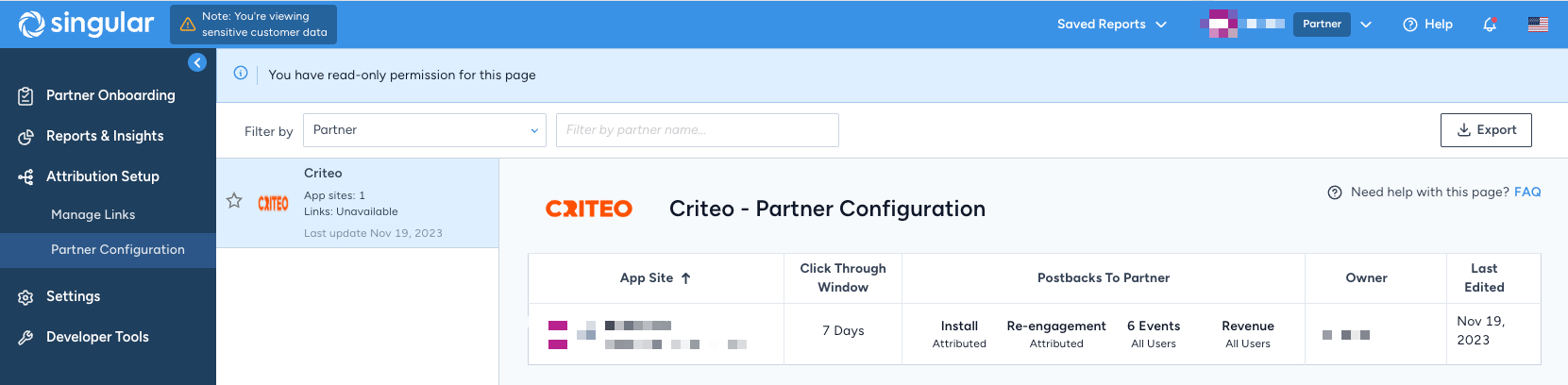
To add Criteo as a partner on Singular's dashboard:
1. Login to Singular Dashboard
2. Under **Attribution Setup** in the side bar, select **Partner Configuration**
3. Search for "*Criteo*" into the text field at the top right
4. Select your app that you want to connect to our campaigns
5. You should see the Criteo partner set up now
 ### Attribution Postbacks
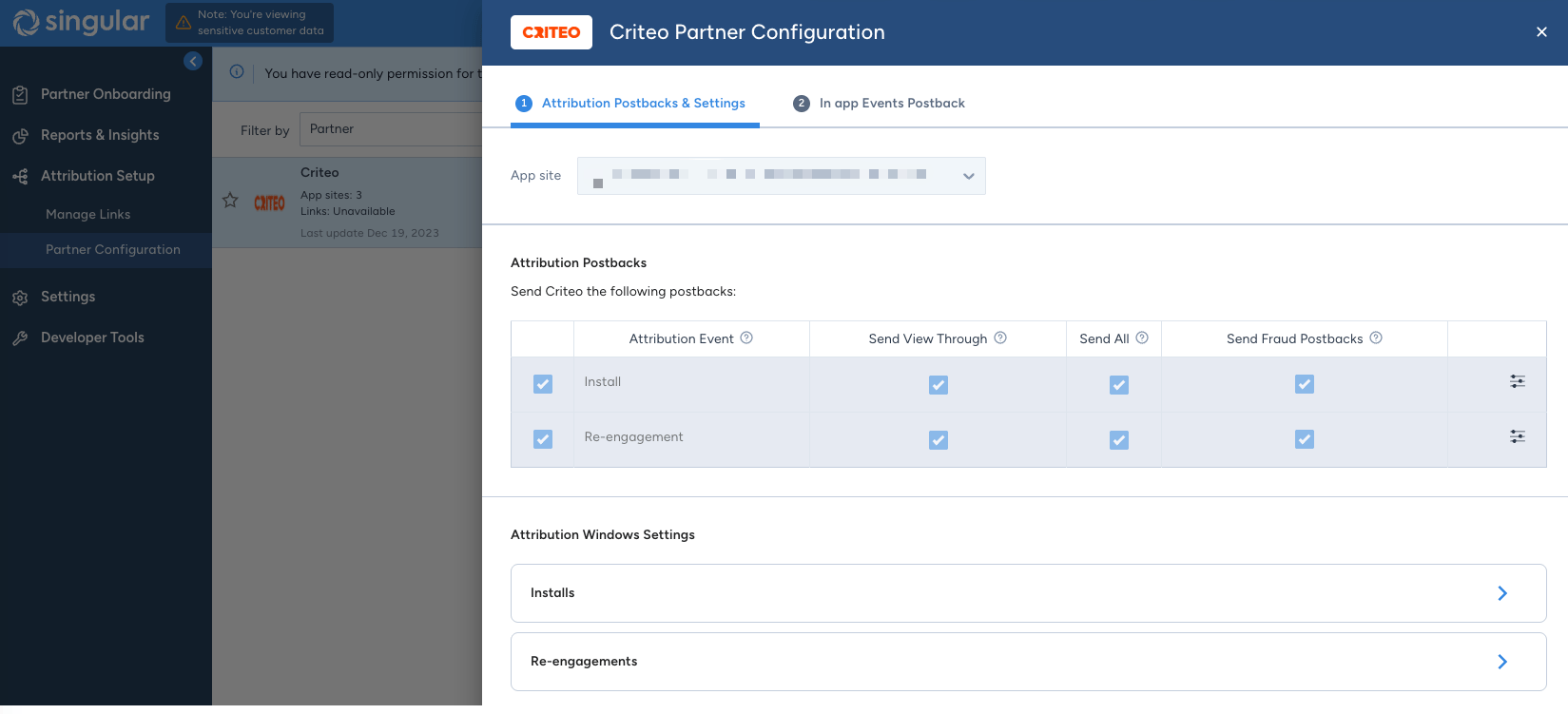
Firstly, set the configuration at the app-level, for both **Install** and **Re-engagement** events:
* **Send View Through**: ON
* **Send All**: ON
* Sends postbacks for all users, to allow us to receive all postbacks and identify your existing app audience appropriately.
* **Send Fraud Postbacks**: ON
* Includes postbacks for events flagged as fraudulent, for troubleshooting.
### Attribution Postbacks
Firstly, set the configuration at the app-level, for both **Install** and **Re-engagement** events:
* **Send View Through**: ON
* **Send All**: ON
* Sends postbacks for all users, to allow us to receive all postbacks and identify your existing app audience appropriately.
* **Send Fraud Postbacks**: ON
* Includes postbacks for events flagged as fraudulent, for troubleshooting.
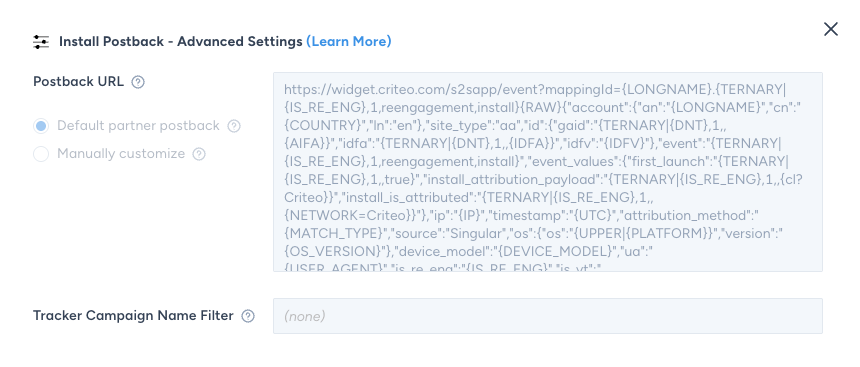
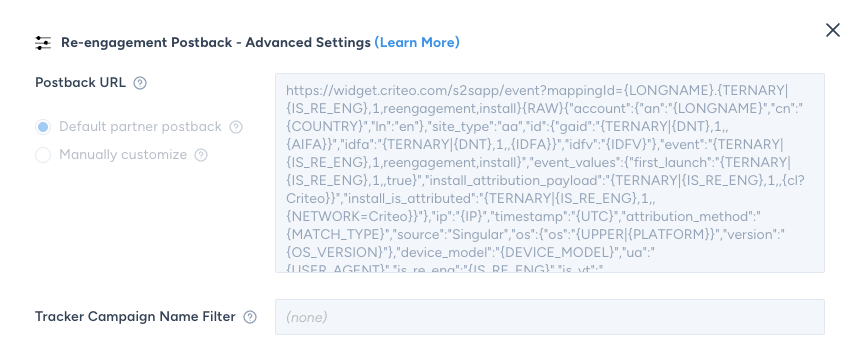
 Expand the **Postback URL customization and filters** option for both **Install** and **Re-engagement** events:
1. Leave the **Tracker Campaign Name Filter** empty, to allow us to receive all installs/re-engagements independently of the campaign attributed to
2. **Postback URL** can be left with the default postback template (unless your Criteo technical contact says otherwise)
Expand the **Postback URL customization and filters** option for both **Install** and **Re-engagement** events:
1. Leave the **Tracker Campaign Name Filter** empty, to allow us to receive all installs/re-engagements independently of the campaign attributed to
2. **Postback URL** can be left with the default postback template (unless your Criteo technical contact says otherwise)
 ### Attribution Windows Setup
Setting up Impression based attribution is optional. Enable these options ONLY if taken into account.
The attribution windows below are **recommendations** to be aligned with our standard campaigns setup. If you still prefer to use different windows, please inform your Criteo contact about your attribution model.
In order to minimize discrepancies between Criteo and Singular dashboards, we recommend using the following attribution settings:
* Expand the **Installs** section:
* Click-through deterministic install window: **7 days**
* Click-through probabilistic install window: **24 hours**
* View-through deterministic install window: **0(off)** \[Increase this value if you take view-through attribution into account]
* View-through probabilistic install window: **0(off)** \[Increase this value if you take view-through attribution into account]
### Attribution Windows Setup
Setting up Impression based attribution is optional. Enable these options ONLY if taken into account.
The attribution windows below are **recommendations** to be aligned with our standard campaigns setup. If you still prefer to use different windows, please inform your Criteo contact about your attribution model.
In order to minimize discrepancies between Criteo and Singular dashboards, we recommend using the following attribution settings:
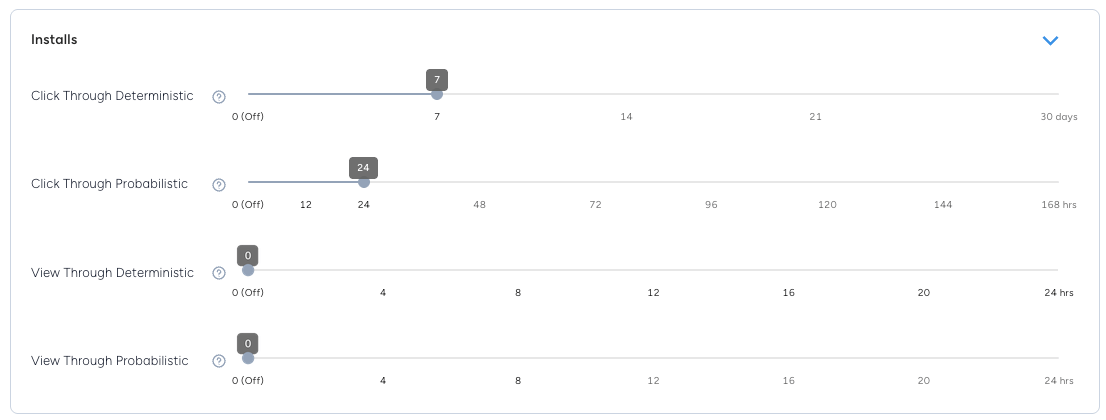
* Expand the **Installs** section:
* Click-through deterministic install window: **7 days**
* Click-through probabilistic install window: **24 hours**
* View-through deterministic install window: **0(off)** \[Increase this value if you take view-through attribution into account]
* View-through probabilistic install window: **0(off)** \[Increase this value if you take view-through attribution into account]
 * Expand the **Re-engagements** section:
* Click-through deterministic re-engagement window: **30 days**
* Click-through probabilistic re-engagement window: **168 hours**
* View-through deterministic re-engagement window: **0(off)** \[Increase this value if you take view-through attribution into account]
* View-through probabilistic re-engagement window: **0(off)** \[Increase this value if you take view-through attribution into account]
* Re-engagement Inactivity Window: reduced to **1 days**
If **Re-engagement Inactivity Window** is **greater than 1 days**, please inform your Criteo contact about the inactivity window used so our campaigns are configured to not retarget users within this window, which would directly affect our results (mostly in terms of CPA and/or ROAS/COS).
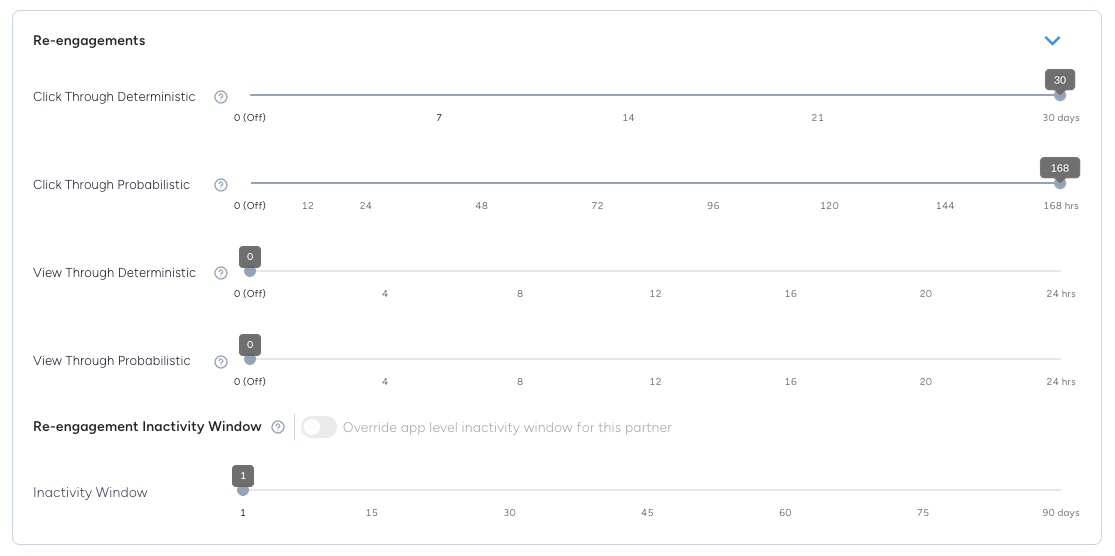
* Expand the **Re-engagements** section:
* Click-through deterministic re-engagement window: **30 days**
* Click-through probabilistic re-engagement window: **168 hours**
* View-through deterministic re-engagement window: **0(off)** \[Increase this value if you take view-through attribution into account]
* View-through probabilistic re-engagement window: **0(off)** \[Increase this value if you take view-through attribution into account]
* Re-engagement Inactivity Window: reduced to **1 days**
If **Re-engagement Inactivity Window** is **greater than 1 days**, please inform your Criteo contact about the inactivity window used so our campaigns are configured to not retarget users within this window, which would directly affect our results (mostly in terms of CPA and/or ROAS/COS).
 For more info, access Singular's Help Center article [Attribution Logic & Settings](https://support.singular.net/hc/en-us/articles/13000445013531#links_attribution_settings).
### In-app Events Postbacks
Next, the following section **In app Events Postback** lets you choose which events postbacks (callbacks) you want to send to Criteo about this app.
Here, it's very important that you enable all event postbacks relevant to the user's journey in your app, for our Retargeting campaigns or Installs (for post-install actions measurement).
For each of those events, please leave:
* Tick **Send All** in order to send postback for all events triggered in your app, regardless of attributed source
* **Lookback** as **Unlimited**, so Criteo receives all event postbacks independently of the attribution/install time
* This is strongly recommended for Retargeting campaigns
* **Include Revenue** enabled, in order to forward revenue data to Criteo and allow us to measure ROAS/COS (enabling the possibility to optimize towards those metrics)
For more info, access Singular's Help Center article [Attribution Logic & Settings](https://support.singular.net/hc/en-us/articles/13000445013531#links_attribution_settings).
### In-app Events Postbacks
Next, the following section **In app Events Postback** lets you choose which events postbacks (callbacks) you want to send to Criteo about this app.
Here, it's very important that you enable all event postbacks relevant to the user's journey in your app, for our Retargeting campaigns or Installs (for post-install actions measurement).
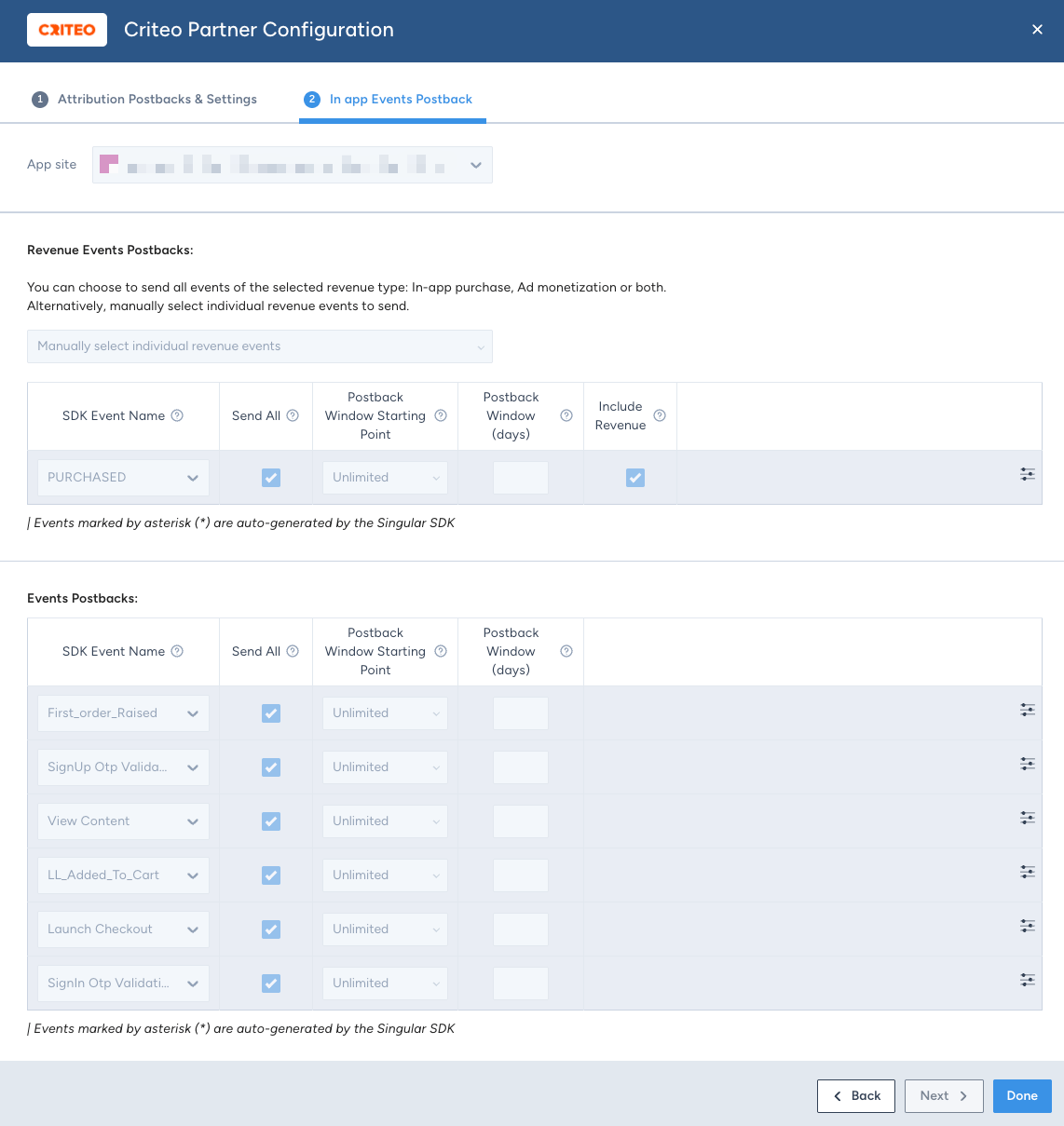
For each of those events, please leave:
* Tick **Send All** in order to send postback for all events triggered in your app, regardless of attributed source
* **Lookback** as **Unlimited**, so Criteo receives all event postbacks independently of the attribution/install time
* This is strongly recommended for Retargeting campaigns
* **Include Revenue** enabled, in order to forward revenue data to Criteo and allow us to measure ROAS/COS (enabling the possibility to optimize towards those metrics)
 ## Tracking in Singular
To account for Singular attribution settings in our Criteo campaigns, it's required to use Singular Tracking links on our ads.
To create it:
1. Navigate to section **Attribution** -> **Manage Link**
2. In case of multiple apps, select the correct one and hit **Create Link**
3. Select **Partner** from the **Link Type** dropdown
4. Select **Criteo** from the **Source Name** dropdown
5. Choose an arbitrary Tracking Link Name
## Tracking in Singular
To account for Singular attribution settings in our Criteo campaigns, it's required to use Singular Tracking links on our ads.
To create it:
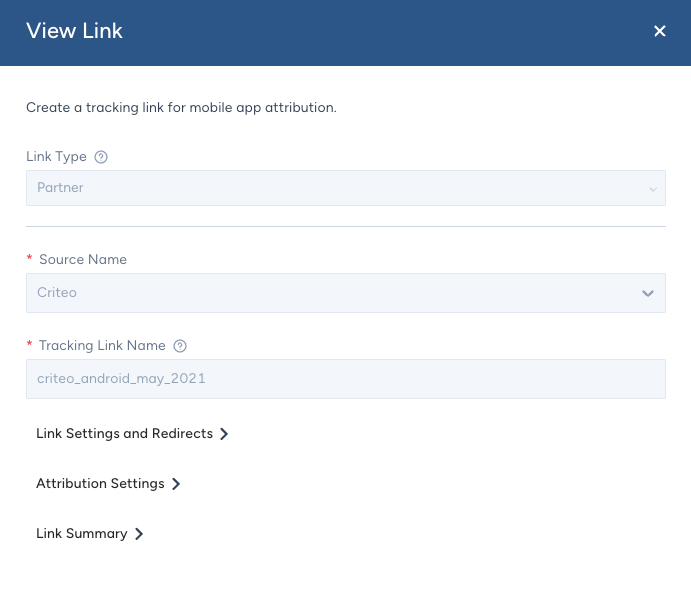
1. Navigate to section **Attribution** -> **Manage Link**
2. In case of multiple apps, select the correct one and hit **Create Link**
3. Select **Partner** from the **Link Type** dropdown
4. Select **Criteo** from the **Source Name** dropdown
5. Choose an arbitrary Tracking Link Name
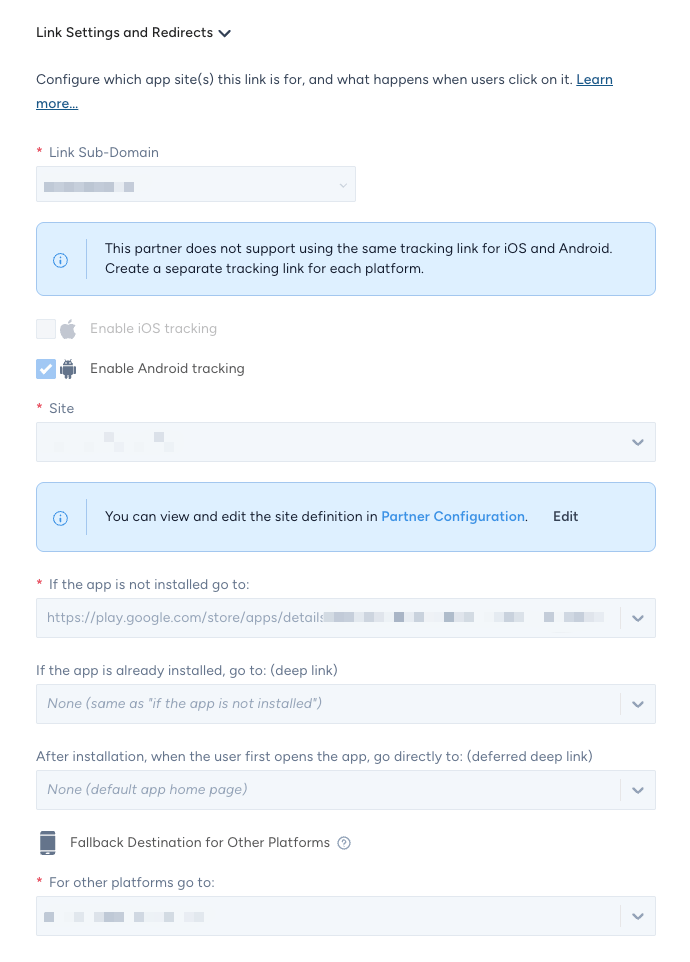
 6. Expand the **Link Settings and Redirects** section
* Set the Link Sub-Domain and Site from the dropdowns. [More info](https://support.singular.net/hc/en-us/articles/13000445013531-How-to-Build-Tracking-Links)
* Choose the desired OS to track with this link
* Criteo requires one Singular Link per OS
* In the option **If the app is not installed go to:**, choose the expected location the user should land in those cases (usually, Google Play / App Store)
* For the option **If the app is already installed, go to:**, you can leave it empty for most cases, as Criteo will configure the dynamic redirection through deeplinks in the catalog (see [Products catalog for Dynamic campaigns](#products-catalog-for-dynamic-campaigns))
* Set the **Fallback Destination for Other Platforms**
6. Expand the **Link Settings and Redirects** section
* Set the Link Sub-Domain and Site from the dropdowns. [More info](https://support.singular.net/hc/en-us/articles/13000445013531-How-to-Build-Tracking-Links)
* Choose the desired OS to track with this link
* Criteo requires one Singular Link per OS
* In the option **If the app is not installed go to:**, choose the expected location the user should land in those cases (usually, Google Play / App Store)
* For the option **If the app is already installed, go to:**, you can leave it empty for most cases, as Criteo will configure the dynamic redirection through deeplinks in the catalog (see [Products catalog for Dynamic campaigns](#products-catalog-for-dynamic-campaigns))
* Set the **Fallback Destination for Other Platforms**
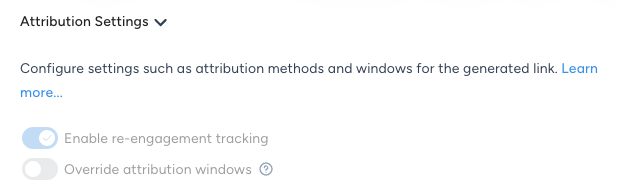
 7. Expand the **Attribution Settings** section
* Before generating the link, especially if you intend to run App Retargeting campaigns, make sure to turn **ON** the option **Enable re-engagement tracking**
* Keep the **Override attribution windows** toggle disabled - because we want to use the partner level configuration settings
7. Expand the **Attribution Settings** section
* Before generating the link, especially if you intend to run App Retargeting campaigns, make sure to turn **ON** the option **Enable re-engagement tracking**
* Keep the **Override attribution windows** toggle disabled - because we want to use the partner level configuration settings
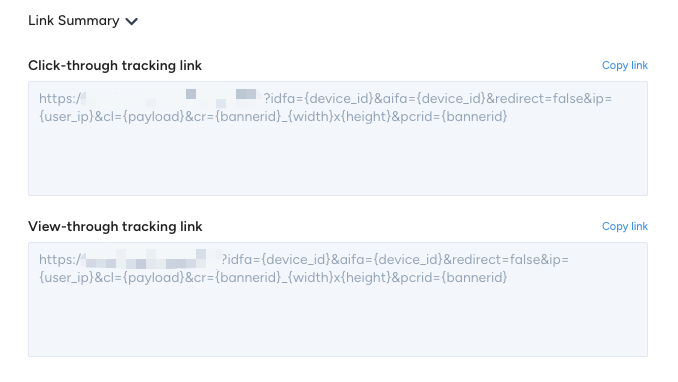
 8. Expand the **Link Summary** section
* Forward the links to your Criteo contact
8. Expand the **Link Summary** section
* Forward the links to your Criteo contact
 ## Singular Data Connector
Additional metrics can be provided to Singular through our Criteo API, like **Impressions** and **Cost data** (including subsequent metrics, like CTR, eCPC, eCPI, etc.)
In order to have those metrics available in our Singular dashboard reports, it is required to configure our respective Data Connector.
### Enabling the Data Connector
The next steps guide you in enabling our Data Connector:
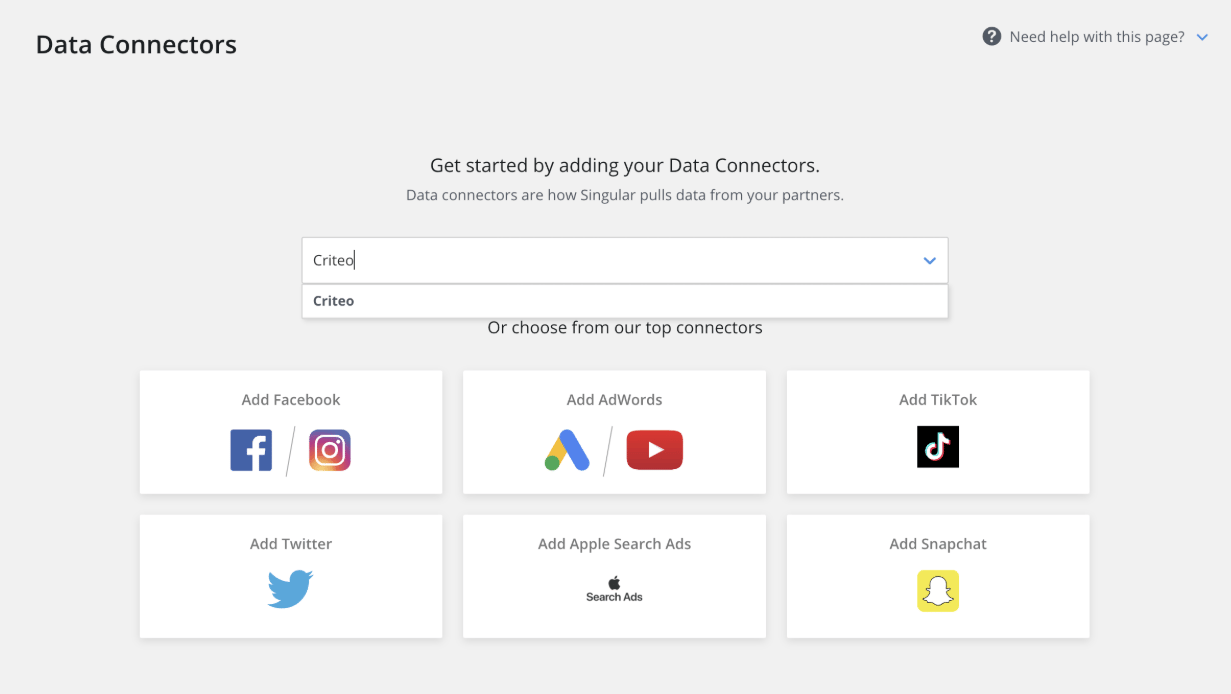
* On the Singular dashboard, go to **Settings** > **Data Connectors**
* Choose to **Add Data Connector** and search for Criteo in the search box
* Hit **Sign in with Criteo**
## Singular Data Connector
Additional metrics can be provided to Singular through our Criteo API, like **Impressions** and **Cost data** (including subsequent metrics, like CTR, eCPC, eCPI, etc.)
In order to have those metrics available in our Singular dashboard reports, it is required to configure our respective Data Connector.
### Enabling the Data Connector
The next steps guide you in enabling our Data Connector:
* On the Singular dashboard, go to **Settings** > **Data Connectors**
* Choose to **Add Data Connector** and search for Criteo in the search box
* Hit **Sign in with Criteo**
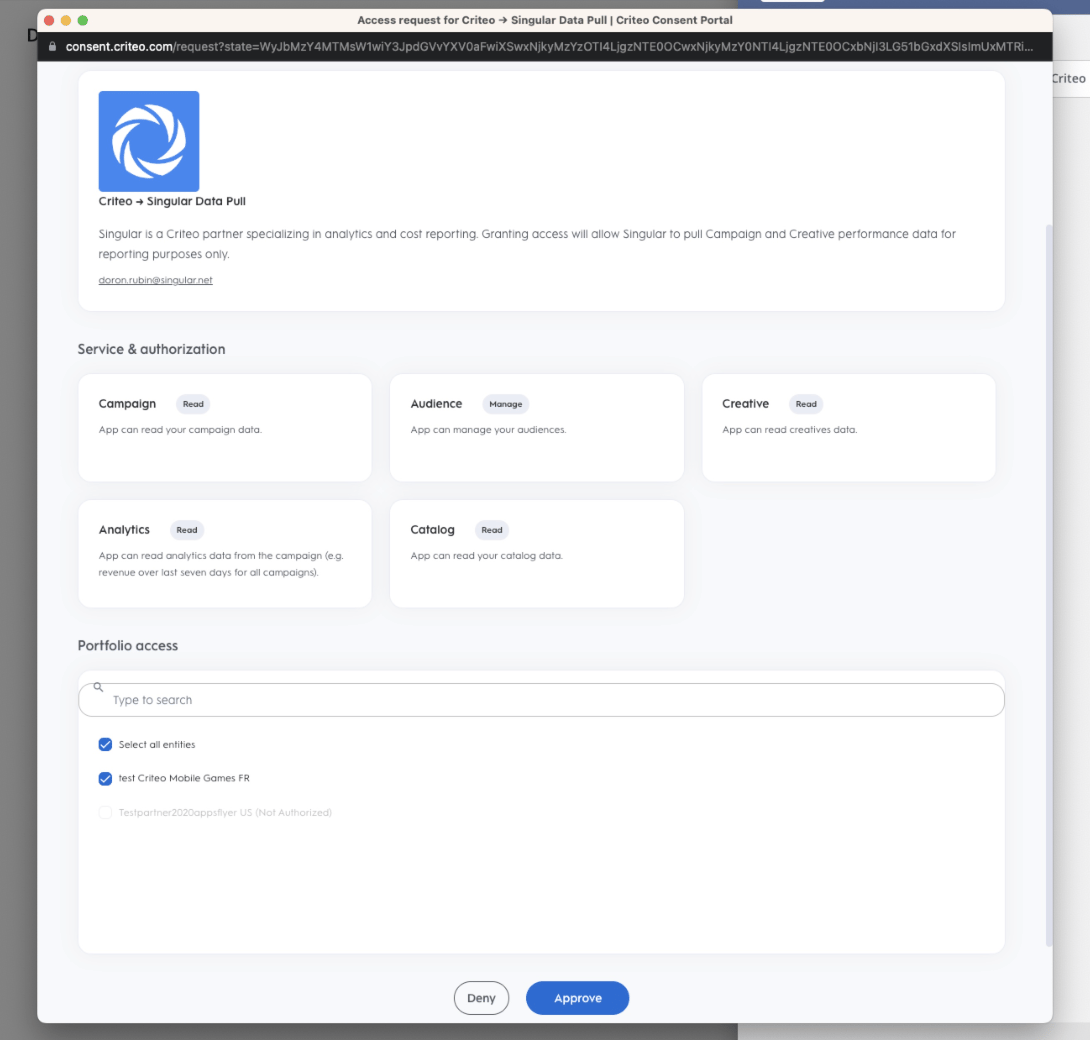
 * In the pop-up that appears, you'll be required to fill in your Criteo credentials and grant access to the Singular Data Pull app to allow it to read statistics data from your campaigns:
* In case of multiple advertiser accounts under **Portfolio access**, make sure to **Select all entities** to allow the app to access data from all your campaigns
* In the pop-up that appears, you'll be required to fill in your Criteo credentials and grant access to the Singular Data Pull app to allow it to read statistics data from your campaigns:
* In case of multiple advertiser accounts under **Portfolio access**, make sure to **Select all entities** to allow the app to access data from all your campaigns
 **Role:** your Criteo user must have Administrator access to be able to approve this access. If you have doubts, check our [Team section](https://marketing.criteo.com/core/team).
For more info, check Singular's Help Center article [Criteo Data Connector](https://support.singular.net/hc/en-us/articles/4410019435419-Criteo-Data-Connector).
## Products Catalog for Dynamic Campaigns
A catalog feed is an XML or a CSV file containing product information (name, price, deep link, image link…) that allows Criteo to dynamically generate the product-recommendation banners. Therefore, it is important to keep this file up to date for Criteo to show the right data in your banners.
Criteo may already have the products catalog in some cases (i.e. advertisers already live on web campaigns).
Criteo **recommends** having both Native Deeplinks (aka "*custom URI Scheme*" links) and Universal Links / Android App Links whenever possible.
For more information, please check [Deep Linking Configuration and Requirements](/mobile-integrations/docs/deeplinks).
**Role:** your Criteo user must have Administrator access to be able to approve this access. If you have doubts, check our [Team section](https://marketing.criteo.com/core/team).
For more info, check Singular's Help Center article [Criteo Data Connector](https://support.singular.net/hc/en-us/articles/4410019435419-Criteo-Data-Connector).
## Products Catalog for Dynamic Campaigns
A catalog feed is an XML or a CSV file containing product information (name, price, deep link, image link…) that allows Criteo to dynamically generate the product-recommendation banners. Therefore, it is important to keep this file up to date for Criteo to show the right data in your banners.
Criteo may already have the products catalog in some cases (i.e. advertisers already live on web campaigns).
Criteo **recommends** having both Native Deeplinks (aka "*custom URI Scheme*" links) and Universal Links / Android App Links whenever possible.
For more information, please check [Deep Linking Configuration and Requirements](/mobile-integrations/docs/deeplinks).