> ## Documentation Index
> Fetch the complete documentation index at: https://developers.criteo.com/llms.txt
> Use this file to discover all available pages before exploring further.
# OAuth App - Client Credentials Setup
This guide provides step-by-step instructions on setting up an API application using the client credentials workflow
# Setting up an client credentials application
## Client Credential
Log in to the Criteo Partners Portal and create a new app by clicking the ➕ button in the `My apps` section.
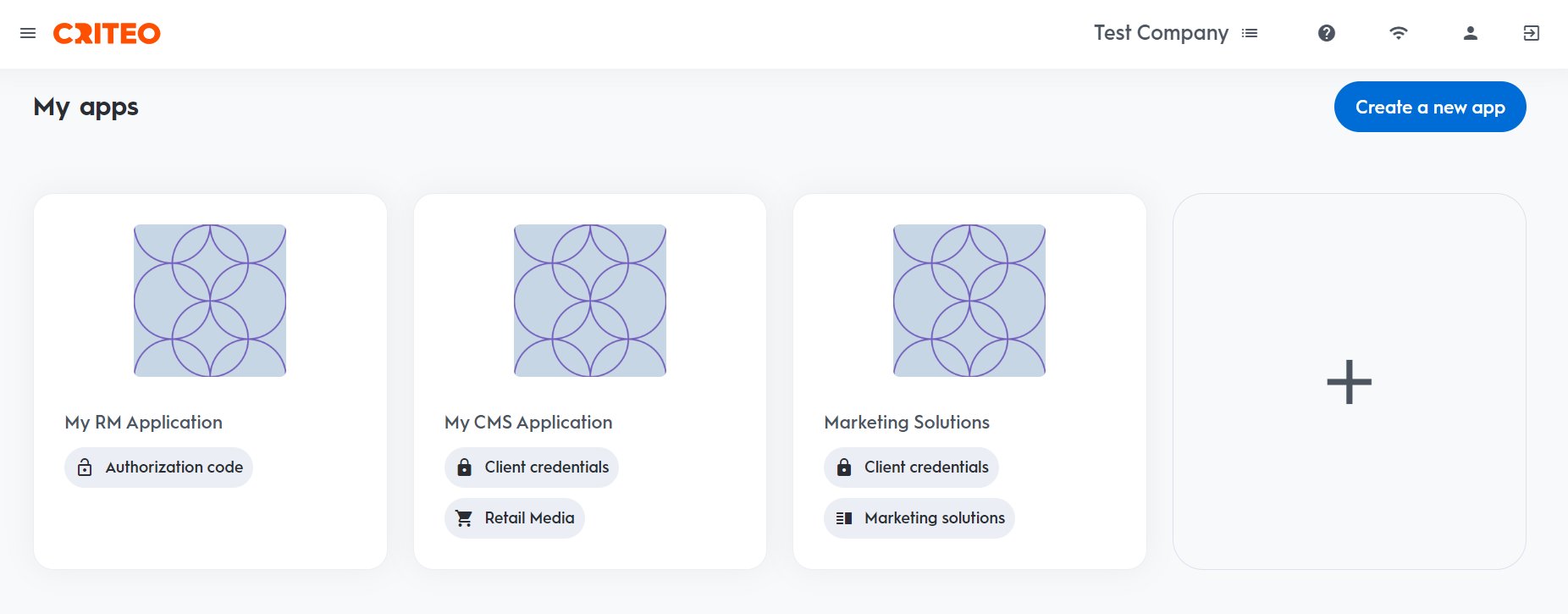 This opens a modal where you can choose the type of application.
***
### Step 1. Create app
#### App details
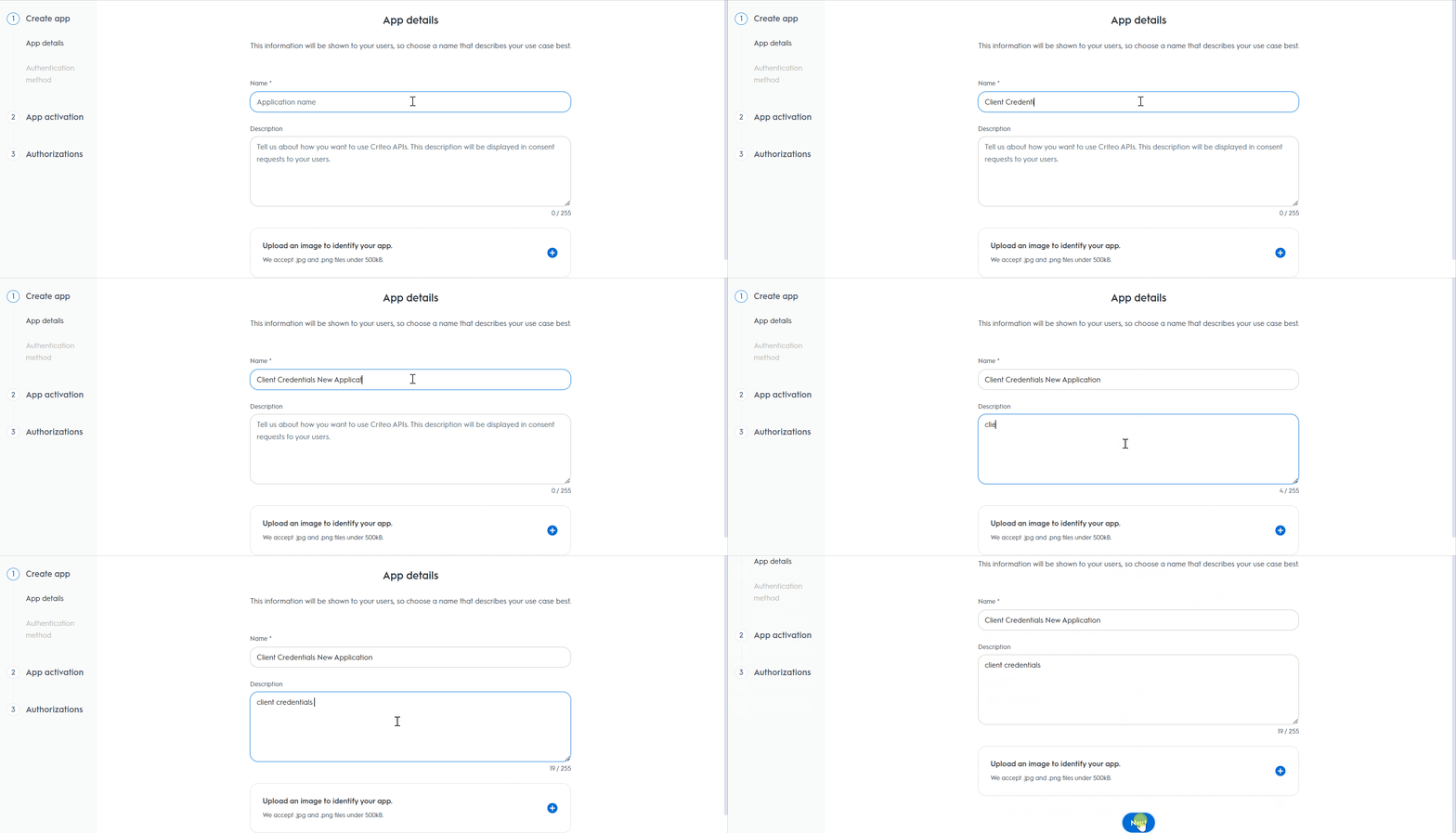
1. Provide your app name and description. Please make sure to use a clearly identifiable name for your app, as it can be of great help with troubleshooting later on. Optionally, add an image to identify your application. On your app page, you can define the scope of your application and the OAuth parameters. For more details on defining your app scope, visit this [page](/retail-media/v2026-preview/docs/onboarding-checklist#3-define-your-app-scope). Upon clicking `Create new key`, the `client ID` and `client secret` will be generated and made available as a downloadable .txt file.
This opens a modal where you can choose the type of application.
***
### Step 1. Create app
#### App details
1. Provide your app name and description. Please make sure to use a clearly identifiable name for your app, as it can be of great help with troubleshooting later on. Optionally, add an image to identify your application. On your app page, you can define the scope of your application and the OAuth parameters. For more details on defining your app scope, visit this [page](/retail-media/v2026-preview/docs/onboarding-checklist#3-define-your-app-scope). Upon clicking `Create new key`, the `client ID` and `client secret` will be generated and made available as a downloadable .txt file.
 ***
#### Authentication method
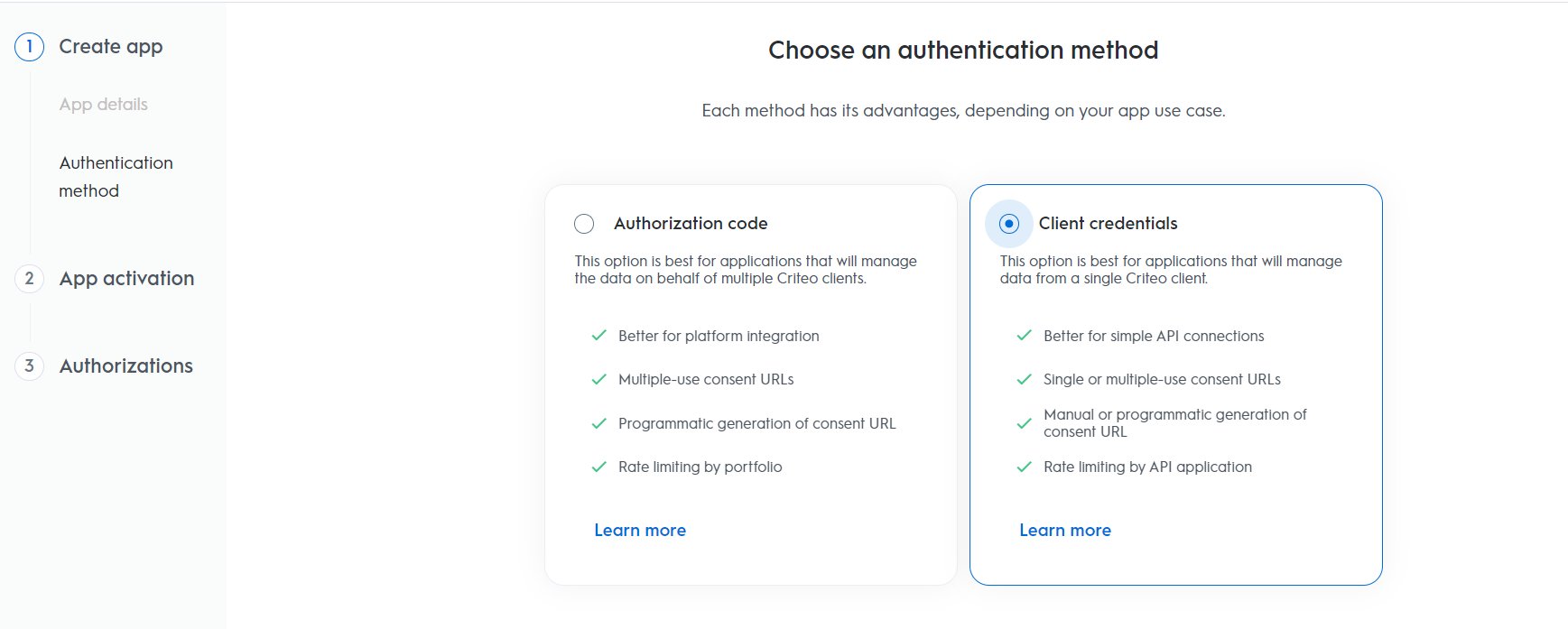
1. Select your app's authentication method. Choose between Client Credentials or Authorization Code. For this setup, we are selecting client credentials, but you can review our [OAuth App implementation](/retail-media/v2025.01/docs/oauth-app-implementation) guide to determine the best option for your organization.
***
#### Authentication method
1. Select your app's authentication method. Choose between Client Credentials or Authorization Code. For this setup, we are selecting client credentials, but you can review our [OAuth App implementation](/retail-media/v2025.01/docs/oauth-app-implementation) guide to determine the best option for your organization.
 ***
### Step 2. App activation
#### Service
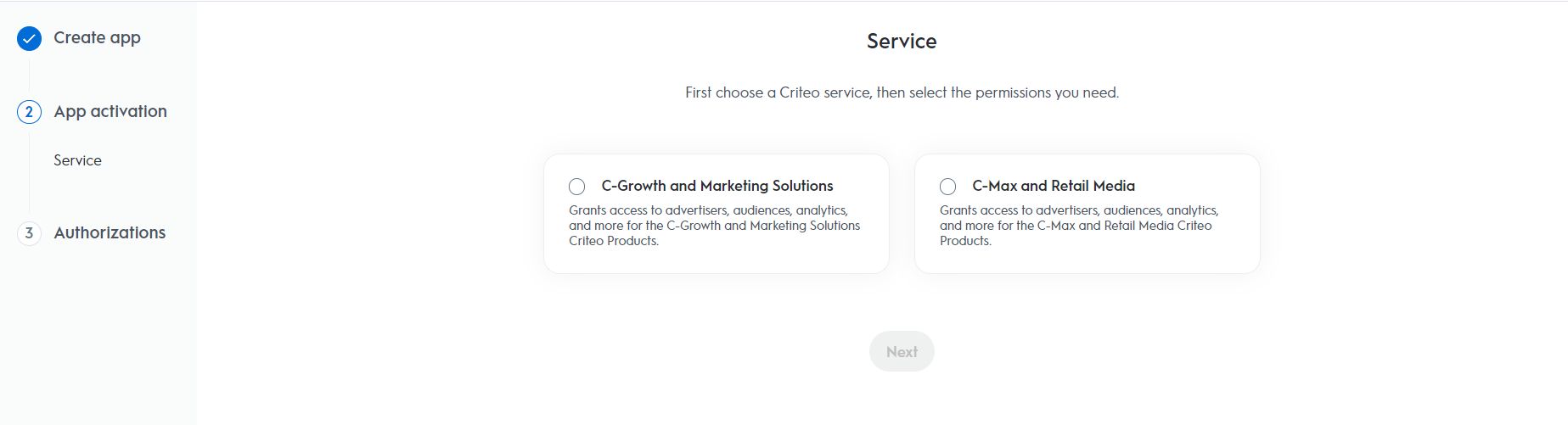
Choose the Criteo service your API application will use. Select C-Growth for marketing solutions or C-Max for retail media.
***
### Step 2. App activation
#### Service
Choose the Criteo service your API application will use. Select C-Growth for marketing solutions or C-Max for retail media.
 ***
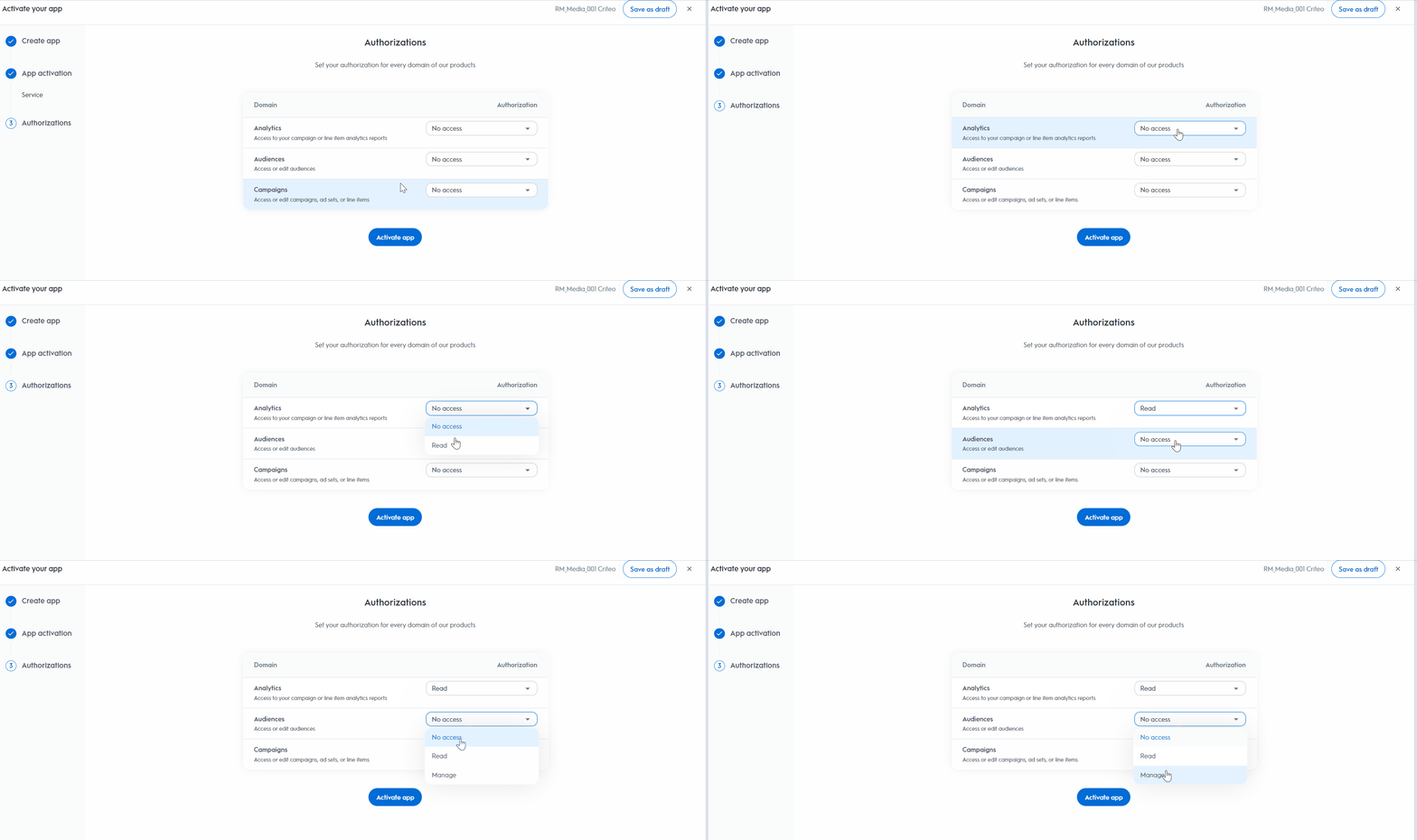
### Step 3. Authorizations
#### Domains
Choose the domains to specify which permissions your application requires.
***
### Step 3. Authorizations
#### Domains
Choose the domains to specify which permissions your application requires.
 After this step, you can no longer change the name, description, image, or app scope.
***
## App Credentials
### Create new key
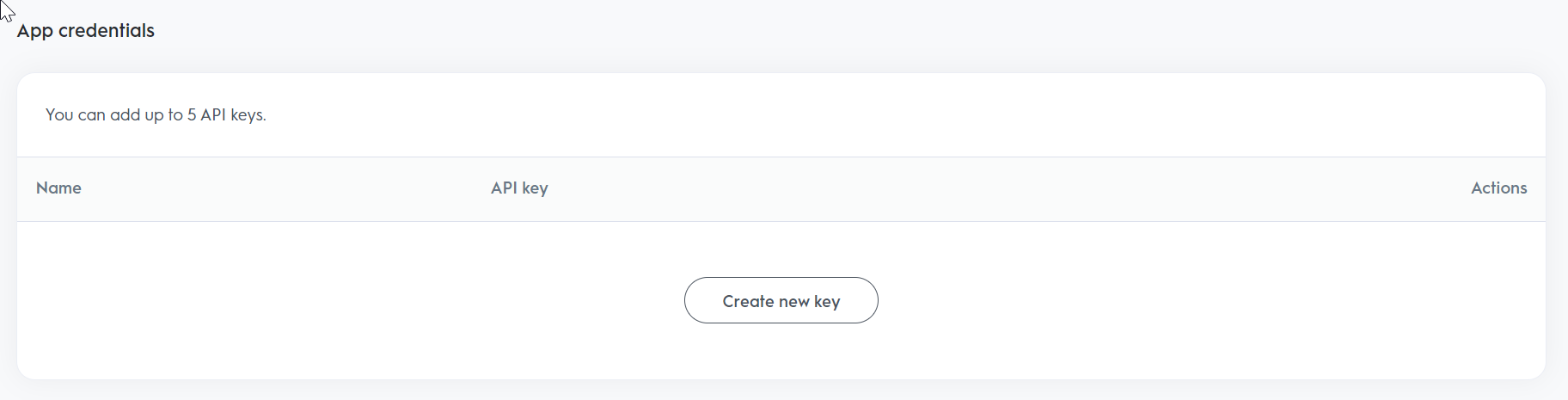
To generate your `client_id` and `client_secret`, click the `Create new key` button. This will trigger a download of a text file containing your API keys. Make sure to store the keys securely for future access.
After this step, you can no longer change the name, description, image, or app scope.
***
## App Credentials
### Create new key
To generate your `client_id` and `client_secret`, click the `Create new key` button. This will trigger a download of a text file containing your API keys. Make sure to store the keys securely for future access.
 ***
## Consent URL
### Generate new URL
Once your API application is set up, you must request consent from the advertiser or publisher to access their assets. You can generate multiple URLs, but **each URL can only be used once**.
***
## Consent URL
### Generate new URL
Once your API application is set up, you must request consent from the advertiser or publisher to access their assets. You can generate multiple URLs, but **each URL can only be used once**.
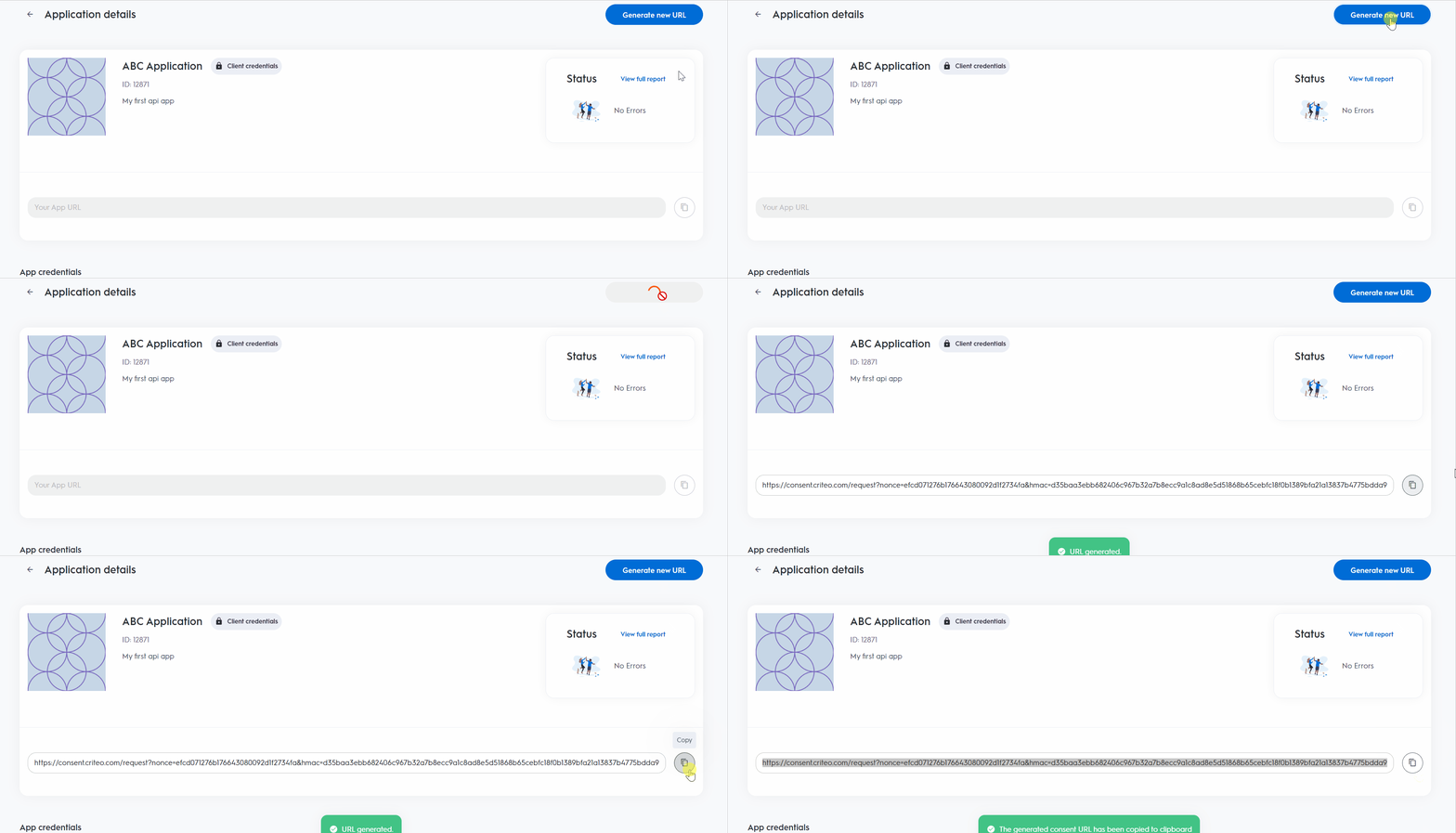 * Click on `Generate new URL`. This will generate a fresh new consent URL every time this step is done.
* Click the `Copy` icon to the right of the consent URL field.
* Share this URL with a user who has access to the advertiser or publisher account. Users with **admin, business manager, or technical manager** roles can grant consent to API applications in retail media.
***
**What’s Next**
* [OAuth App - Authorization Code Setup](/retail-media/v2025.01/docs/oauth-app-authorization-code)
* [Developer Accounts](/retail-media/v2025.01/docs/developer-accounts-organizations-apps)
* Click on `Generate new URL`. This will generate a fresh new consent URL every time this step is done.
* Click the `Copy` icon to the right of the consent URL field.
* Share this URL with a user who has access to the advertiser or publisher account. Users with **admin, business manager, or technical manager** roles can grant consent to API applications in retail media.
***
**What’s Next**
* [OAuth App - Authorization Code Setup](/retail-media/v2025.01/docs/oauth-app-authorization-code)
* [Developer Accounts](/retail-media/v2025.01/docs/developer-accounts-organizations-apps)