> ## Documentation Index
> Fetch the complete documentation index at: https://developers.criteo.com/llms.txt
> Use this file to discover all available pages before exploring further.
# Manage Your Account, Organization and Apps
> This section provides guidance on managing your Developer Account, Organization, and Apps once created.
## Manage your Developer Account
### Update account information
If you need to update your account information, you can do so by logging into the Criteo Partner Portal.
This guide will walk you through the steps to edit your account details.
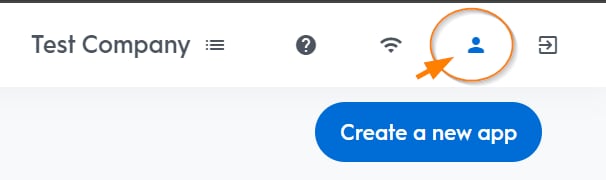
1. Click the user icon in the top right corner of the page to access your account information.
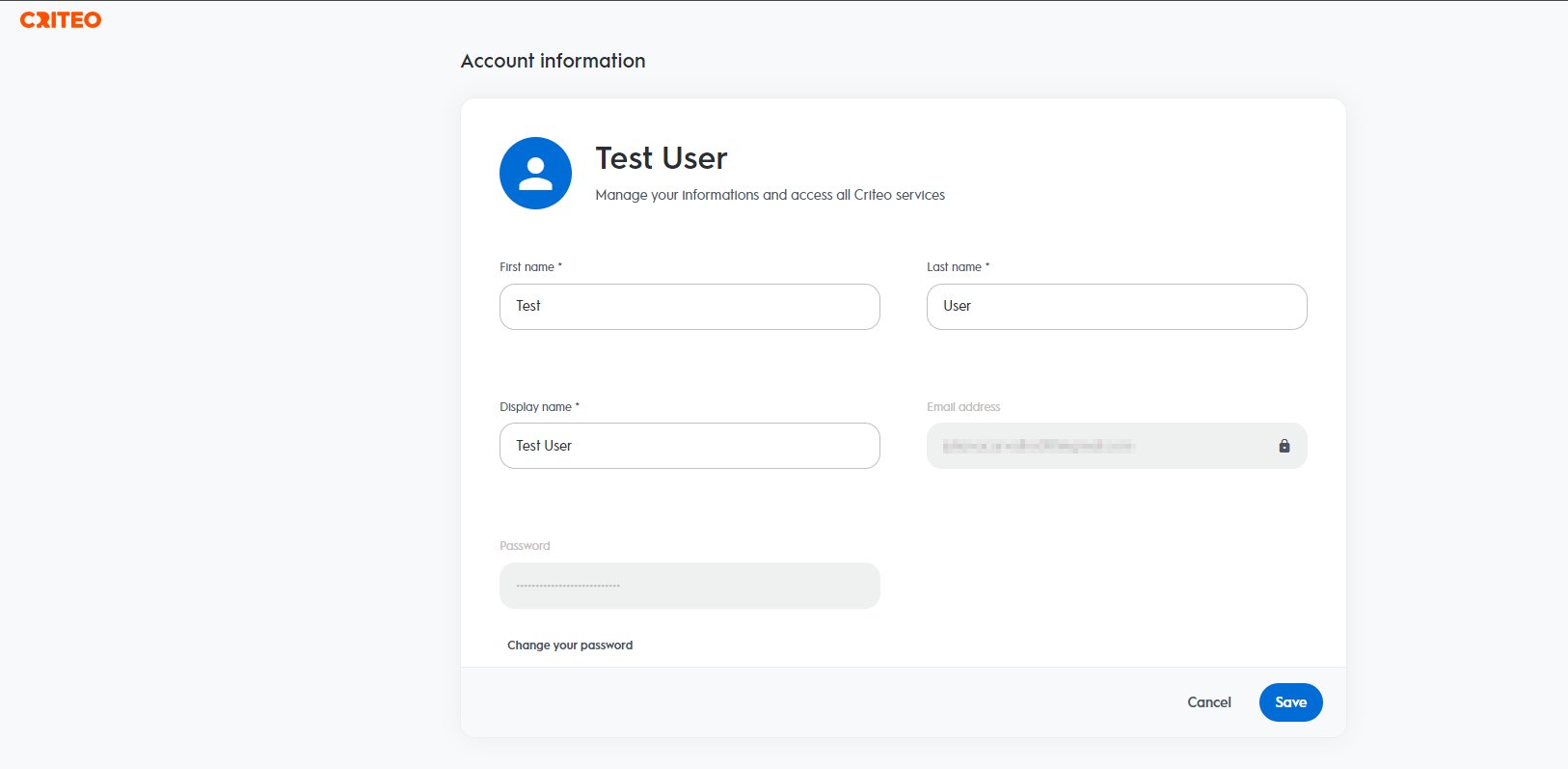
 2. You can edit your first name, last name, and display name on this page. If needed, you can also change your password.
To change your password, you will be required to provide your current password for verification.
2. You can edit your first name, last name, and display name on this page. If needed, you can also change your password.
To change your password, you will be required to provide your current password for verification.
 ### Request to delete an account
If you wish to delete your Criteo account because you no longer work with Criteo, please contact your Criteo representative.
***
## Manage your Organization
### Overview
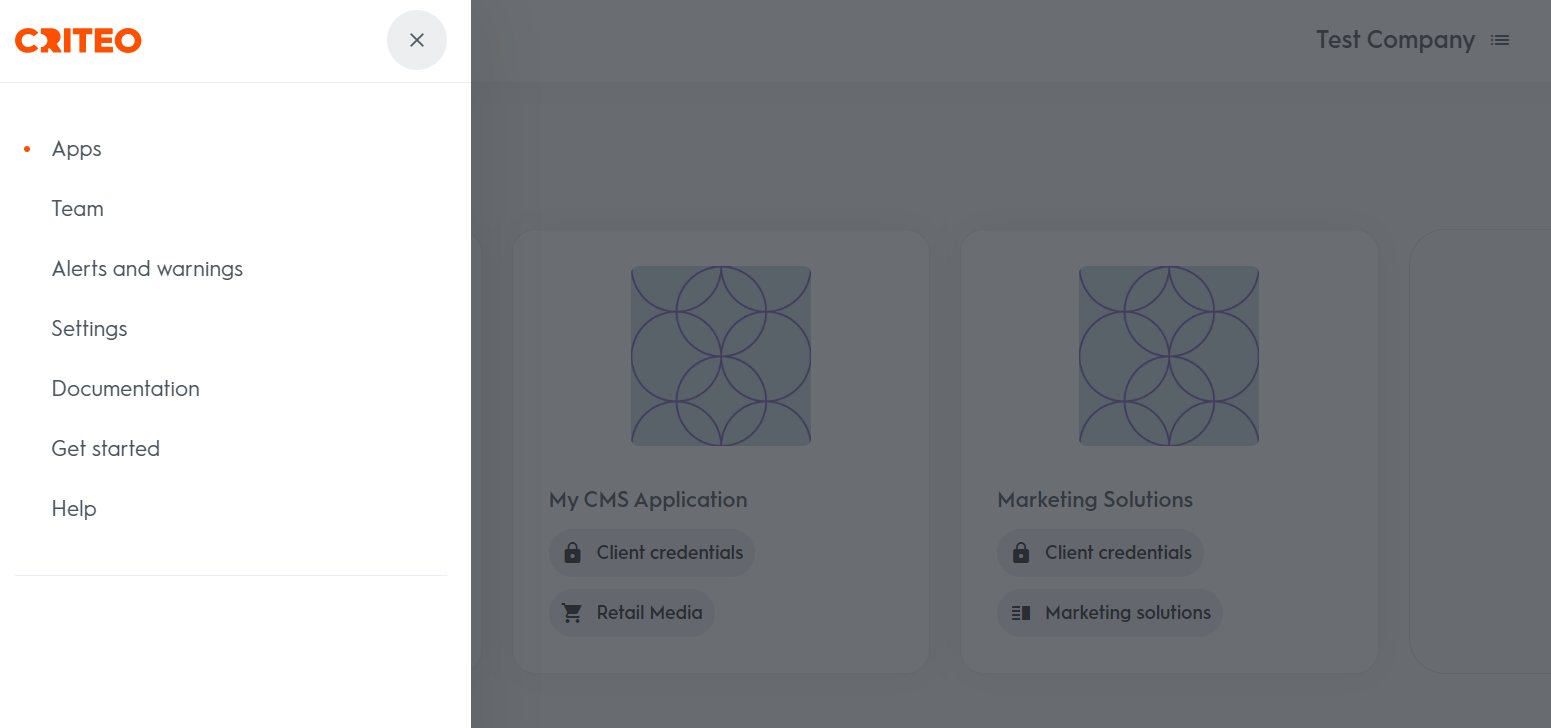
From the main menu, you can manage your apps, teams and settings. We detail each of those in the sections below.
### Request to delete an account
If you wish to delete your Criteo account because you no longer work with Criteo, please contact your Criteo representative.
***
## Manage your Organization
### Overview
From the main menu, you can manage your apps, teams and settings. We detail each of those in the sections below.
 ### Managing team members
You can invite multiple users to access your API application, allowing your development team members to collaborate.
1. Navigate to `Teams` to view all users with login access to the application.
### Managing team members
You can invite multiple users to access your API application, allowing your development team members to collaborate.
1. Navigate to `Teams` to view all users with login access to the application.
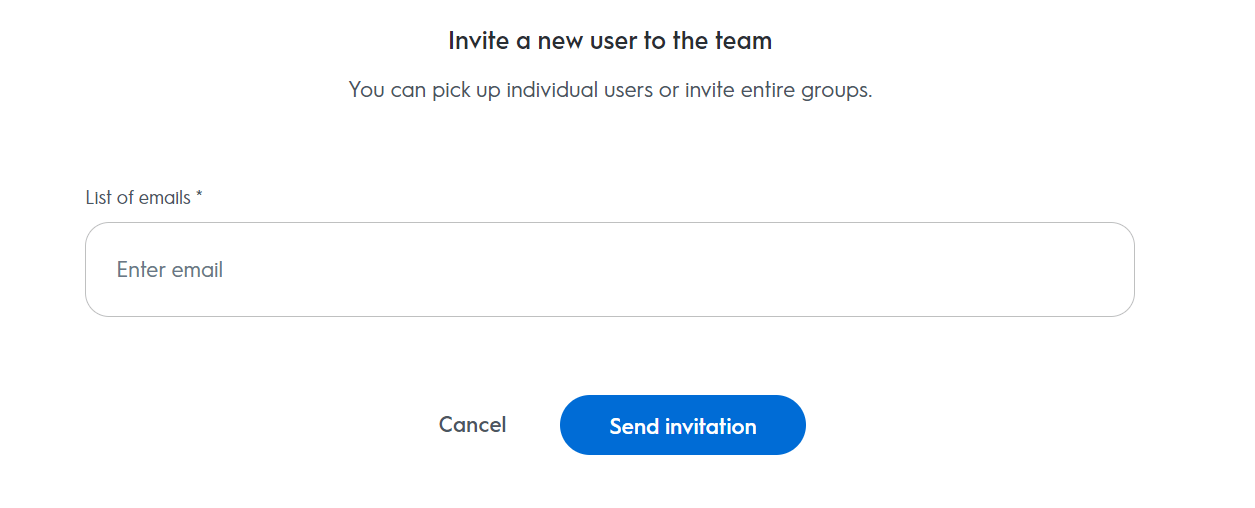
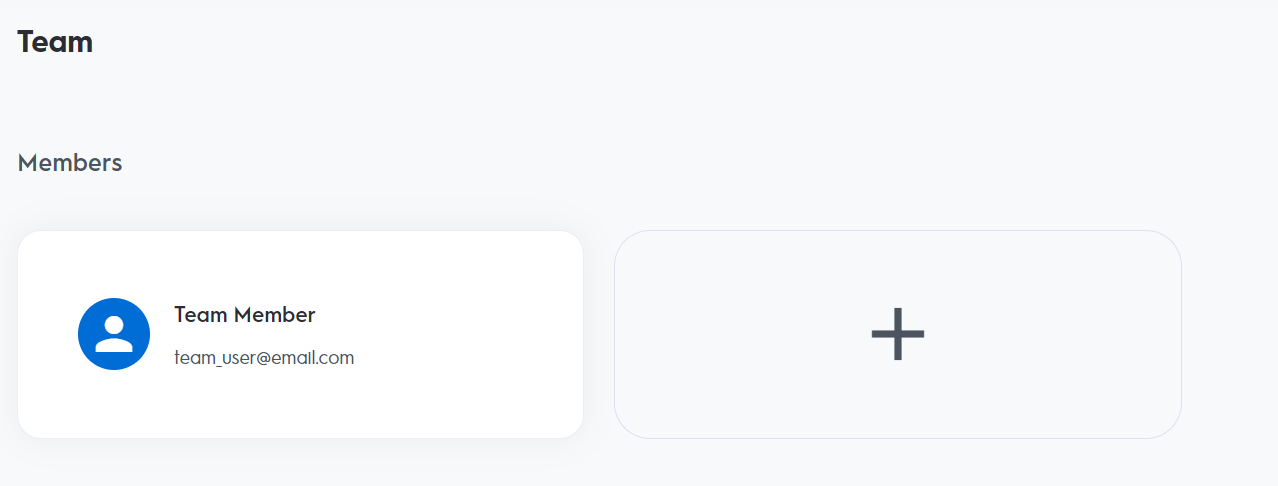 2. Under `Members`, click the plus (**+**) icon to open the form and invite new members. Enter the email addresses of the users you want to invite.
 Ensure you don't lose access to your API application. If a team member leaves your organization, ensure that at least one other member of your team has access to the Criteo API application.
***
### Settings
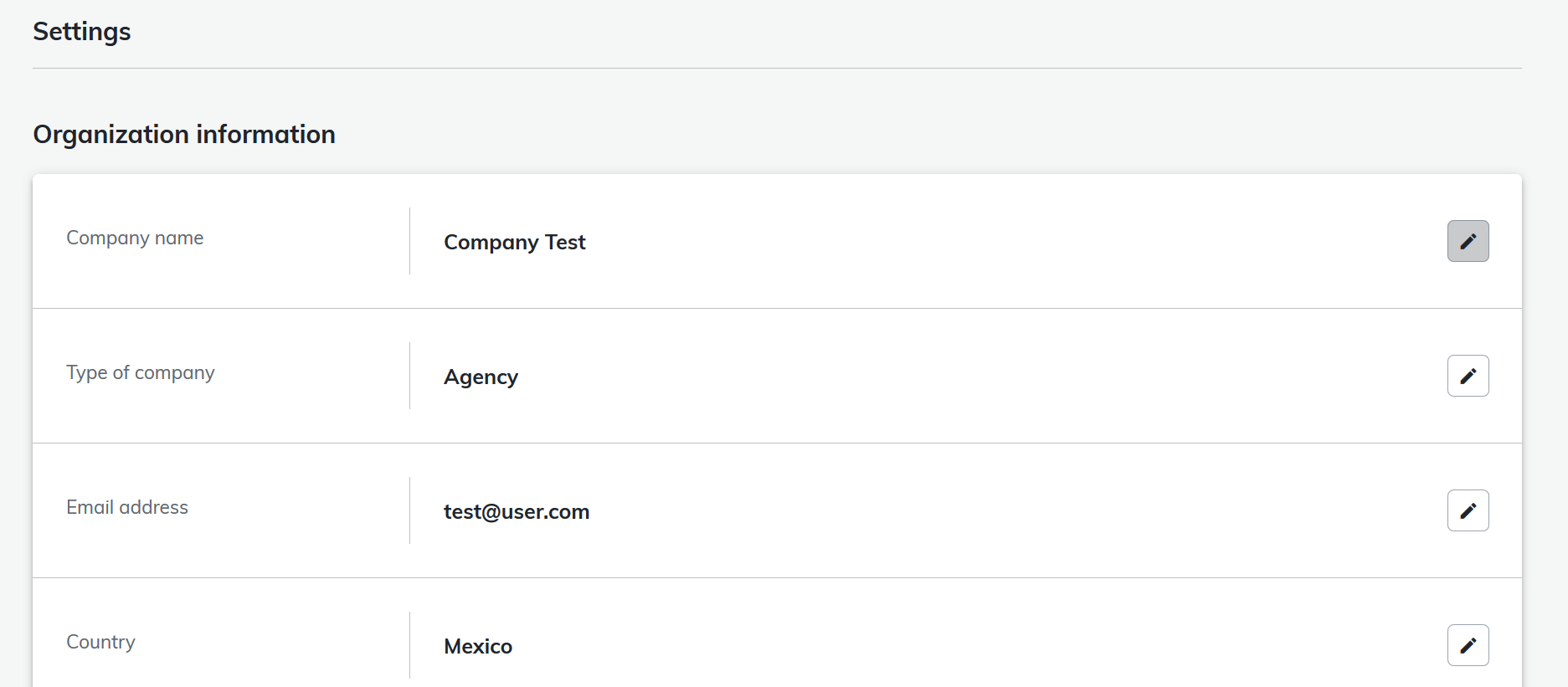
1. To update your organization's settings, click the top left corner of the page menu and select `Settings`.
2. Click the pencil icon to edit your current organization information, then save your changes.
Ensure you don't lose access to your API application. If a team member leaves your organization, ensure that at least one other member of your team has access to the Criteo API application.
***
### Settings
1. To update your organization's settings, click the top left corner of the page menu and select `Settings`.
2. Click the pencil icon to edit your current organization information, then save your changes.
 3. To update information for another organization:
1. Return to the My Apps screen,
2. Select the organization from the organization menu in the top right corner,
3. Change the Organization,
4. Follow steps 1 and 2.
***
## Manage your App
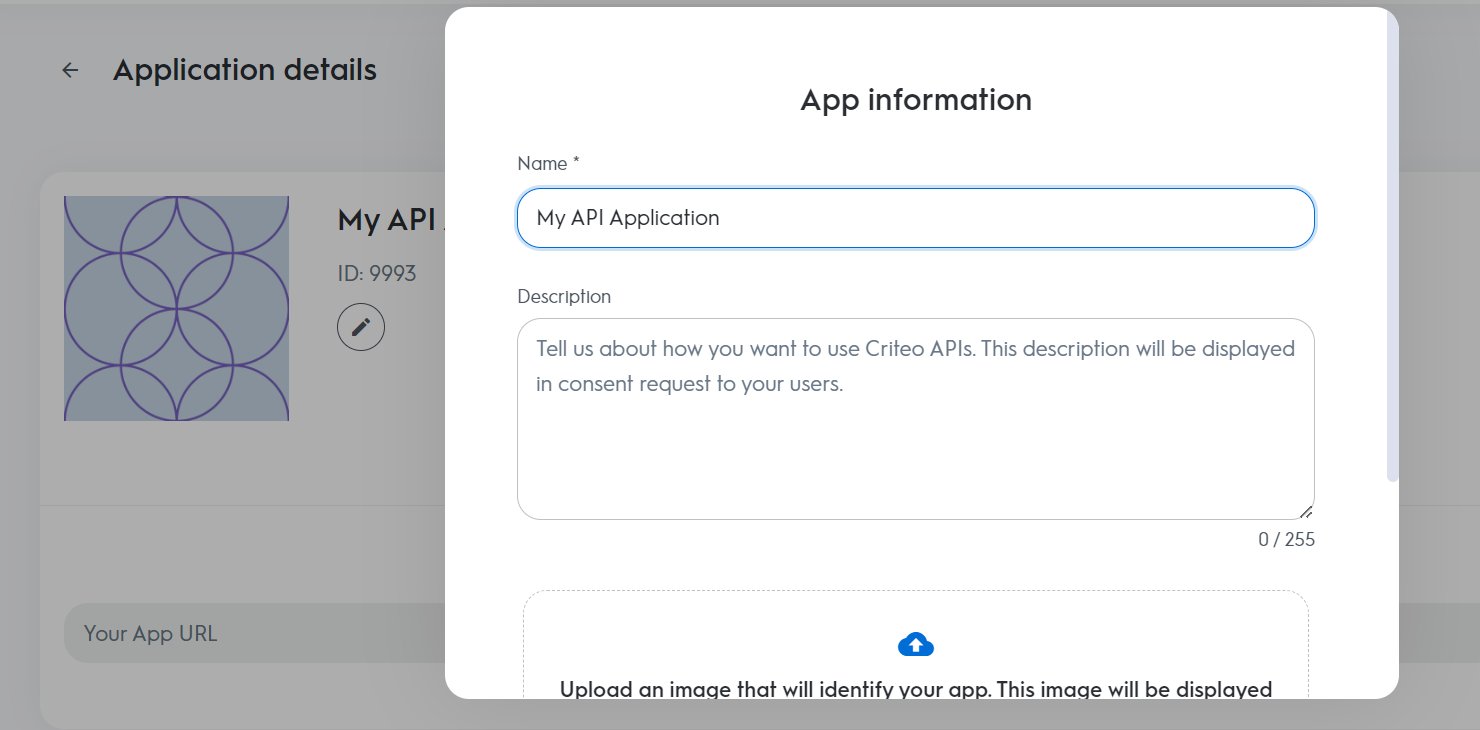
This section explains how to edit your app information **before publication**.
1. Select an application you have previously created from your `My Apps` space.
3. To update information for another organization:
1. Return to the My Apps screen,
2. Select the organization from the organization menu in the top right corner,
3. Change the Organization,
4. Follow steps 1 and 2.
***
## Manage your App
This section explains how to edit your app information **before publication**.
1. Select an application you have previously created from your `My Apps` space.
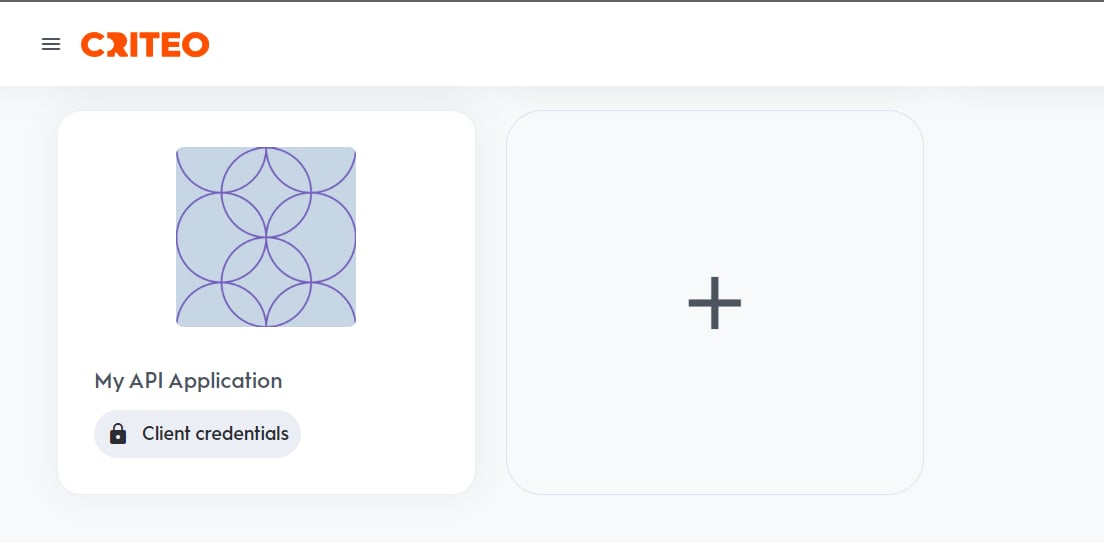 2. Click "Edit" on the right side of the app name.
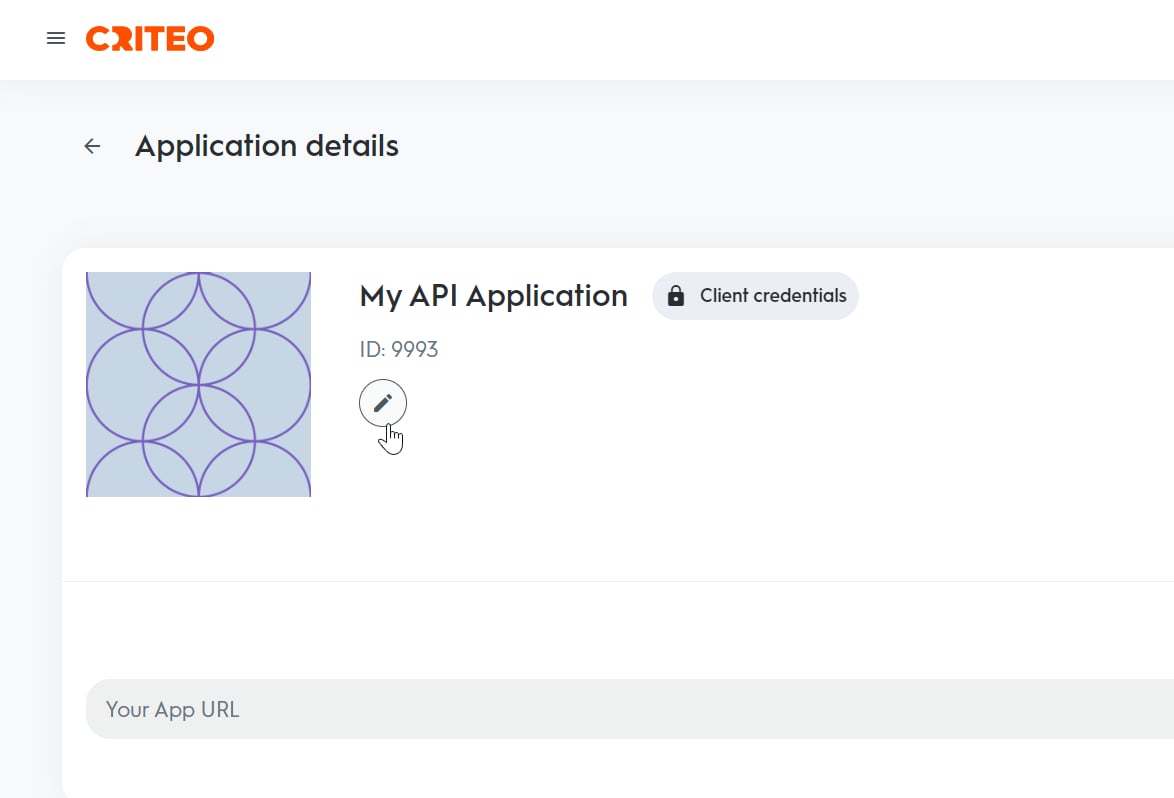 3. You can update the app name, description, or image. Note that these changes are only possible before the app is published.