> ## Documentation Index
> Fetch the complete documentation index at: https://developers.criteo.com/llms.txt
> Use this file to discover all available pages before exploring further.

# Create Your API Application

# Create your API application

Once you have [created your organization](/retail-media/docs/create-your-organization), you can access the `My Apps` page to begin creating your application. This page is also where you will manage your Criteo API applications.

To start creating your API application, click the `Create a New App` button in the top right corner of the page. This will initiate the application creation process.

***

## Step 1 - Create application

### App details

* Provide a name for your application, along with an optional description and app image. Please ensure that **your application has a clear and identifiable name**, as this greatly assists our teams in providing faster and more effective support during troubleshooting.

<Danger>
  API applications cannot be deleted. Once this step is completed, your application will appear in the "My Apps" dashboard.
</Danger>

### Authentication method

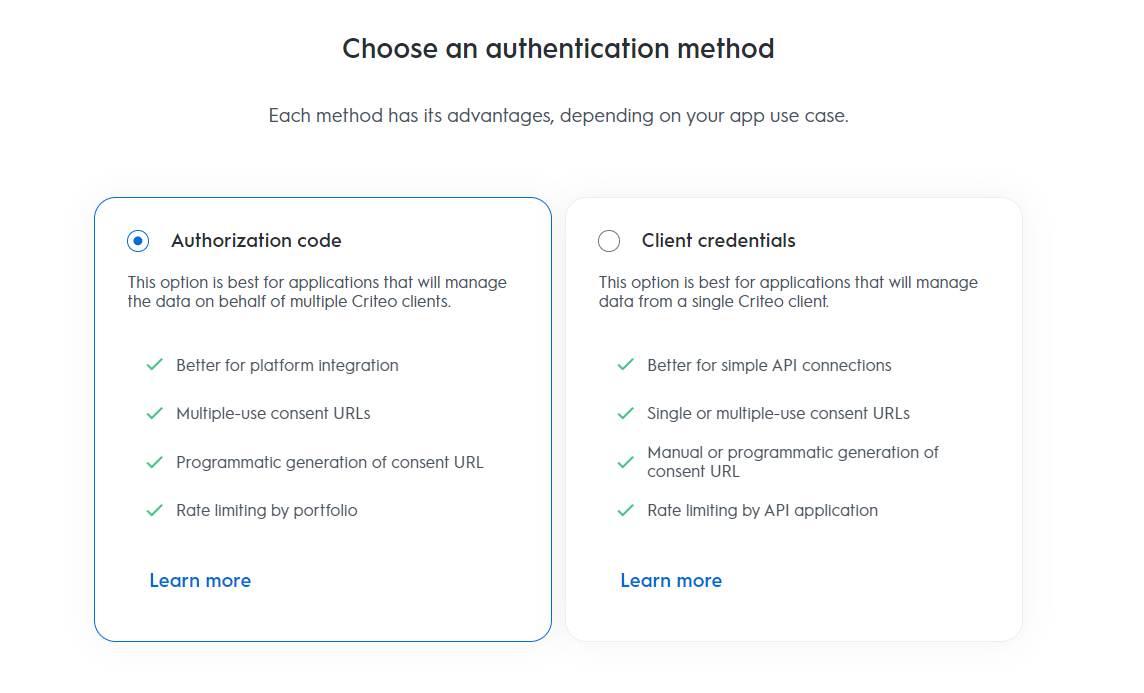
* Criteo’s API supports two OAuth authentication methods: [Client Credentials](/retail-media/docs/oauth-app-client-credentials) and [Authorization Code](/retail-media/docs/oauth-app-authorization-code). Each method has its own advantages, so before proceeding, we strongly recommend reviewing which authentication method is best suited to your application’s needs.

<Frame>
  <img src="https://mintcdn.com/criteo-e1682996/xLJjp01XGpYNB6pV/images/retail-media/v2025.10/docs/2ce3350-auth_methods2.png?fit=max&auto=format&n=xLJjp01XGpYNB6pV&q=85&s=9d502043a93fdb423cbc9809ada14c25" alt="2ce3350 auth_methods2" width="1144" height="693" data-path="images/retail-media/v2025.10/docs/2ce3350-auth_methods2.png" />
</Frame>

<Info>
  **Trying to decide which OAuth method is right for you?**

  If you're unsure which authentication method to use, take a look at our [OAuth App Implementation](/retail-media/docs/oauth-app-implementation) guide for an overview of each authentication method.
</Info>

***

## Step 2 - App activation

Once you've selected the appropriate authentication method, proceed to choose the service you’ll be using.

### Services

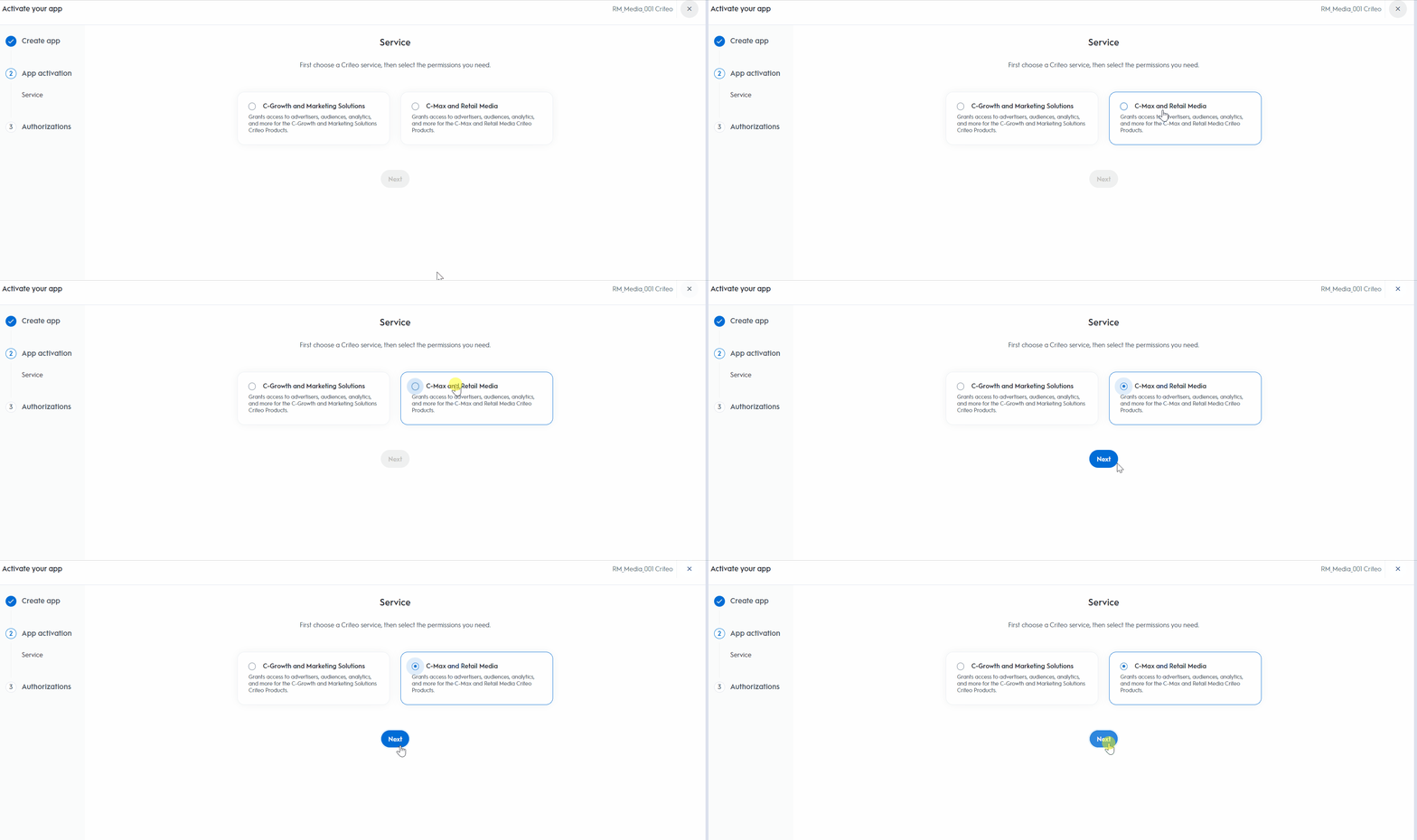
* Choose the Criteo service your API application will interact with:
  * **C-Growth and Marketing Solutions**
  * **C-Max and Retail Media**

<Frame>
  <img src="https://mintcdn.com/criteo-e1682996/xLJjp01XGpYNB6pV/images/retail-media/v2025.10/docs/6c1fa6d-portal-_step3_1.gif?s=d2c0c1cf28a475ce74073b52ca66c76d" alt="6c1fa6d portal _step3_1" width="1896" height="750" data-path="images/retail-media/v2025.10/docs/6c1fa6d-portal-_step3_1.gif" />
</Frame>

***

## Step 3 - Authorizations

### Domains

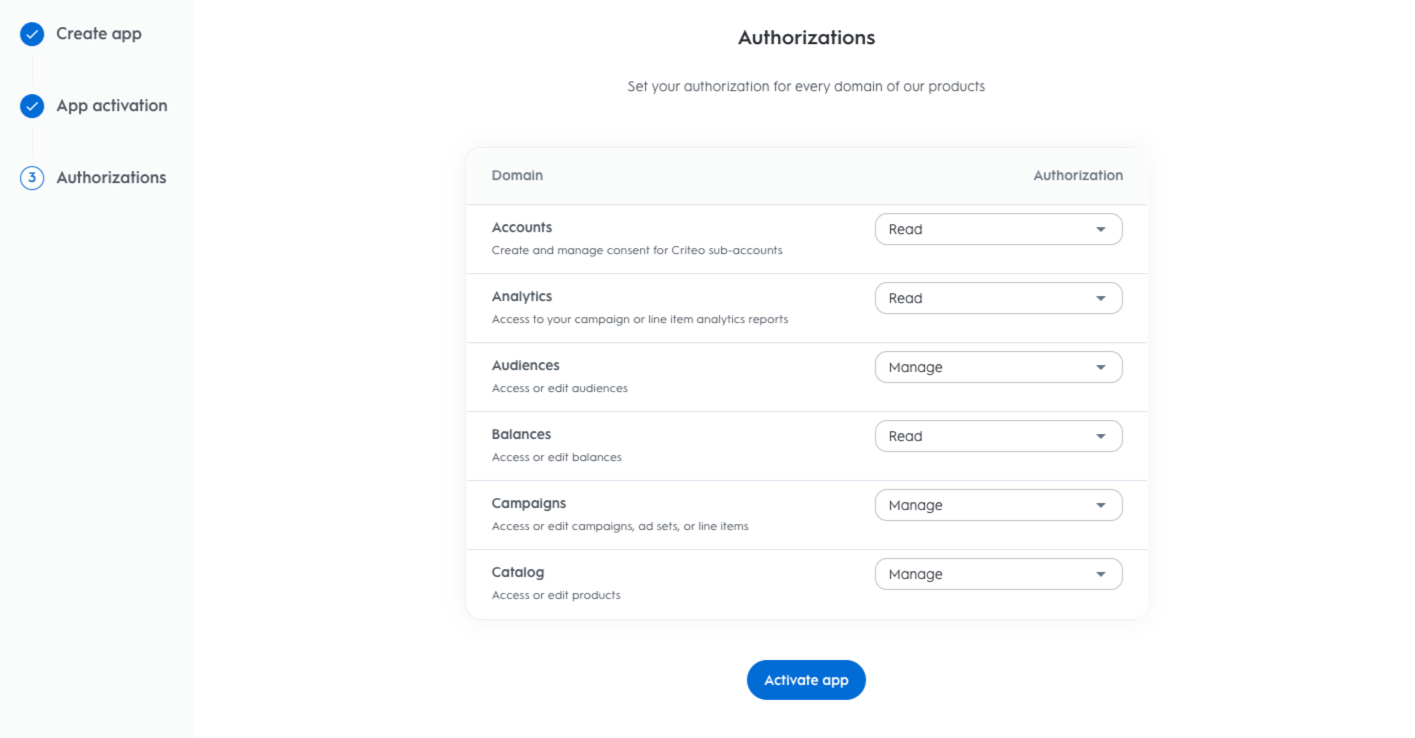
1. Choose the domains that define the permission levels your application will need. These domains determine which endpoints your application can access.

2. After selecting the appropriate domains, click `Activate App`.

<Warning>
  Once activated, you won’t be able to change the name, description, image, or app scope.  It should also be noted that your Domain Scopes operate under a different permission model than the UI.  This is by design, so the API won’t mirror the UI’s User Profile permissions. If you’re working with both, it’s important to account for that distinction.
</Warning>

***

### Retail Media Domains

<table>
  <thead>
    <tr>
      <th>
        <p>
          Domain
        </p>
      </th>

      <th>
        <p>
          Description
        </p>
      </th>

      <th>
        <p>
          Authorization Types
        </p>
      </th>
    </tr>
  </thead>

  <tbody>
    <tr>
      <td>
        <p>
          <b>
            Accounts
          </b>
        </p>
      </td>

      <td>
        <p>
          Manages permissions to endpoints responsible for describing accounts' entities, with their properties and relationships, like parent/child accounts
        </p>
      </td>

      <td>
        <p>
          No access / Read / Manage
        </p>
      </td>
    </tr>

    <tr>
      <td>
        <p>
          <b>
            Analytics
          </b>
        </p>
      </td>

      <td>
        <p>
          Manages permissions to generate reporting data for campaigns & line-items, considering desired list of dimensions & metrics
        </p>
      </td>

      <td>
        <p>
          No access / Read
        </p>
      </td>
    </tr>

    <tr>
      <td>
        <p>
          <b>
            Audiences
          </b>
        </p>
      </td>

      <td>
        <p>
          Manages permissions to check/manage audiences available to campaigns
        </p>
      </td>

      <td>
        <p>
          No access / Read / Manage
        </p>
      </td>
    </tr>

    <tr>
      <td>
        <p>
          <b>
            Balances
          </b>
        </p>
      </td>

      <td>
        <p>
          Manages permissions to endpoints responsible for configuring and retrieving balance entities, which define spending limits applied across campaigns linked to an account.
        </p>
      </td>

      <td>
        <p>
          No access / Read / Manage
        </p>
      </td>
    </tr>

    <tr>
      <td>
        <p>
          <b>
            Billing
          </b>
        </p>
      </td>

      <td>
        <p>
          Manages permissions to generate billing data for campaigns & line items for a retailer partner
        </p>
      </td>

      <td>
        <p>
          No access / Read
        </p>
      </td>
    </tr>

    <tr>
      <td>
        <p>
          <b>
            Campaigns
          </b>
        </p>
      </td>

      <td>
        <p>
          Manages permissions to endpoints responsible for campaigns management, including line-items, balances and creatives
        </p>
      </td>

      <td>
        <p>
          No access / Read / Manage
        </p>
      </td>
    </tr>

    <tr>
      <td>
        <p>
          <b>
            Catalog
          </b>
        </p>
      </td>

      <td>
        <p>
          Manages permissions to check/manage products catalogs
        </p>
      </td>

      <td>
        <p>
          No access / Read / Manage
        </p>
      </td>
    </tr>
  </tbody>
</table>

<Info>
  `Account Manage`, `Balance Manage` and `Billing Read`  permissions must be first requested to be activated by your Criteo contact to appear as options when creating your apps.  Note that they cannot be added to existing applications.
</Info>

<Frame>
  <img src="https://mintcdn.com/criteo-e1682996/cmPz0RjwwK8-Y1zy/images/retail-media/v2025.10/docs/e78d65c9adb193a529a09e1b7fae330694c8941d1cd8a4d3d0af11fde3d33824-Google_Chrome_2025-01-28_11.46.31.png?fit=max&auto=format&n=cmPz0RjwwK8-Y1zy&q=85&s=30d1ddfbcdbe2af1d74ca6e2d587add6" alt="e78d65c9adb193a529a09e1b7fae330694c8941d1cd8a4d3d0af11fde3d33824 Google_Chrome_2025 01 28_11.46.31" width="1415" height="738" data-path="images/retail-media/v2025.10/docs/e78d65c9adb193a529a09e1b7fae330694c8941d1cd8a4d3d0af11fde3d33824-Google_Chrome_2025-01-28_11.46.31.png" />
</Frame>

Once you activate your application, you will be redirected to your application details page to complete the final steps of your application configuration.

## What's next

* [Get Your Credentials](/retail-media/v2025.10/docs/get-credentials)
* [Manage Your Account, Organization and Apps](/retail-media/v2025.10/docs/developer-accounts-organizations-apps)