

My Apps page to begin creating your application. This page is also where you will manage your Criteo API applications.
To start creating your API application, click the Create a New App button in the top right corner of the page. This will initiate the application creation process.
Step 1 - Create application
App details
- Provide a name for your application, along with an optional description and app image. Please ensure that your application has a clear and identifiable name, as this greatly assists our teams in providing faster and more effective support during troubleshooting.
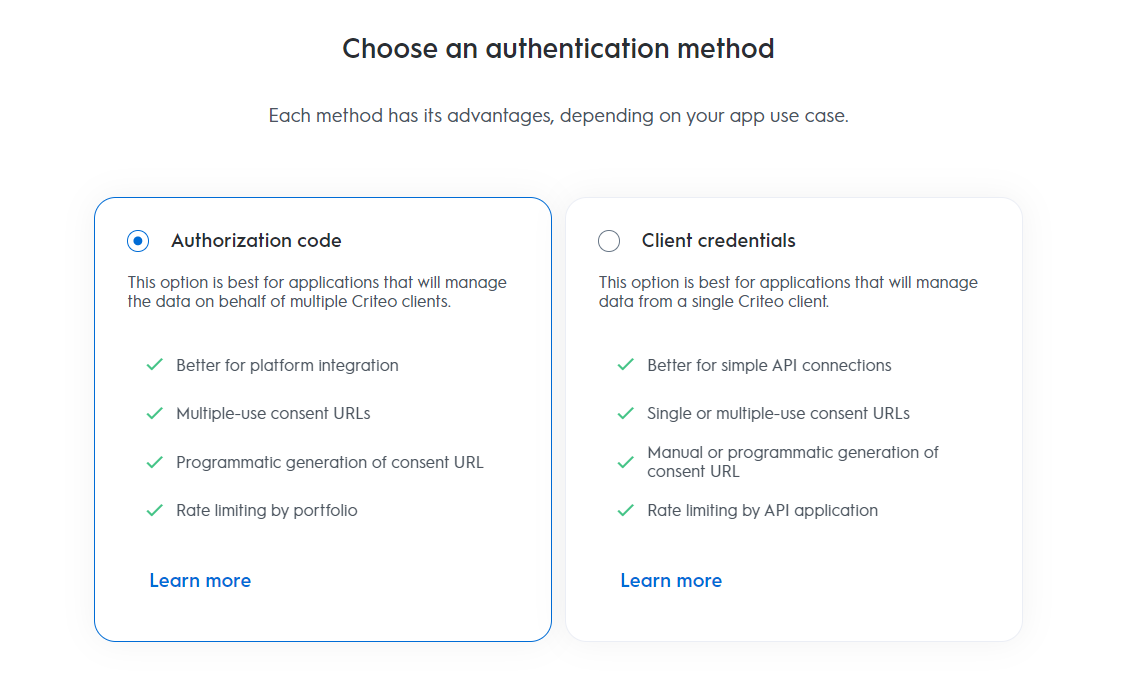
Authentication method
- Criteo’s API supports two OAuth authentication methods: Client Credentials and Authorization Code. Each method has its own advantages, so before proceeding, we strongly recommend reviewing which authentication method is best suited to your application’s needs.
Step 2 - App activation
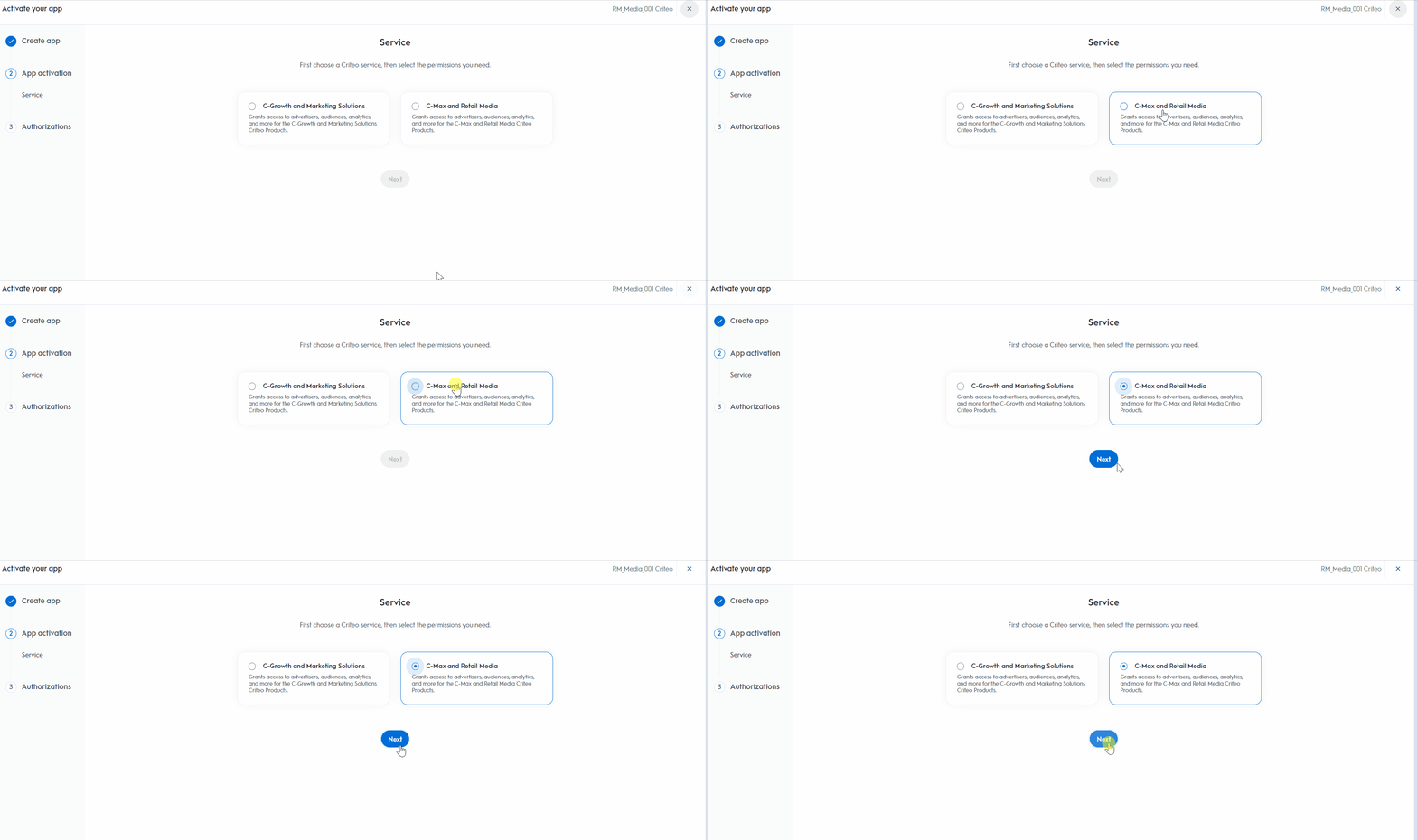
Once you’ve selected the appropriate authentication method, proceed to choose the service you’ll be using.Services
- Choose the Criteo service your API application will interact with:
- C-Growth and Marketing Solutions
- C-Max and Retail Media
Step 3 - Authorizations
Domains
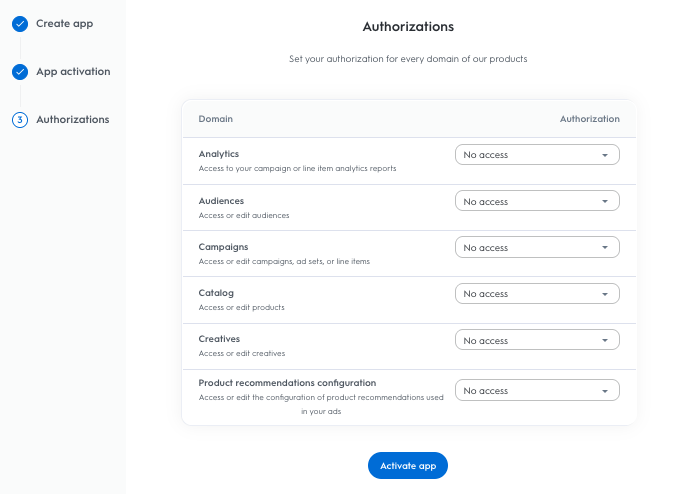
- Choose the domains that define the permission levels your application will need. These domains determine which endpoints your application can access.
-
After selecting the appropriate domains, click
Activate App.
Commerce Growth Domains
Domain | Description | Authorization Types |
|---|---|---|
Analytics | Generate custom reports. Slice and dice your data across marketing goals and channels, including App, Web, and Store campaigns | No access / Read |
Audiences | Create, update, or delete your audiences using your own CRM segments, Criteo’s or your lists from a third party | No access / Read / Manage |
Campaigns | Create and edit campaigns, ad sets, as well as update settings like CPCs | No access / Read / Manage |
Catalog | Add and edit your product details | No access / Read / Manage |
Creatives | Create your own or use third-party creative that is displayed by an external creative provider at display time. Access, add, or edit creative from the API. | No access / Read / Manage |
Product recommendations configuration | Access must be requested | No access / Read / Manage |
Once you activate your application, you will be redirected to your application details page to complete the final steps of your application configuration.