

Overview
The Criteo API allows you to build custom apps that help the world’s advertisers grow their businesses. In order for your app to function, your users will have to delegate permissions for one or more of the Criteo advertisers that they oversee. To do this, you will need to direct the user to a unique consent delegation page. The URLs for this type of page can be generated in one of two ways: manually from your Criteo App page, or programmatically using a cryptographic key. Both methods are described below.In this guide, we assume you have completed all the steps in the API application setup section, and you already have your application tokens.
Generate Consent URL
Client Credentials
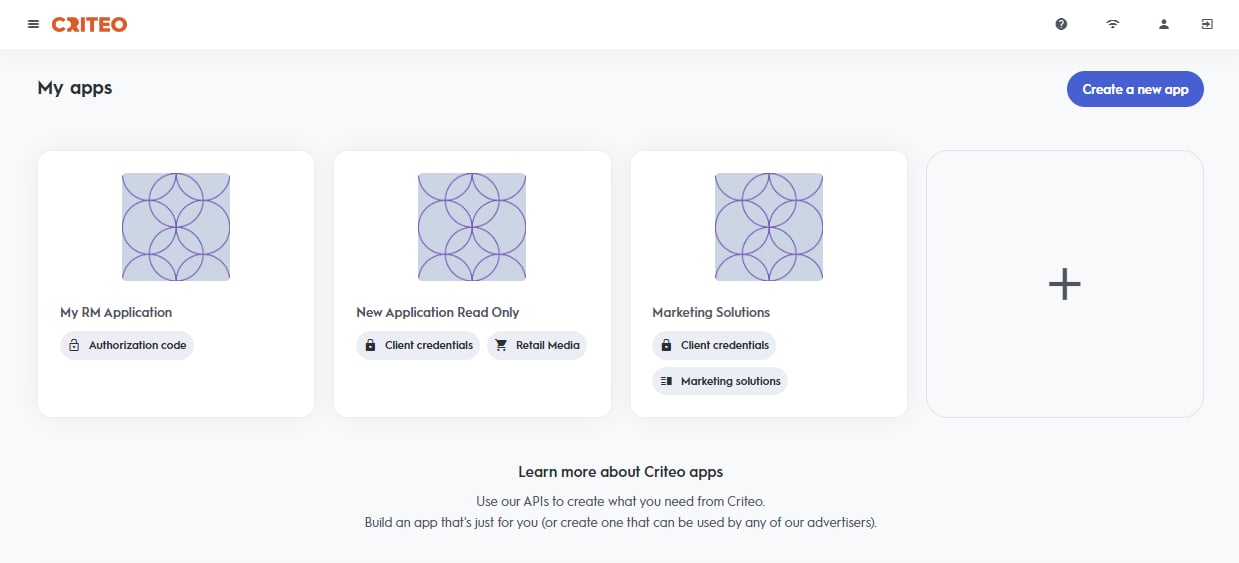
For client credential application, once you have logged in to the Criteo Partners Portal, find your application underMy apps and navigate to your Application details page.
App page, you will see a Generate new URL button. Click the button to generate a single consent URL which can be easily copied to your clipboard.
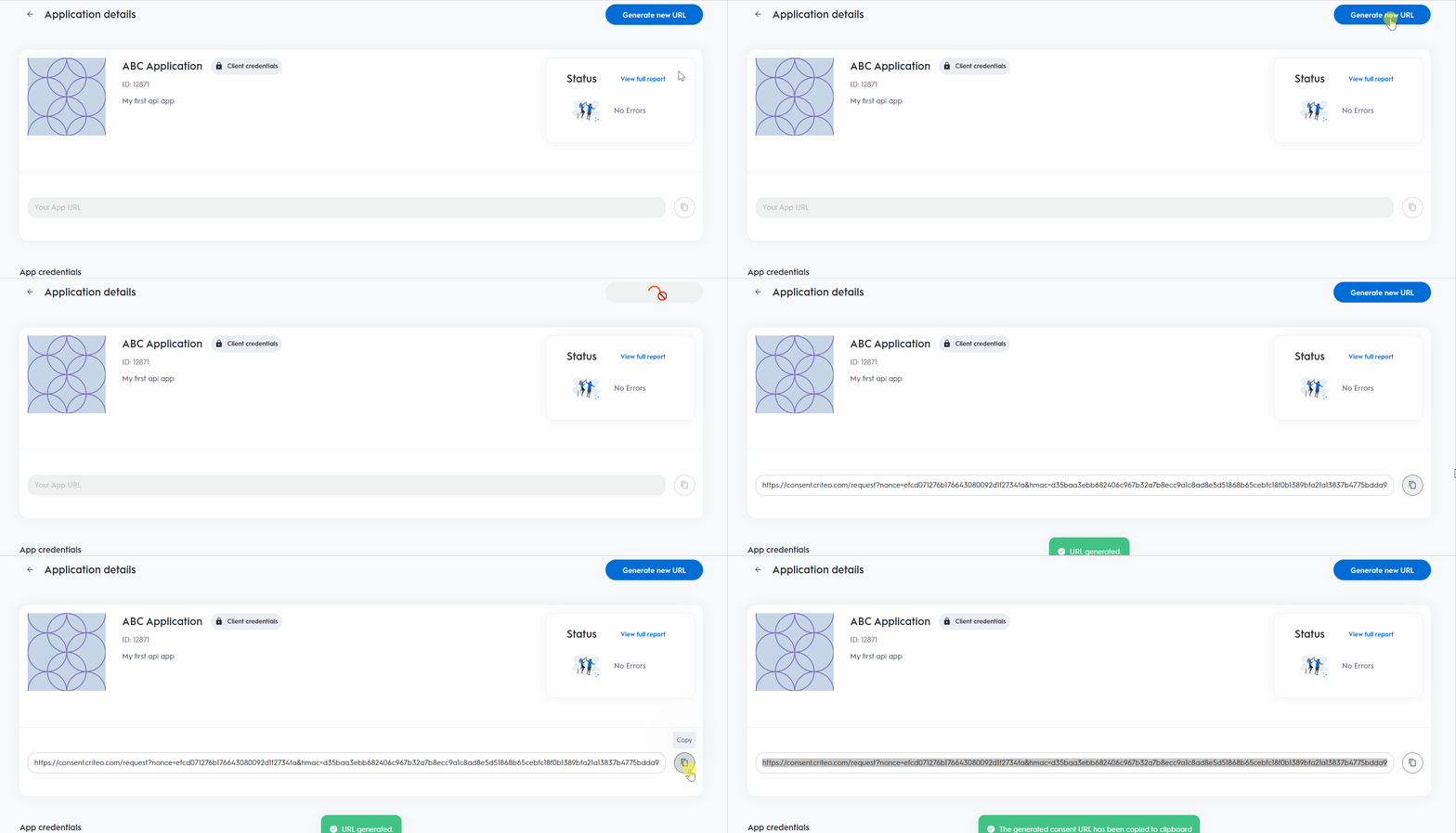
URL
Consent URL ExpirationThe consent URL expires 30 days after creation. It is valid for a single use, meaning once it has been used to grant consent, it cannot be reused for future authorizations.
For more details, consent granters should follow the instructions provided on the Authorization Request page.
Authorization Code
Generating a consent URL for authorization code applications requires a separate process. This option is not available under theApplication details page. For guidance on generating the consent URL, refer to the instructions for the Authorization Code application setup.
Generate Consent URLs Programmatically
To generate consent URLs dynamically, you need a public and private key pair for signing the URLs. To obtain this key pair, you must register a callback URL to receive confirmations. Details on the callback process are covered in a later section. Log in to the Criteo Partners Portal and navigate to your app page by selecting your app in theMy application details section.
Scroll to the Connector Parameters section and click Create a new connector. You will be prompted to enter a callback URL. After registration, the callback URL can be modified at any time, while the associated key pair remains the same.
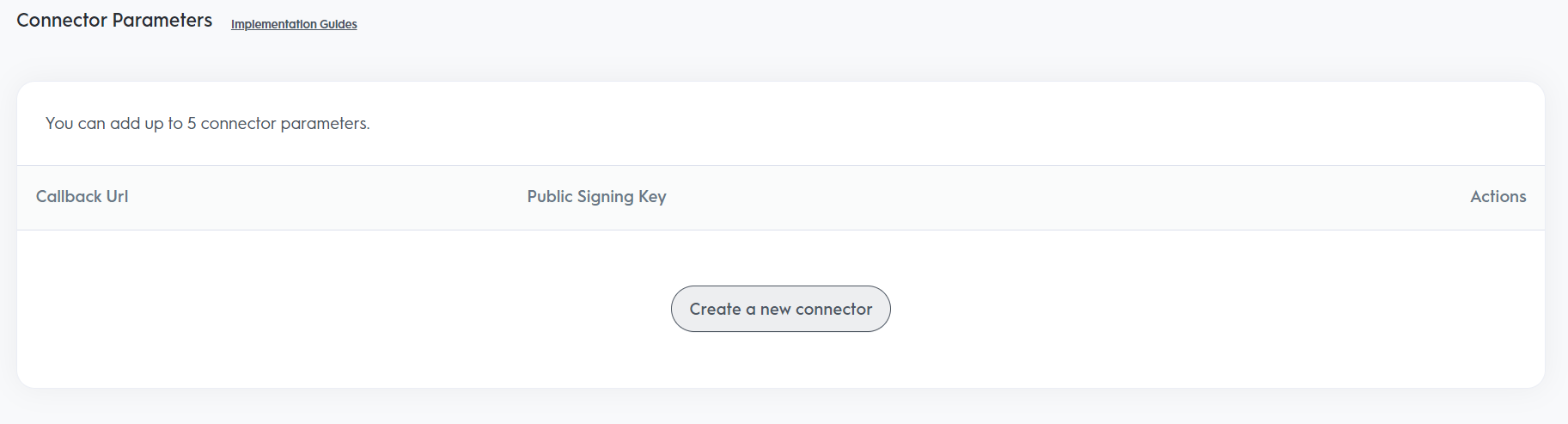
.txt file containing your public and private key pair.
- With the signing key pair, you can programmatically generate a consent URL using the HMAC-SHA512 hashing algorithm to create a
signature.
URL
Parameter | Description |
|---|---|
| Your public signing key |
| The UNIX timestamp of when your URL was generated, in seconds |
| An arbitrary string to be included in the consent callback (e.g., the User ID of your app user) |
| The URL to redirect the user to after consent delegation |
| The HMAC-SHA512 hashed query string of the previous four parameters, in order |
signature is created by hashing the following string using the key, timestamp, state, and redirect-uri values:
URL
Consent Delegation Callback
After the user completes the Consent Delegation flow, an HTTP callback will be sent to the registered URL. ThePOST body will include a Type field, indicating whether the consent was successful (ConsentGranted) or unsuccessful (ConsentDenied). For a ConsentDenied callback, AcceptedScopes will be an empty array.
Advertisers, while for Retail Media apps, they are under Accounts.
The callback request includes an HTTP header named x-criteo-hmac-sha512, which contains the HMAC-SHA512 hash of the callback request body. Use your app’s signing secret to validate the request’s integrity and authenticity.
User Redirection
Once the Consent Delegation is complete, thePOST request to the callback URL and user redirection to the redirect URI occur in sequence. The user is not redirected until the callback attempt resolves.
If the first callback attempt fails, it is retried up to two more times before redirecting the user. After three failed attempts, the user is redirected, and Criteo logs the callback error.