Overview
This page will guide you in setting up your Criteo App campaign with Adjust.Dashboard Configuration
Attribution Windows Setup (App-Level)
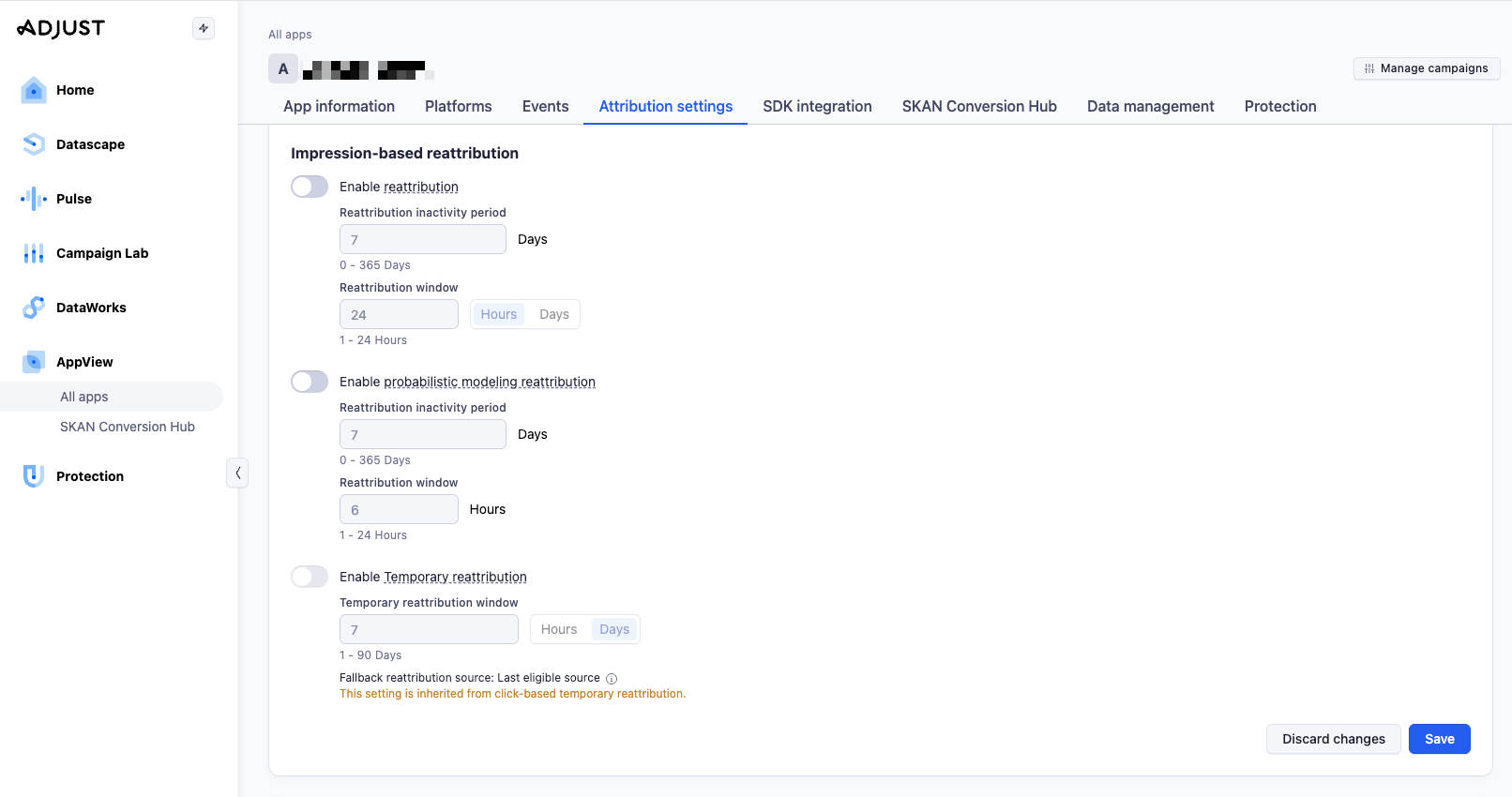
Under AppView > All Apps, select your app, navigate to Attribution settings tab and consider the attribution settings recommended by Criteo below.In case you are proceeding with the integration for both Android & iOS apps (or multiple apps from the same platform), proceed with the following steps for all of them.
Keep in mind that the following settings are Criteo’s recommendations but the ultimate goal is to match the options you want to take into account for your setup!
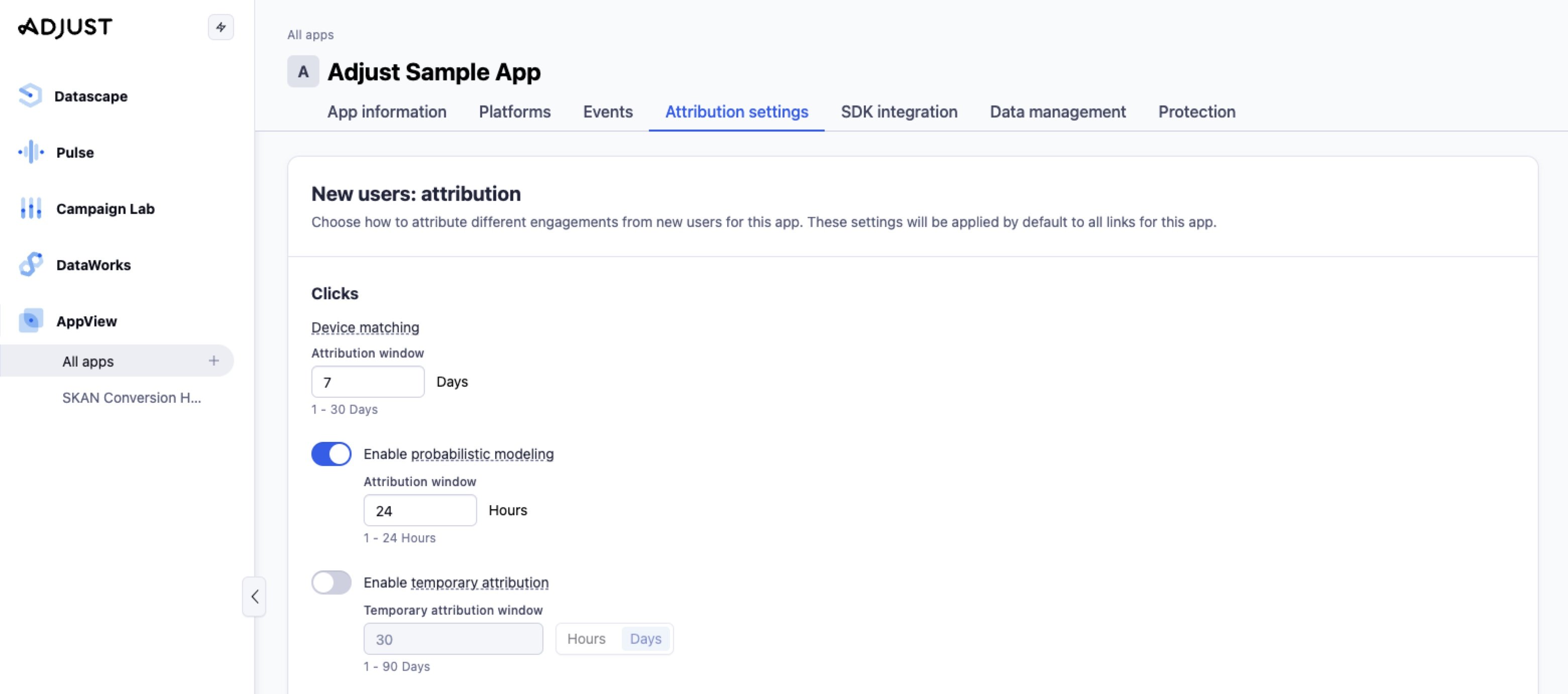
New Users: Attribution (Install)
Hit Edit button on the left to change your settings:Click Based Attribution
- [Recommended] Device matching: at least
7days- Sets the click attribution window for deterministic device matching.
- [Recommended] Set Enable probabilistic modeling to
ONand the respective window to24hours- If deterministic device matching cannot be performed, Adjust can try probabilistic attribution.
- Temporary attribution:
- By default set to off. In case you want to avoid the default Lifetime Attribution from Adjust, enable this toggle. You can find more information here.
- Suggested temporary window: at least
30days, to properly measure post-install events on the Criteo side.
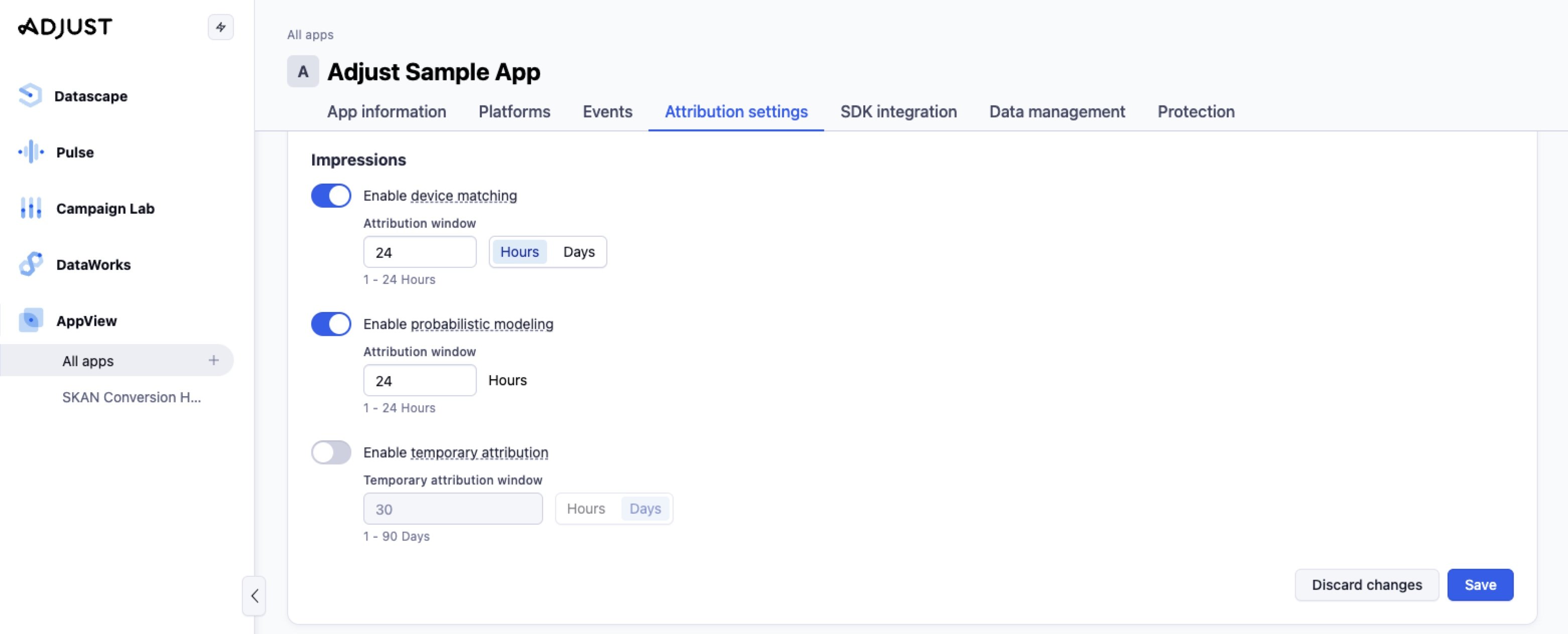
[Optional] Impression Based Attribution
- Set Device matching to
24hours- Controls whether Adjust can attribute installs or reattributions based on an ad impression when there was no click. The 24-hour window is the maximum time after the impression during which Adjust will consider that impression eligible for attribution.
- Set Enable probabilistic modeling to
ONand respective window to24hours- This is another form of impression attribution, but it’s different from device matching. Probabilistic modeling allows Adjust to attribute installs or reattributions when deterministic identifiers are unavailable or insufficient.
- Temporary attribution:
- By default set to off. In case you want to avoid the default Lifetime Attribution from Adjust, enable this toggle. You can find more information here.
- Suggested temporary window: at least
30days, to properly measure post-install events on the Criteo side.
Existing Users: Reattribution (Retargeting)
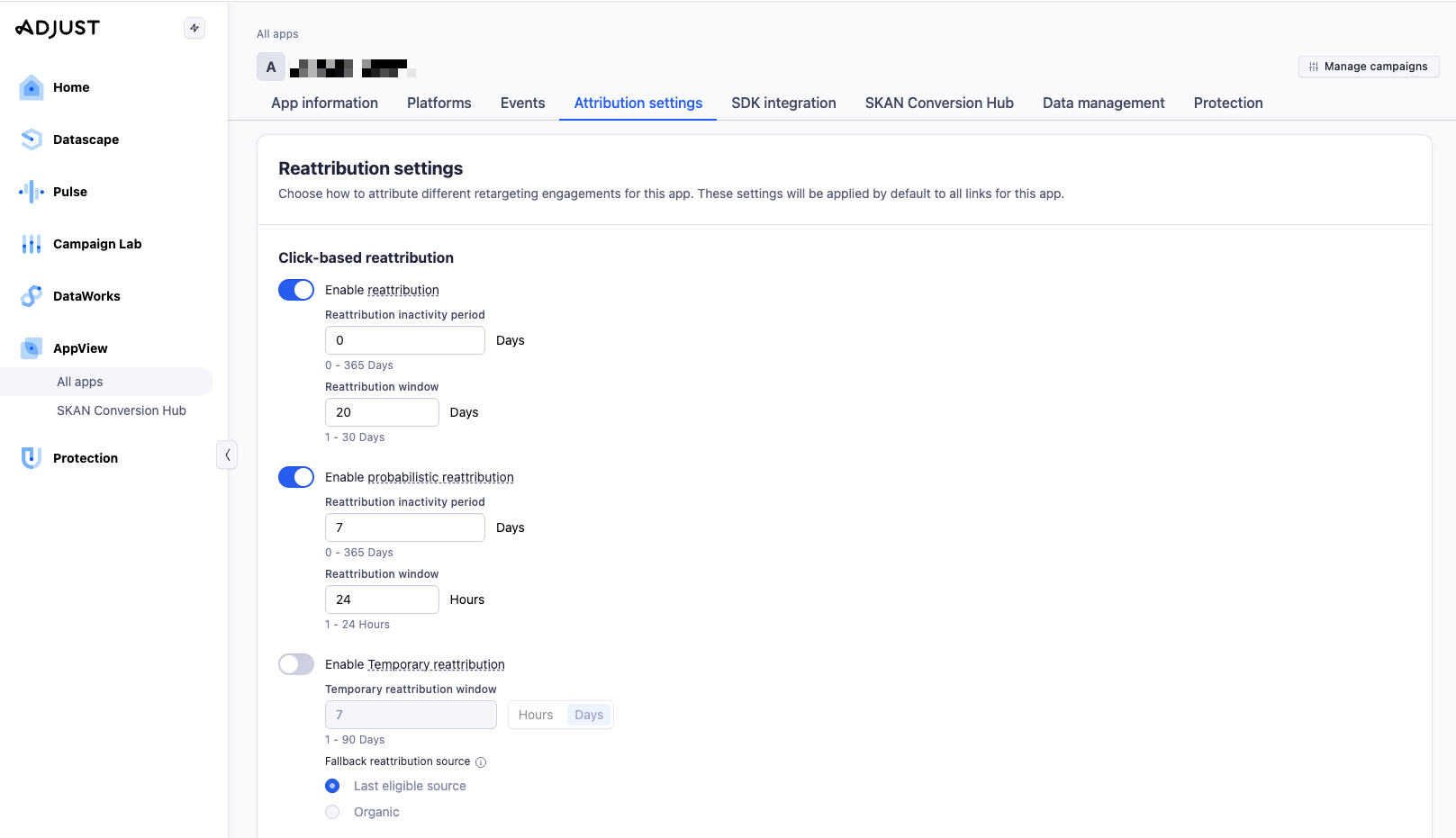
Hit Edit button on the left to change your settings:Click Based Attribution
- Enable Reattribution: make sure to toggle
ONthis option if you intend to run Retargeting campaigns - Inactivity period:
- Defines the amount of time users must be inactive (a user must not have opened the app) before they can be reattributed to retargeting campaigns.
- Criteo strongly recommends setting it to
0days.
- Reattribution window:
- Once the user is eligible, the reattribution window determines how long after the retargeting engagement Adjust can attribute the user to that retargeting campaign.
- Criteo recommends setting it to
30days.
- [Recommended] Set Enable probabilistic modeling to
ON, the reattribution inactivity period to7days and the reattribution window to24hours- If deterministic device matching cannot be performed, Adjust can try probabilistic attribution.
- Temporary attribution:
- By default set to off. In case you want to avoid the default Lifetime Attribution from Adjust, enable this toggle. You can find more information here.
- Suggested temporary window: at least
30days, to align with Criteo’s default Post-Click 30 days attribution model for Retargeting.
[Optional] Impression Based Attribution
Enabling Criteo Module
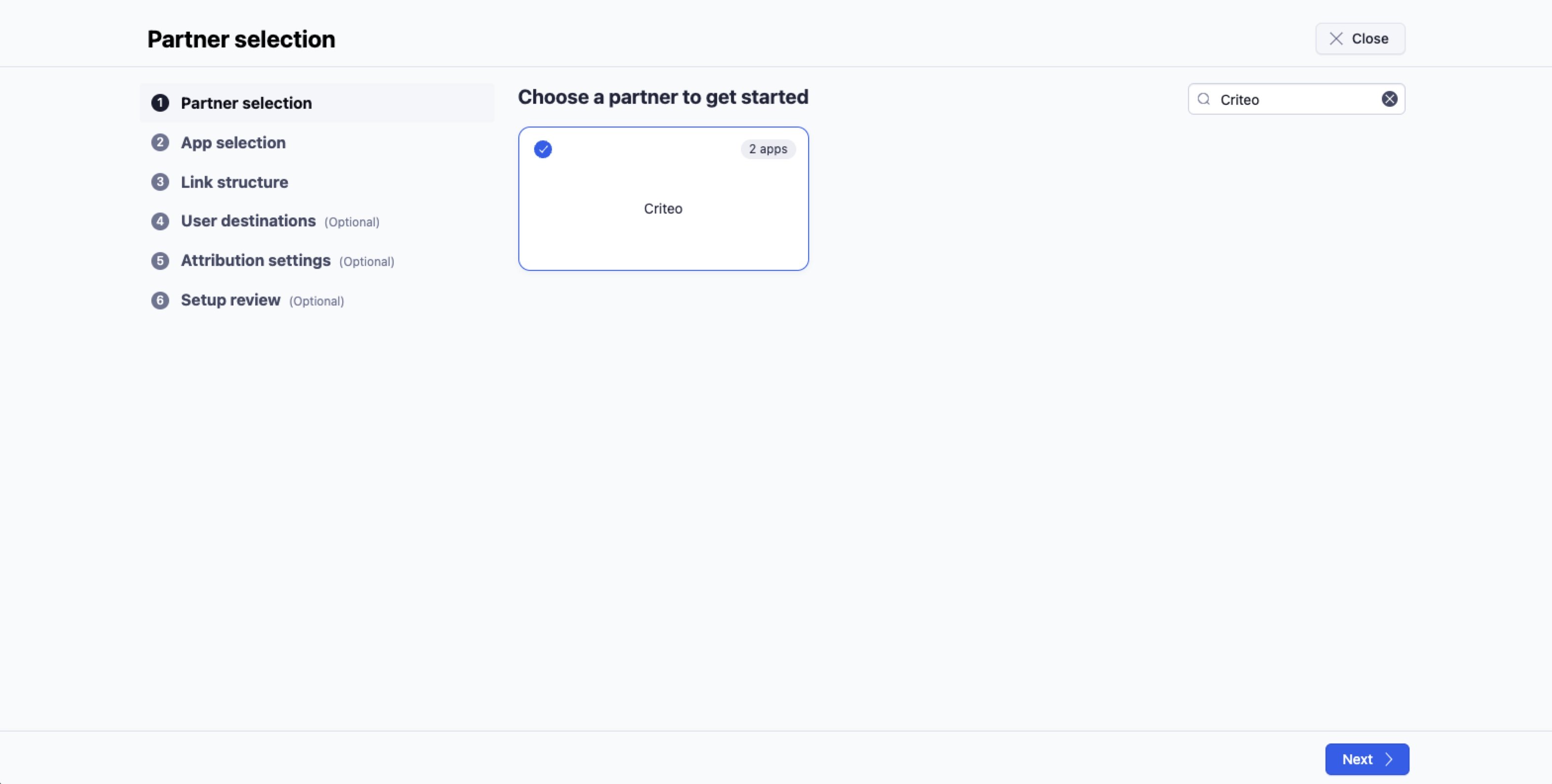
To proceed with the Criteo configuration in Adjust Suite dashboard:- Under Campaign Lab, select Partners
- Click on New Partner button on top-left, then type Criteo in the search bar, select the respective module and hit Next
- Under App Selection, select the app you want to integrate and proceed to the Next step
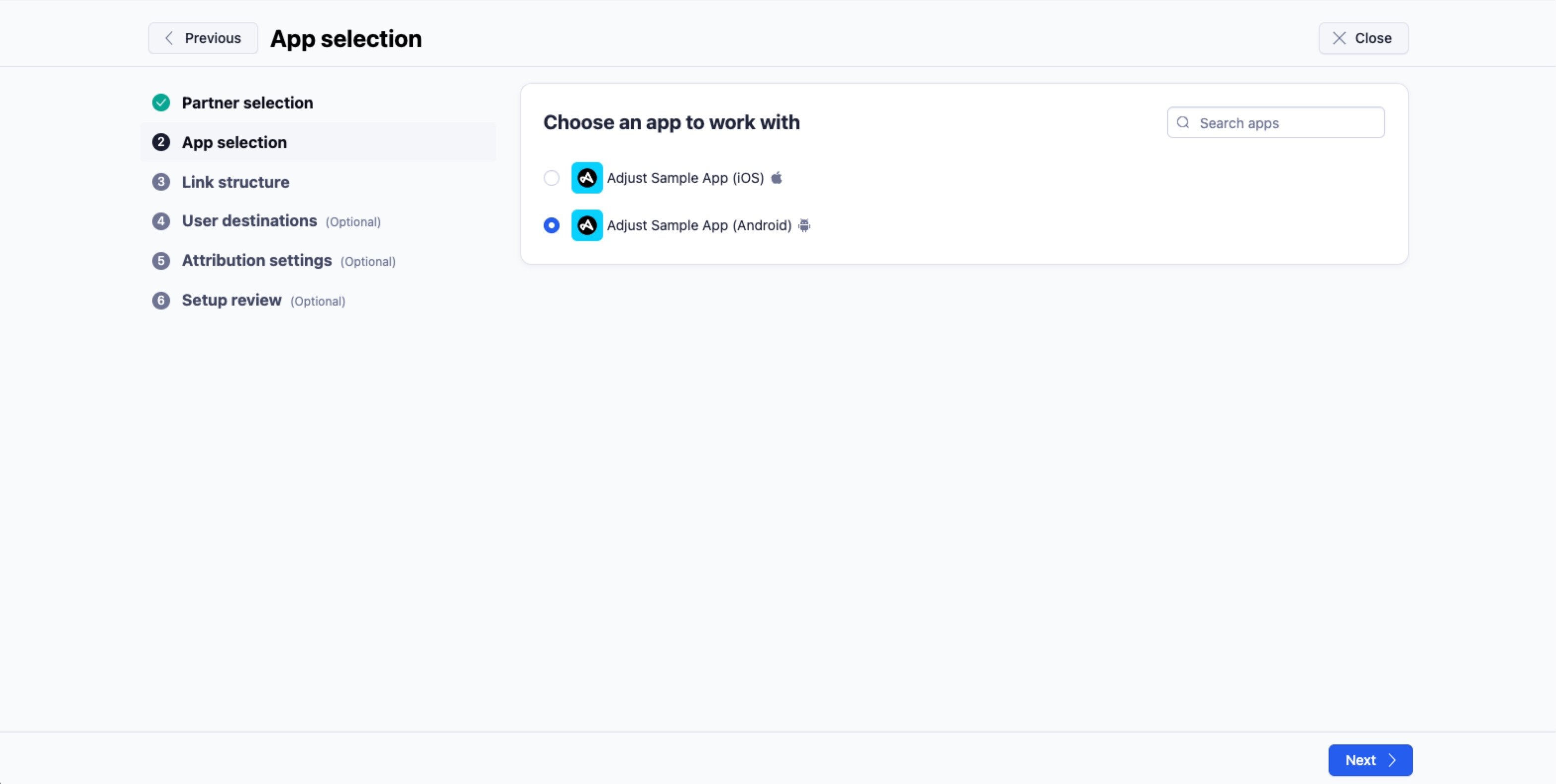
In case you are proceeding with the integration for both Android & iOS apps (or multiple apps from same platform), proceed with the following steps for all of them.
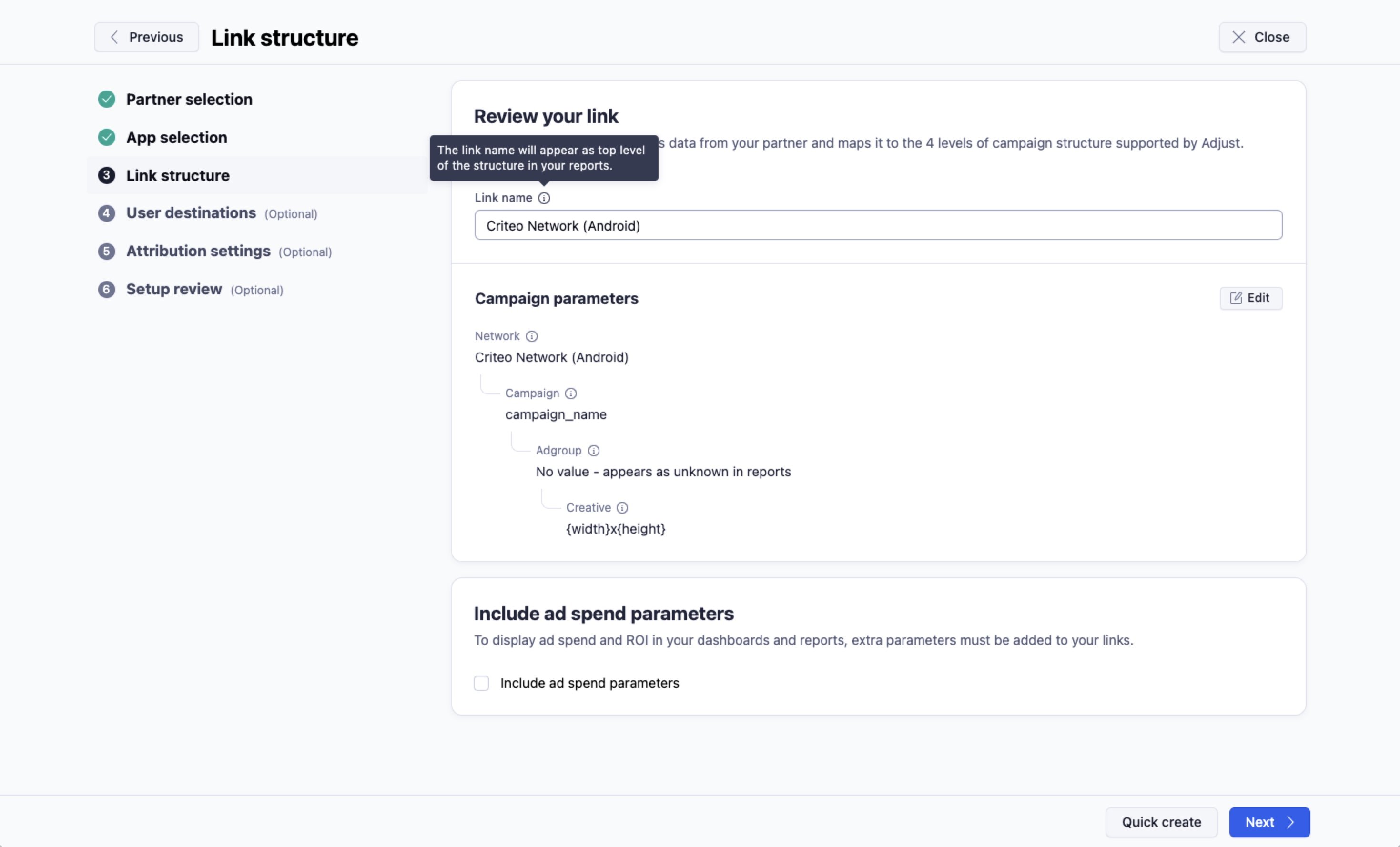
- Under Link Structure:
- For Link name, give an arbitrary name to your link; choose a name that easily identifies Criteo as Network, as this will appear in your Adjust reports (suggestion)
- Edit the campaign parameters hierarchy, if desired
- You can also enable Include ad spend parameters, in case you want Criteo to share ad spend data with Adjust
- Press Next
- Under User destinations tab, leave the default settings configured and press Next
- For default campaign setups, Criteo uses direct deeplinking to the App Store (in case of Install) or back to the app.
- In the meantime, Adjust click trackings will be fired S2S, causing those link destination settings not to be taken into account.
- Under Attribution settings tab, leave the default settings configured and press Next
- In case you want to override app-level attribution settings, please take into consideration the attribution settings suggested in the Attribution Windows Setup section above.
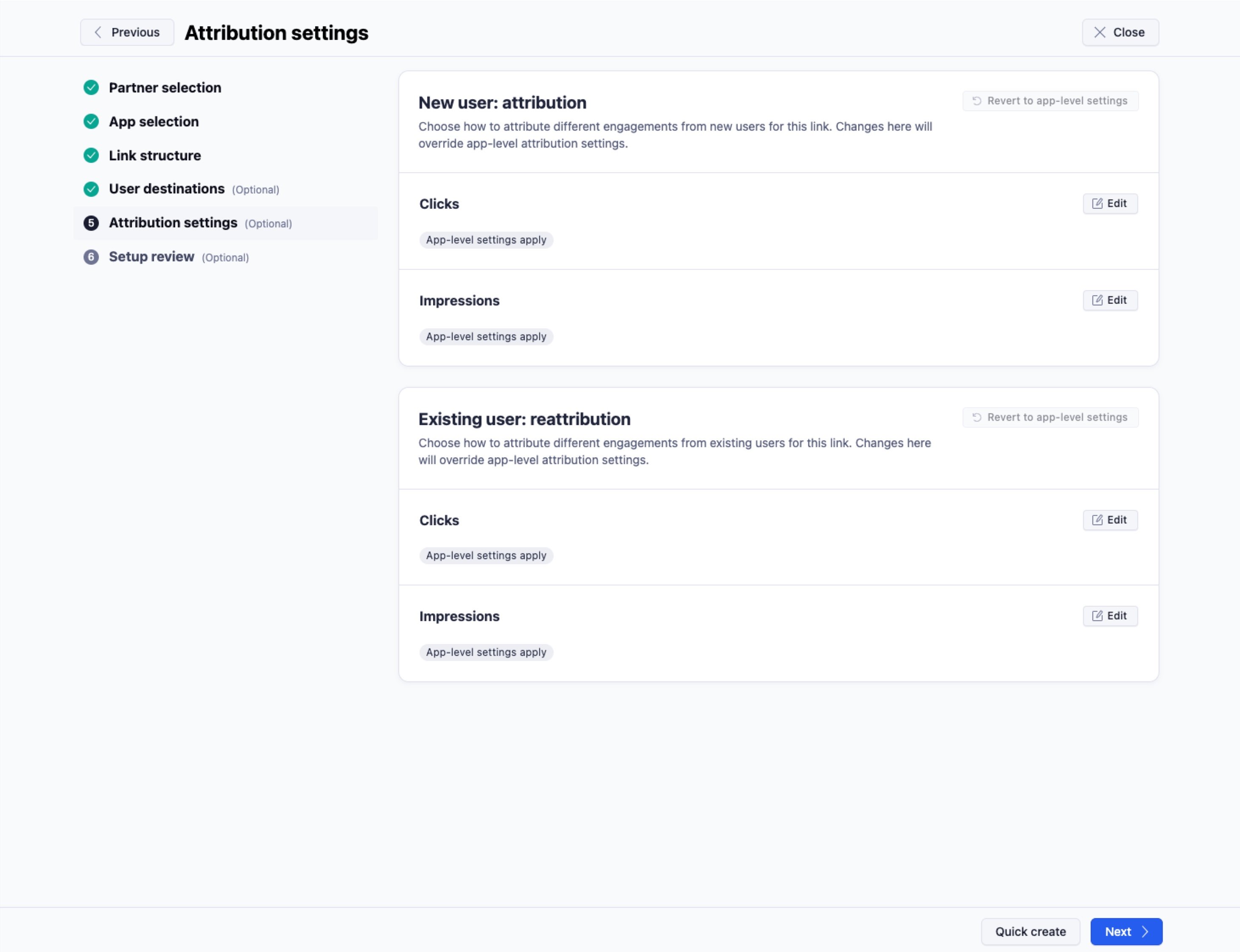
- Review overall settings and confirm clicking on Create link
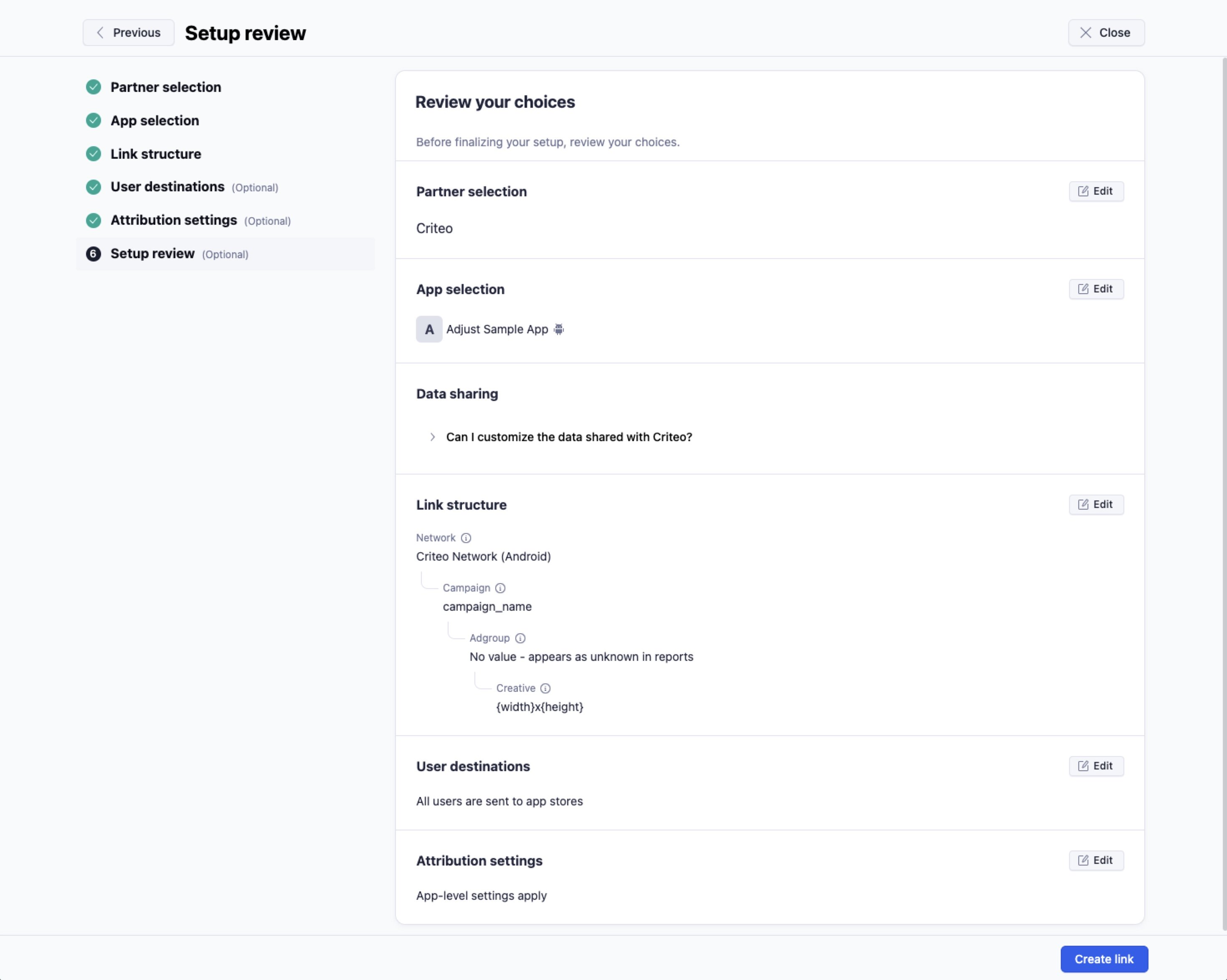
Link URL Creation
To track attribution for Criteo campaigns running through Adjust, the client must create an Adjust Link URL (also known as impression/click trackings) in order to have them configured on our Criteo creatives. If the Criteo module was enabled just now and you pressed Create link, Adjust Link URLs have already been automatically created and you can share both Click & Impression URLs with your Criteo contact: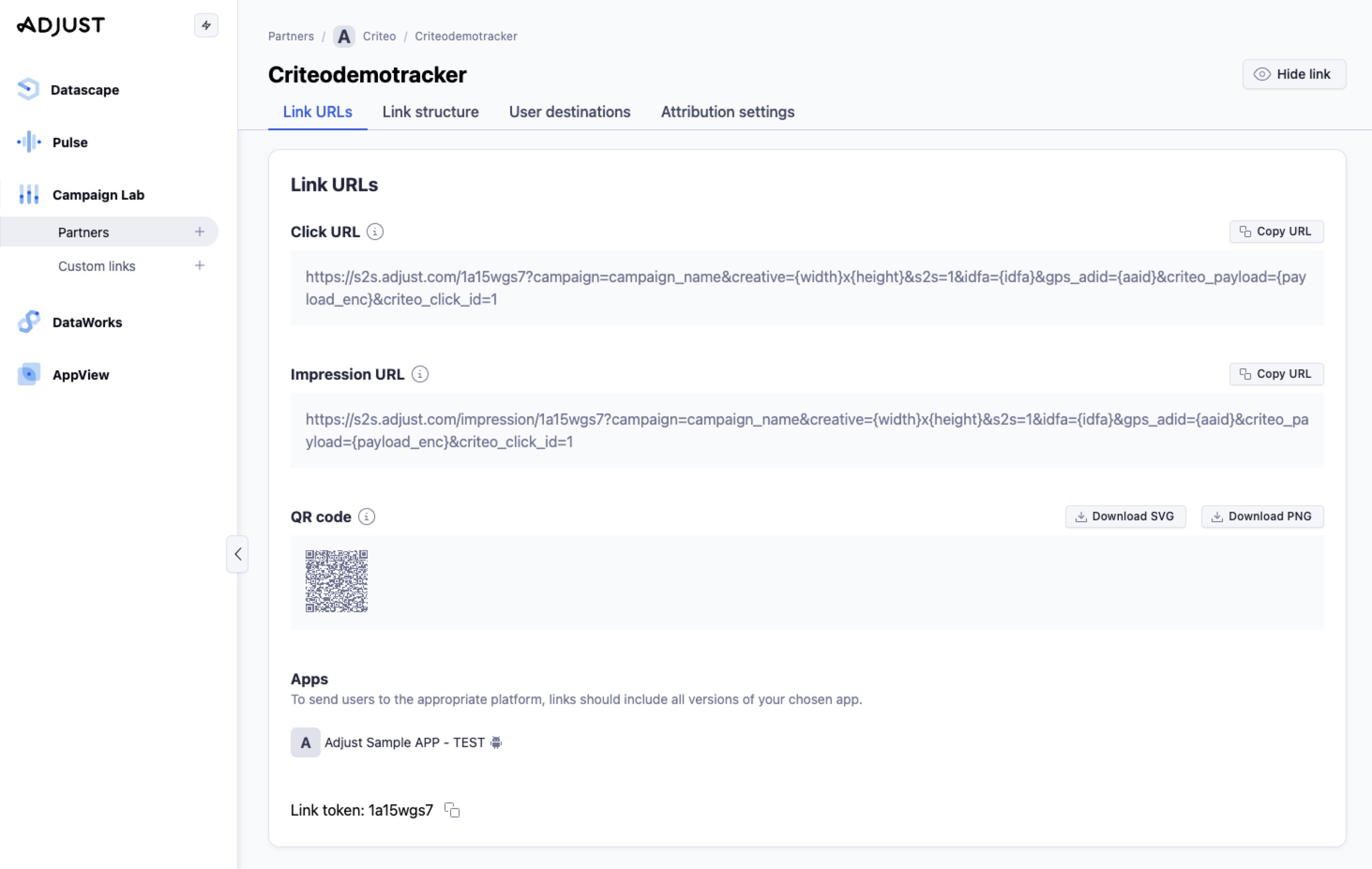
- Navigate to Campaign Lab > Partners section and select our Criteo module
- Under the default Links tab, you can review all existing Link URLs created at network-level for Criteo
- Click on New Link to create a new one, if desired
- You can also simply edit the settings of your existing Link URL by clicking at its respective name
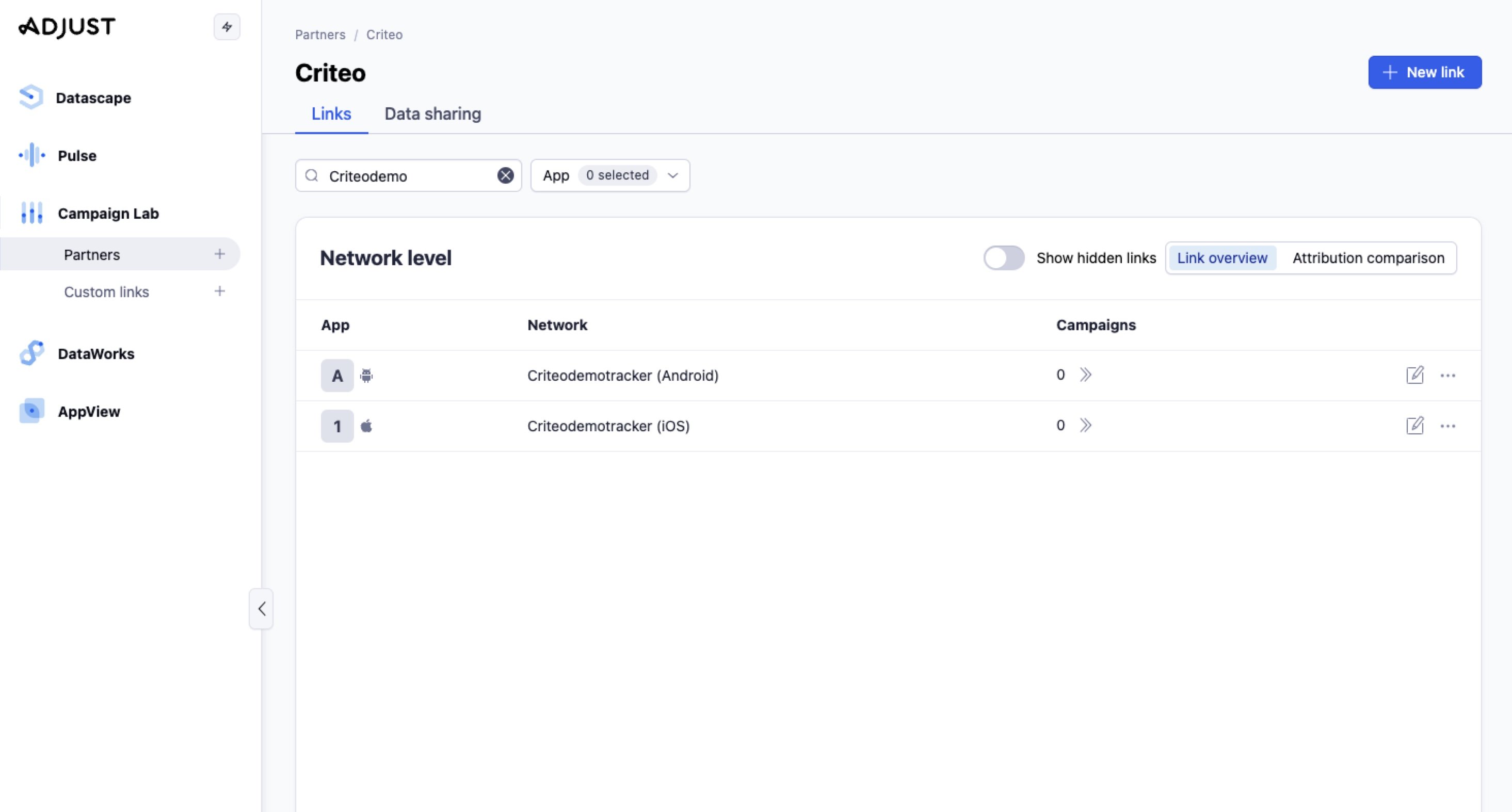
Depending on your Adjust plan, you may have the ability to create Link URLs at other levels than network (campaign, adgroup or creative levels). For simplification purposes and to avoid discrepancy issues, Criteo recommends to always use network-level Link URLs.
Data Sharing with Criteo
To allow Criteo to properly target the expected audiences, as well as optimize and measure the correct results of our campaigns, it’s crucial to share the actions of your existing app users with us. To configure those event postbacks:- Navigate to Campaign Lab > Partners section and select our Criteo module
- Under Data sharing tab, locate the respective app and click in the pencil icon on the left to Edit settings
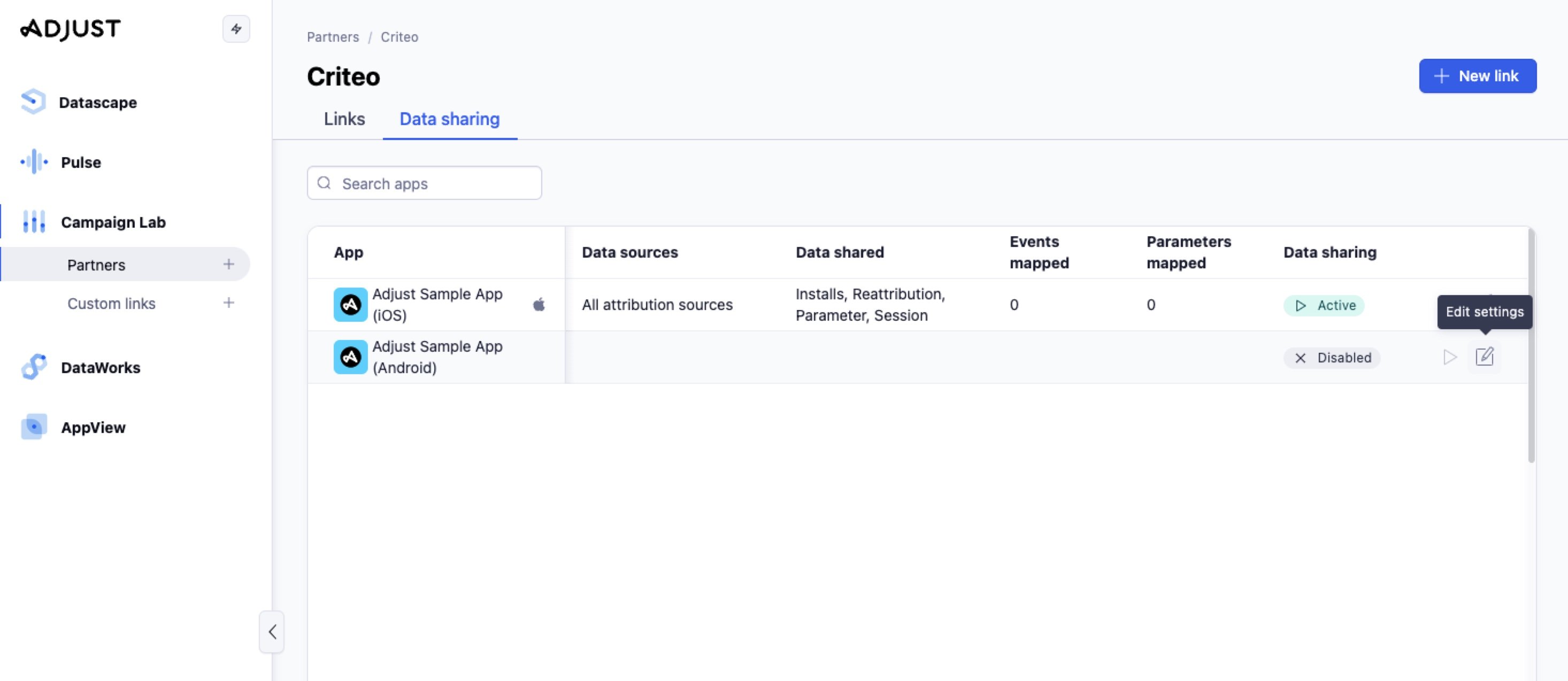
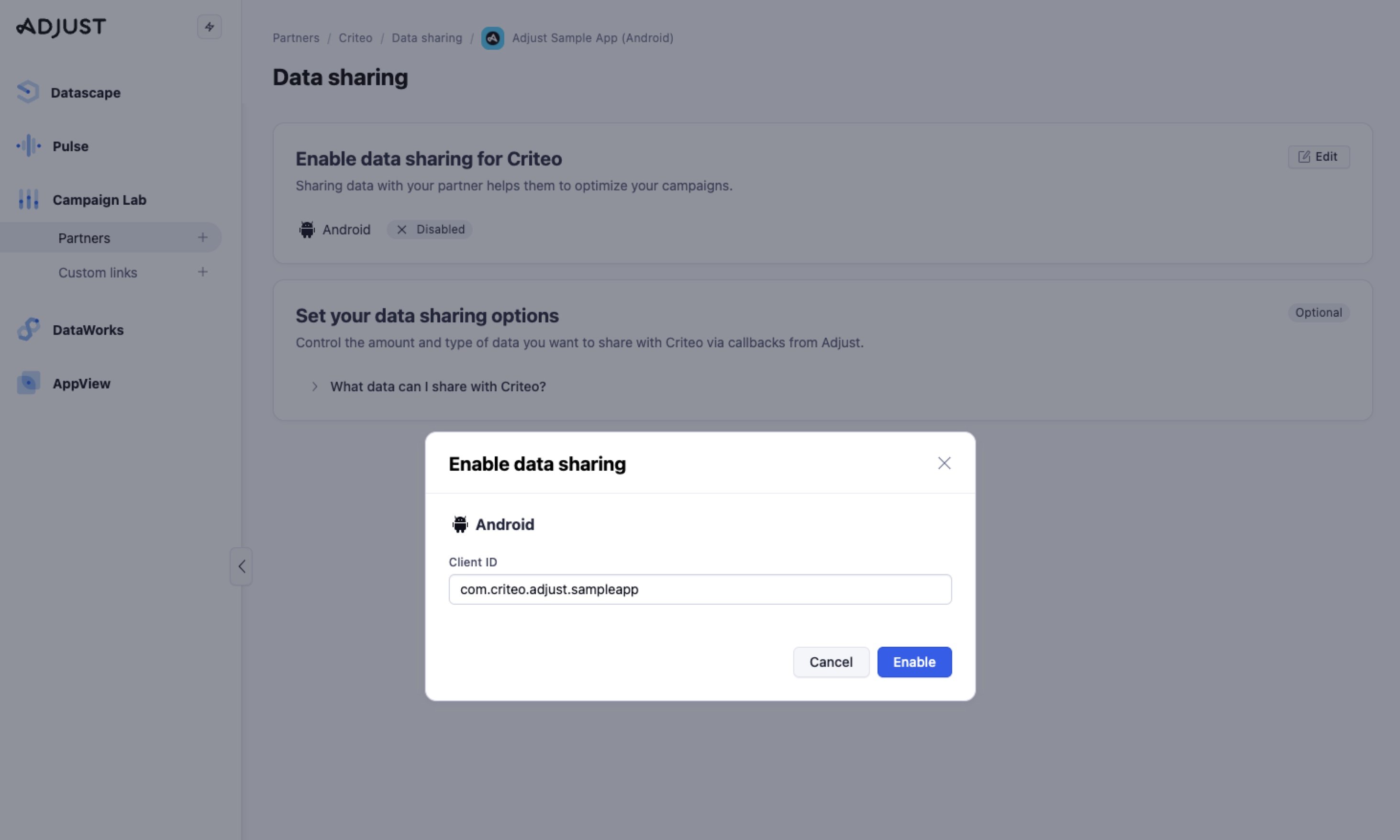
- Under Enable data sharing for Criteo area, click in the Edit button
- Input your
appIdthat is registered in the App Stores, so Criteo can identify their respective event postbacks on our side- In case you have the same app in Adjust for both Android & iOS platforms, enter the
appIdfor both here, as in the example below:- Android:
com.criteo.adjust.sampleapp - iOS:
id123456789
- Android:
- In case you have the same app in Adjust for both Android & iOS platforms, enter the
- Then, Enable it
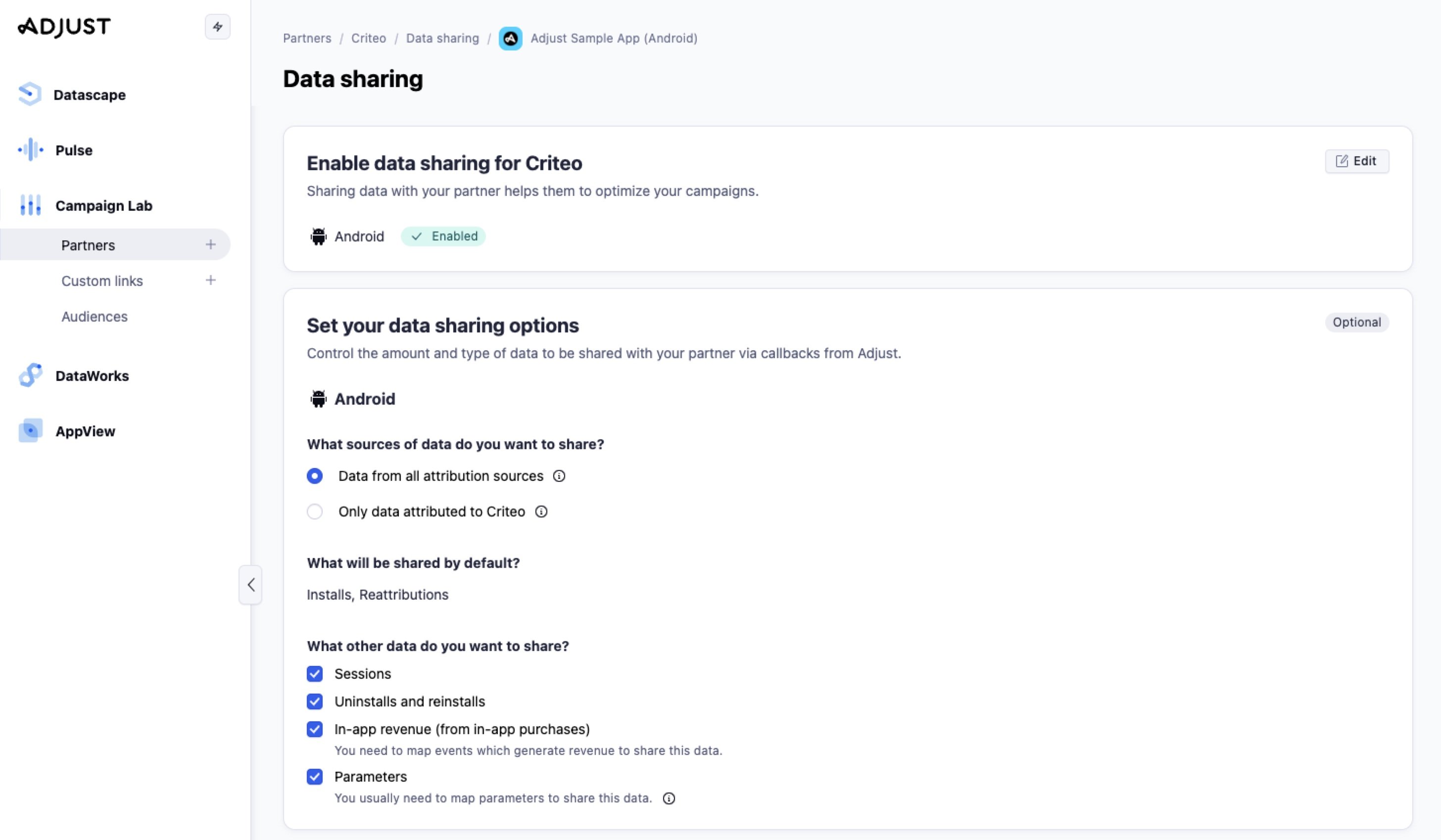
- Under Set your data sharing options, ensure that you have enabled:
- Data from all attribution sources: to be able to target all existing users for Retargeting or exclude existing users for Install campaigns
- Sessions: to track all users sessions
- Uninstalls and reinstalls: for enriched measurements (if available)
- In-app revenue (from in-app purchases): for revenue tracking (if available)
- Parameters: to receive all Partner Parameters available in your Adjust events (product ids, order id, hashed e-mail, etc.)
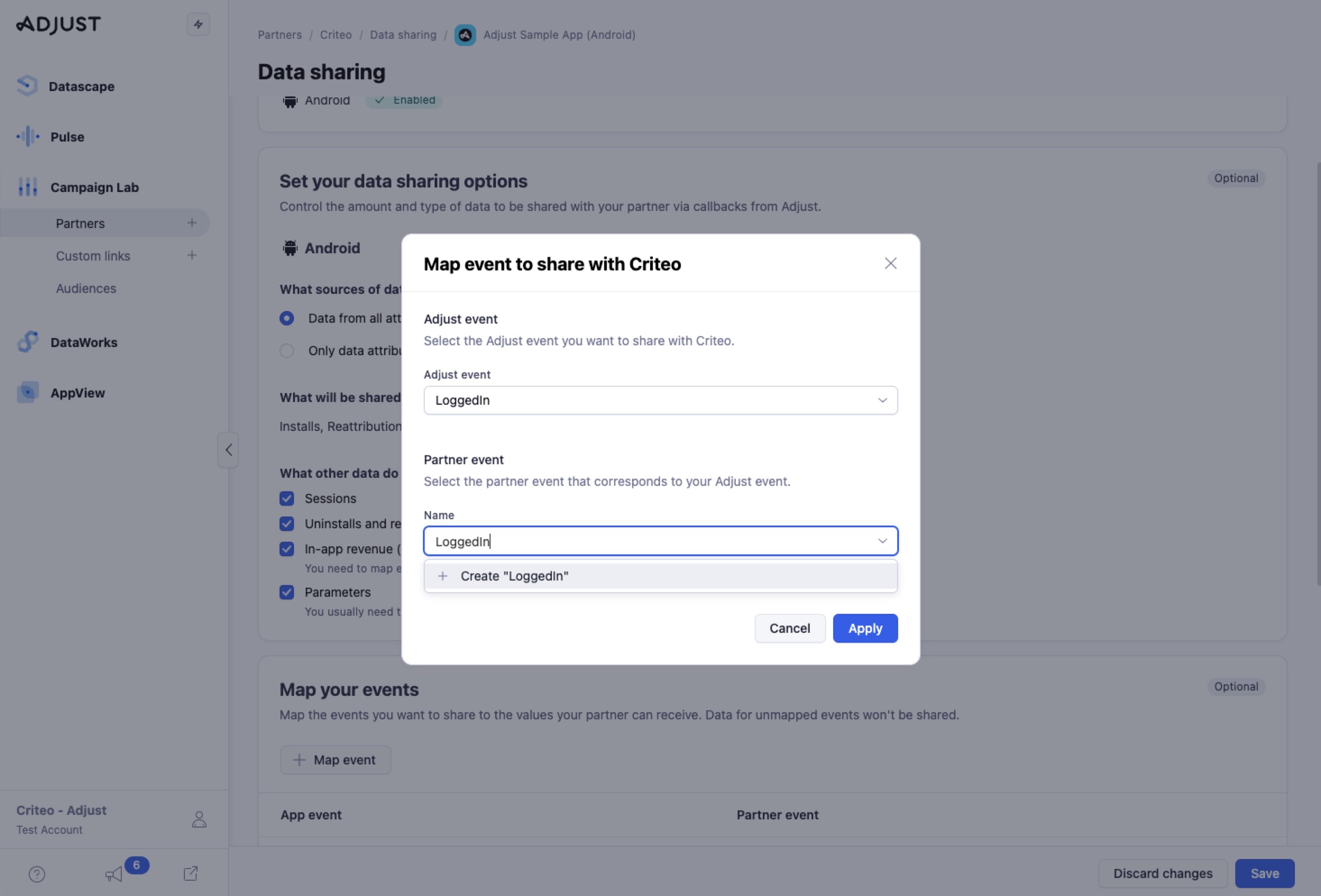
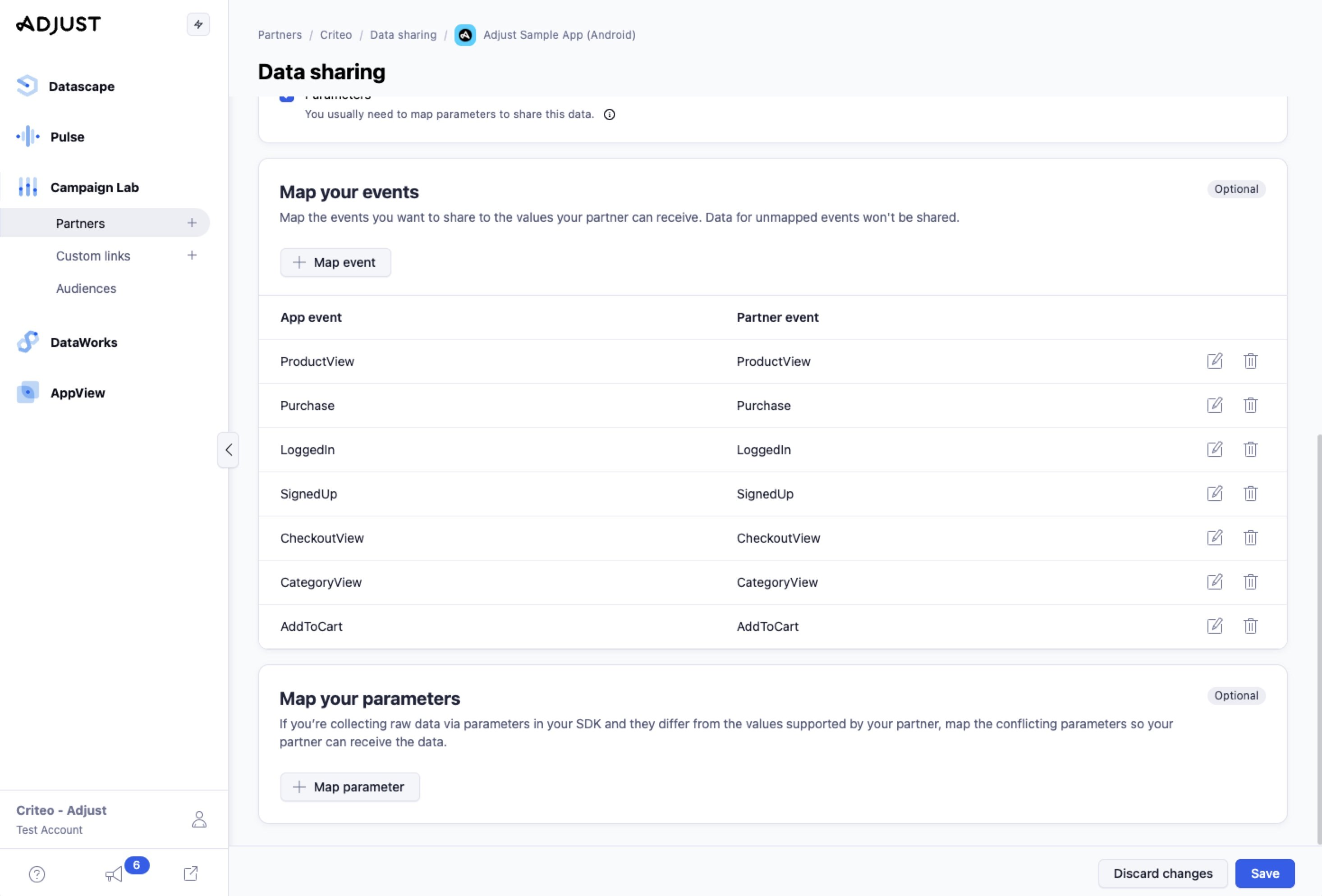
- Under Map your events, make sure to set the mapping for all your relevant in-app events that Criteo should receive
- Press Map event
- In Adjust event, select your event in the dropdown
- In Partner event, type the Adjust event name to map it as custom event (removing possible special characters, spaces, etc.)
- Hit Apply
- Repeat the process for all other in-app events
- Finally, click Save to start sharing your users data with Criteo
Adding Additional In-App Events
If you need to create/modify in-app events using Adjust SDK, please see the links below to have them implemented in your app:Recommended Events per Vertical
The recommendation is to send all events that describe the “user-flow” in the app. The table below shows the recommended events per vertical:Granting Access to Criteo
Granting Adjust dashboard access to Criteo allows our expert teams to validate integration setups and provide a better level of support, if required:- Hover over the profile icon at the bottom-left and choose Account settings
- Under the tab Users, click on the button New user (in case there isn’t any user from Criteo yet)
- In User Details, add the e-mail address requested by your Criteo contact:
- In case no specific account was requested, input
adjust_criteo@criteo.com - For first & last names, feel free to type any name (from existing accounts, those will be overwritten by the names defined previously)
- Leave English as preferred language
- In case no specific account was requested, input
- As role, choose:
- Editor: to give our teams edit access to our integration module, under Campaign Lab, on your behalf and read access to campaigns metrics, under Datascape (preferred option)
- or Reader: to provide only read access to your campaigns metrics, under Datascape
- Hit Add user
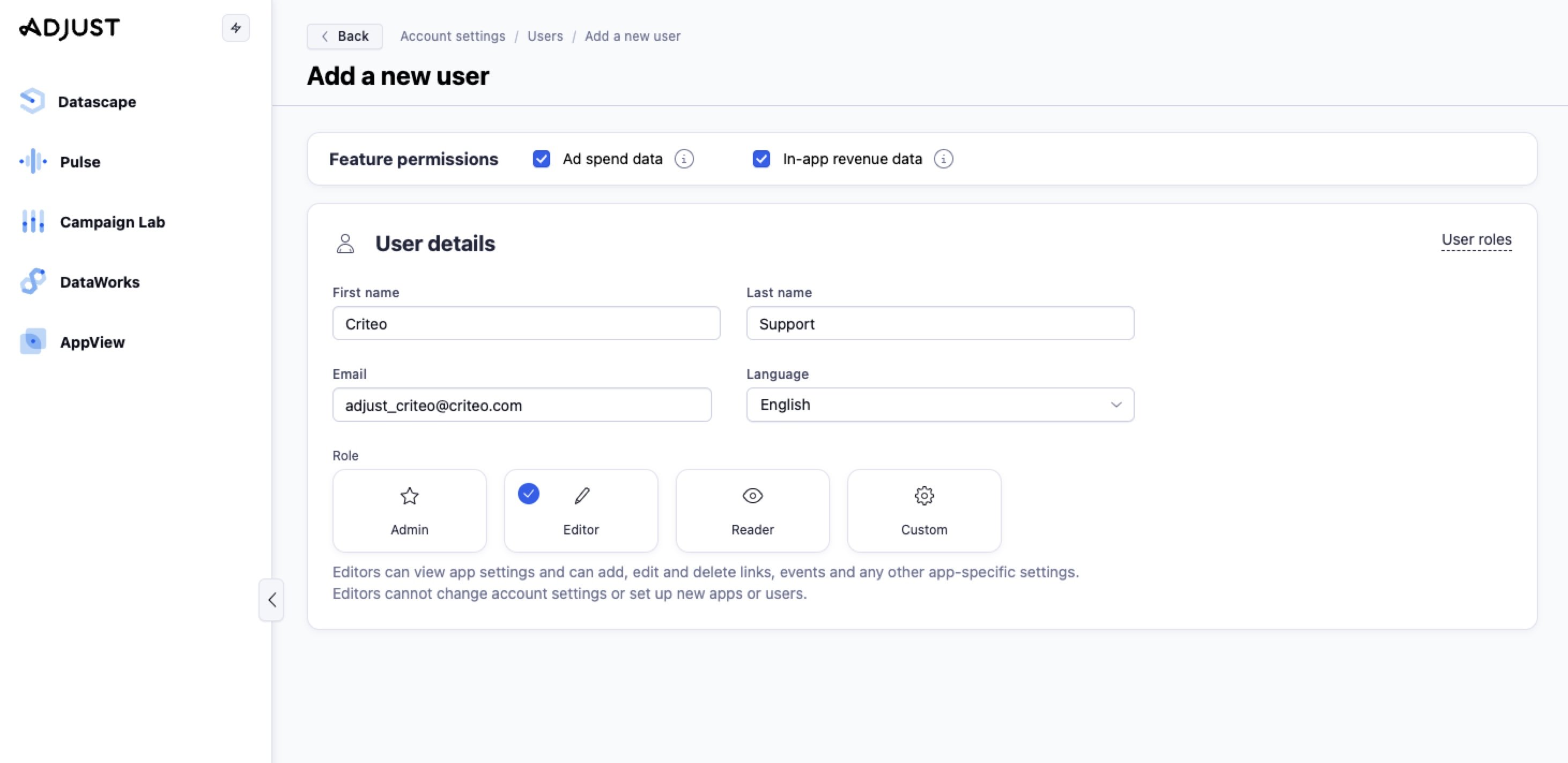
Both options above will give access to all your edit/read access to all your apps and links. In case you prefer to customize it, choose Custom and define specific app(s) and link(s) you want to grant access to.
Additional Features
Audiences Connection
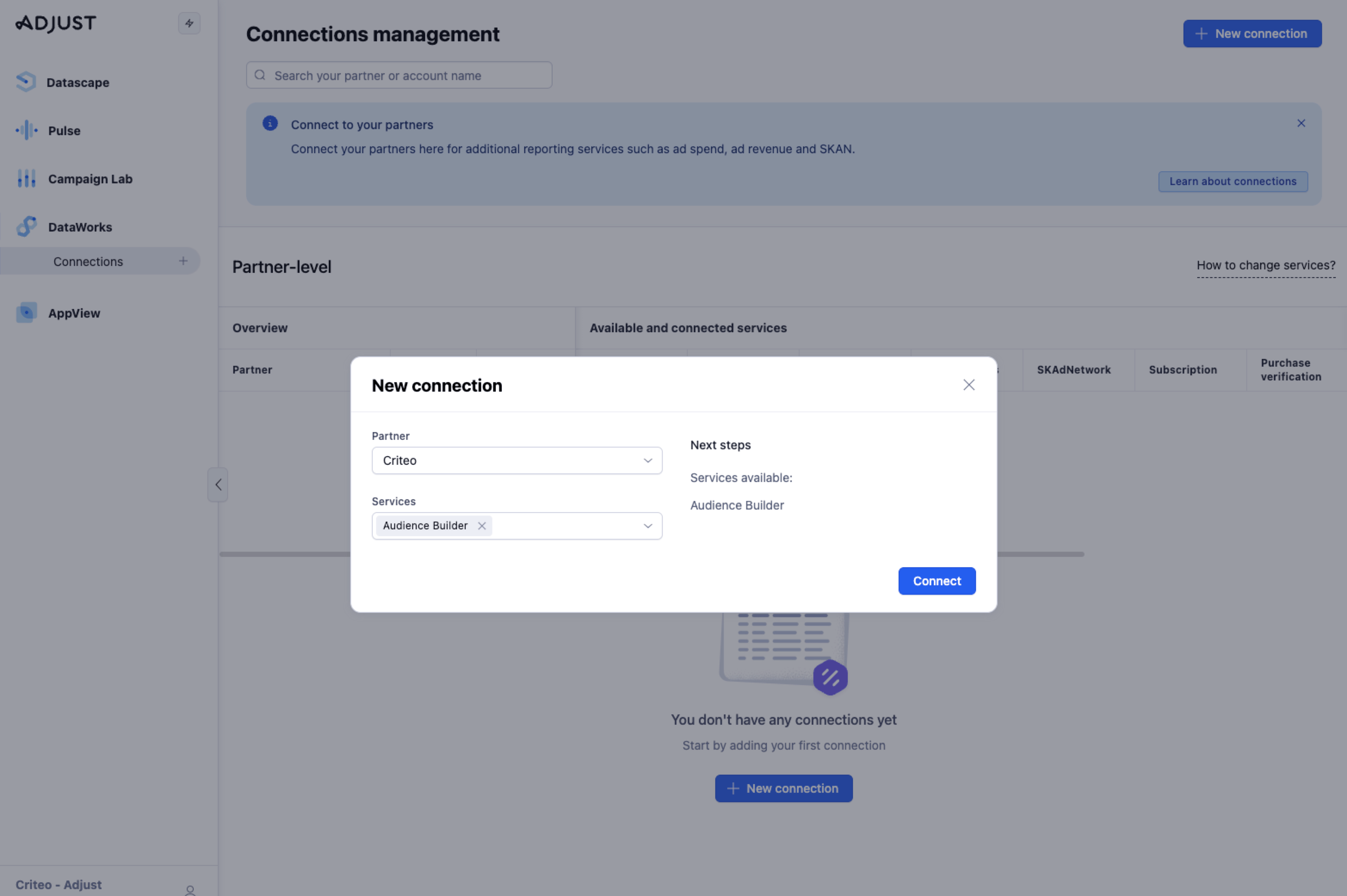
Criteo has the ability to receive Audiences created by marketers on Audience Builder. If this feature is available in your Adjust plan and you wish to share audiences to use on Criteo campaigns, the process to create the connection is described below:- Under DataWorks > Connections, select New Connection
- Look for Criteo in the Partner field and, in Services, choose Audience Builder
- Press Connect
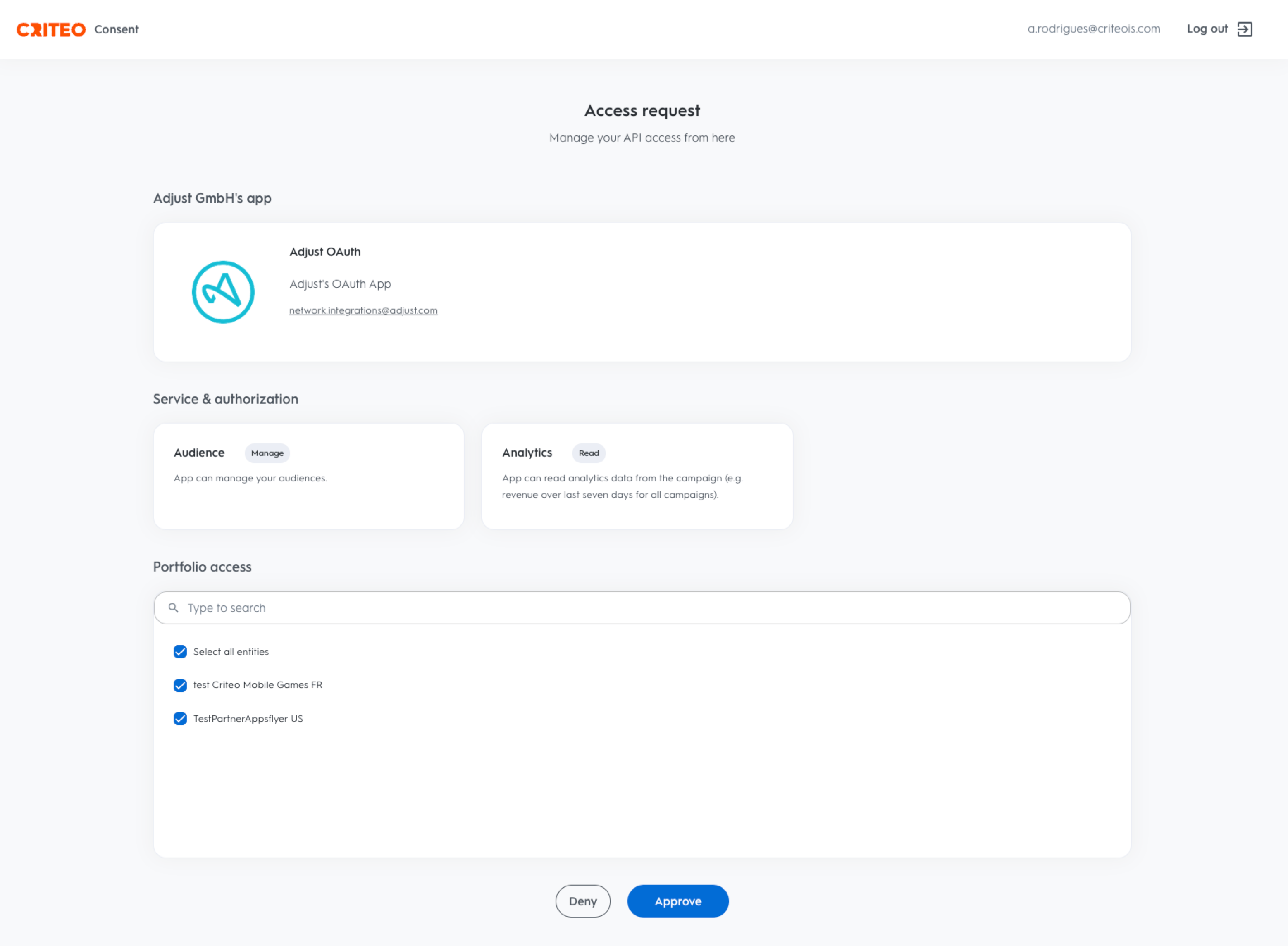
- After it, you’ll be redirected to a Criteo page where you need to review the permissions for Adjust’s API app to access your account on Criteo platform
- Audience:
Manageaccess, to create/update audiences in our Criteo account on your behalf - Analytics:
Readaccess, to read statistics about your campaigns and enrich Adjust dashboard
- Audience:
- Under Portfolio access, make sure to Select all entities to allow Adjust to access all your advertisers accounts (if applicable)
- Approve it!