

Overview
This page will guide you in setting up your Criteo App campaign(s) with AppsFlyer, either App Install or App Retargeting campaigns.Dashboard Configuration
Keep in mind that the following settings are Criteo’s recommendations but the ultimate goal is to match the options you want to take into account for your setup!
App Settings
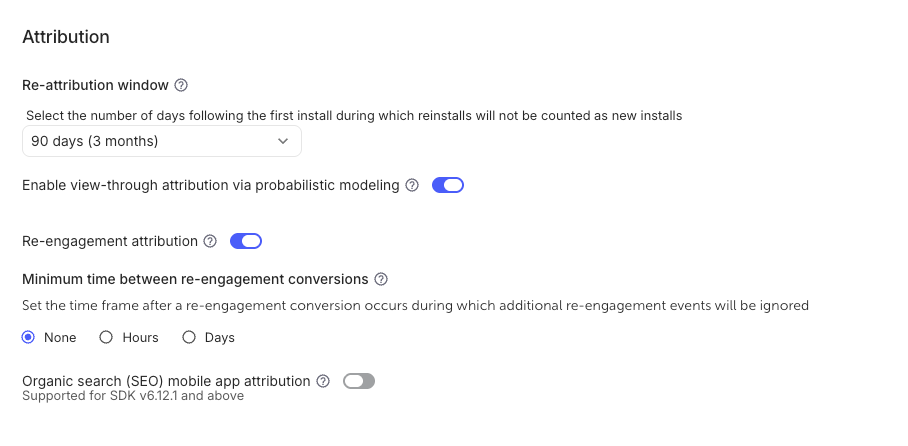
Under Settings > App Settings, please follow these steps:- Enable view-through attribution via probabilistic modeling
- Enable Re-engagement attribution
- When enabled, AppsFlyer can attribute users who already have the app installed to a retargeting campaign if they engage with the campaign and then return to the app.
- Leave default option None for Minimum time between re-engagement conversions
- On re-engagement a window opens to attribute re-engagement in-app events to the retargeting network. This helps you to measure the effectiveness of retargeting campaigns. However, if another network brings a new re-engagement during this window, it replaces the last re-engagement, and all subsequent events are attributed to the new network. By using the Minimum time between re-engagement conversions set to none, you can stop this from occurring. You can find more information here.
- Hit Save settings
Partner Configuration
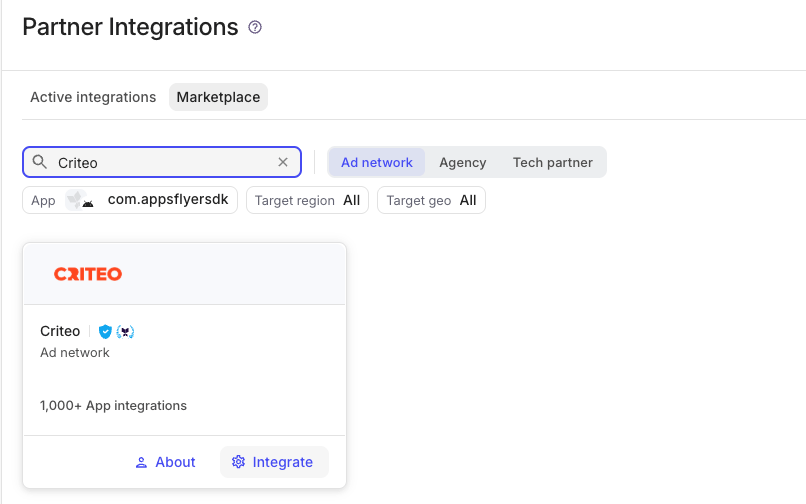
To proceed with Criteo-specific configurations:- Navigate to Collaborate > Partner Integrations > Marketplace and search for Criteo
- Select Integrate
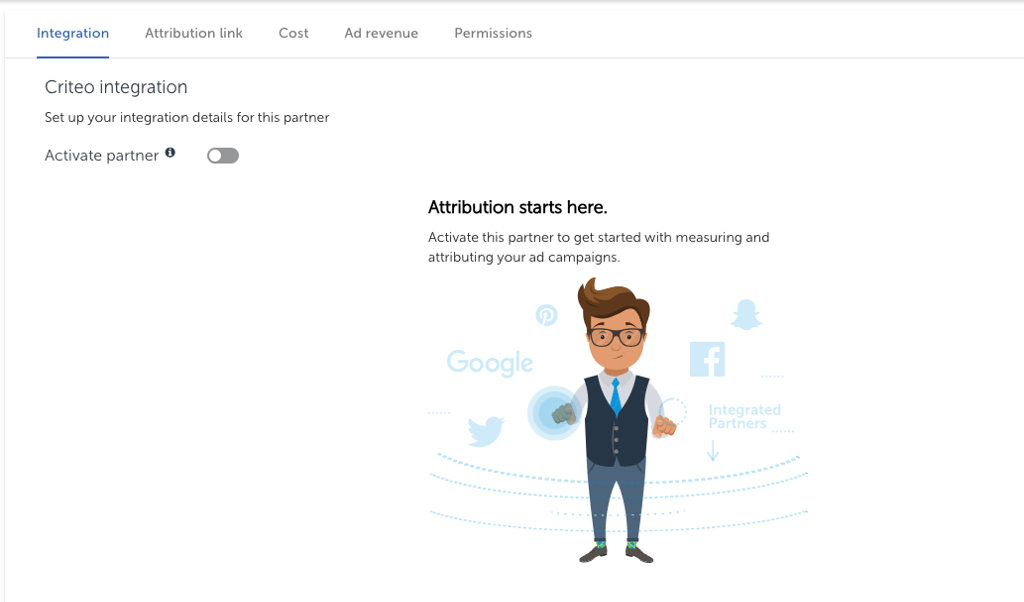
- You will be automatically redirected to the Integration tab, where you should switch on the toggle Activate partner
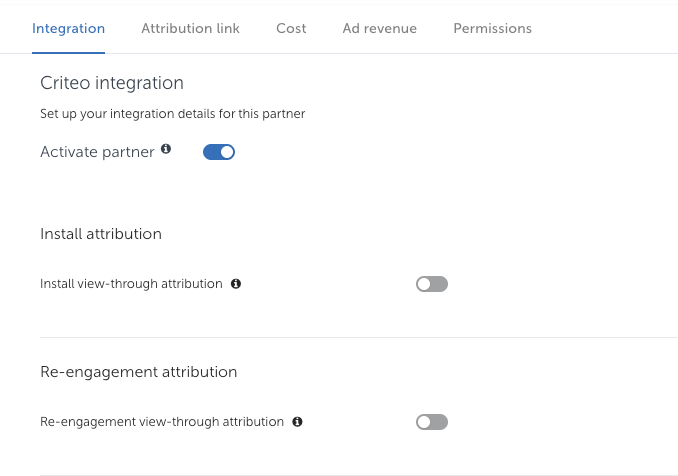
- [Optional] Install view-through attribution
- Set to OFF by default. Enable ONLY if you consider Install view-through attribution. It attributes installs to a media source after the user sees an impression. You can find more information here.
- [Optional] Re-engagement view-through attribution
- Set to OFF by default. Enable ONLY if you consider Re-engagement view-through attribution. It determines whether a retargeting partner can receive credit when a user sees a retargeting ad (but does not click it) and later opens or engages with the app. When it is off, AppsFlyer requires a click for re-engagement attribution.
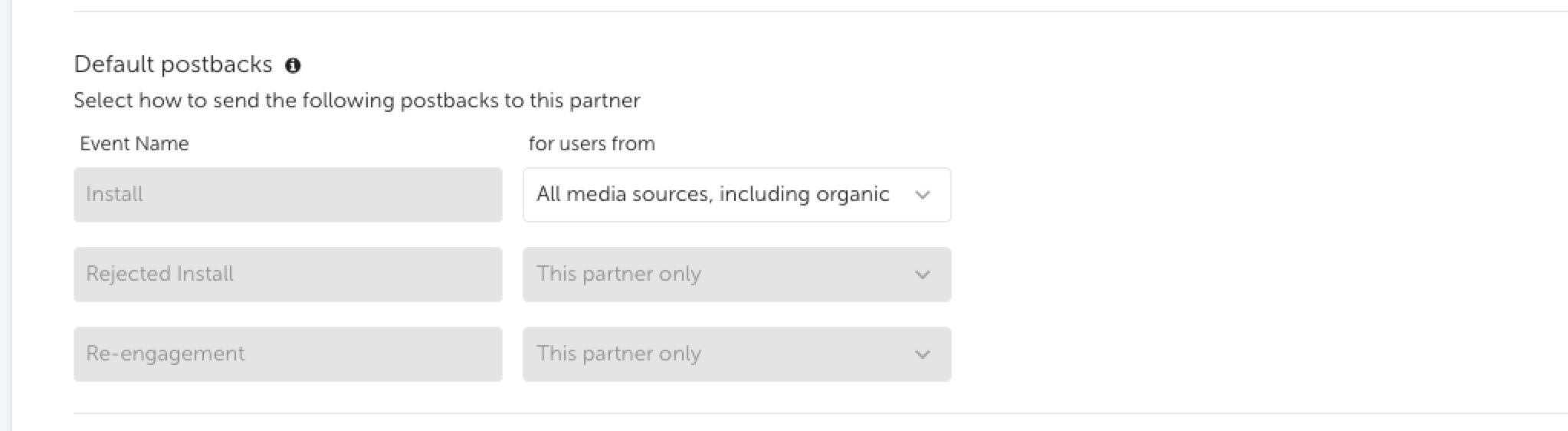
- Default postbacks — Defines the sources of users sending postbacks. You can find more info here.
- Install: All media sources, including organic
- To share with Criteo the full MMP install stream (including installs not attributed to Criteo) in order to perform troubleshooting and discrepancy analysis. Criteo knows from the postbacks which ones are attributed to it and which ones are not.
- Rejected Install: This partner only
- It is a separate rejected-events / fraud-quality stream, not the general install stream. Keeping it partner only means Criteo receives its own rejected installs for fraud/troubleshooting, rather than all rejected installs from every media source.
- Re-engagement: This partner only
- AppsFlyer sends re-engagement postbacks only when Criteo is credited for the re-engagement.
- Install: All media sources, including organic
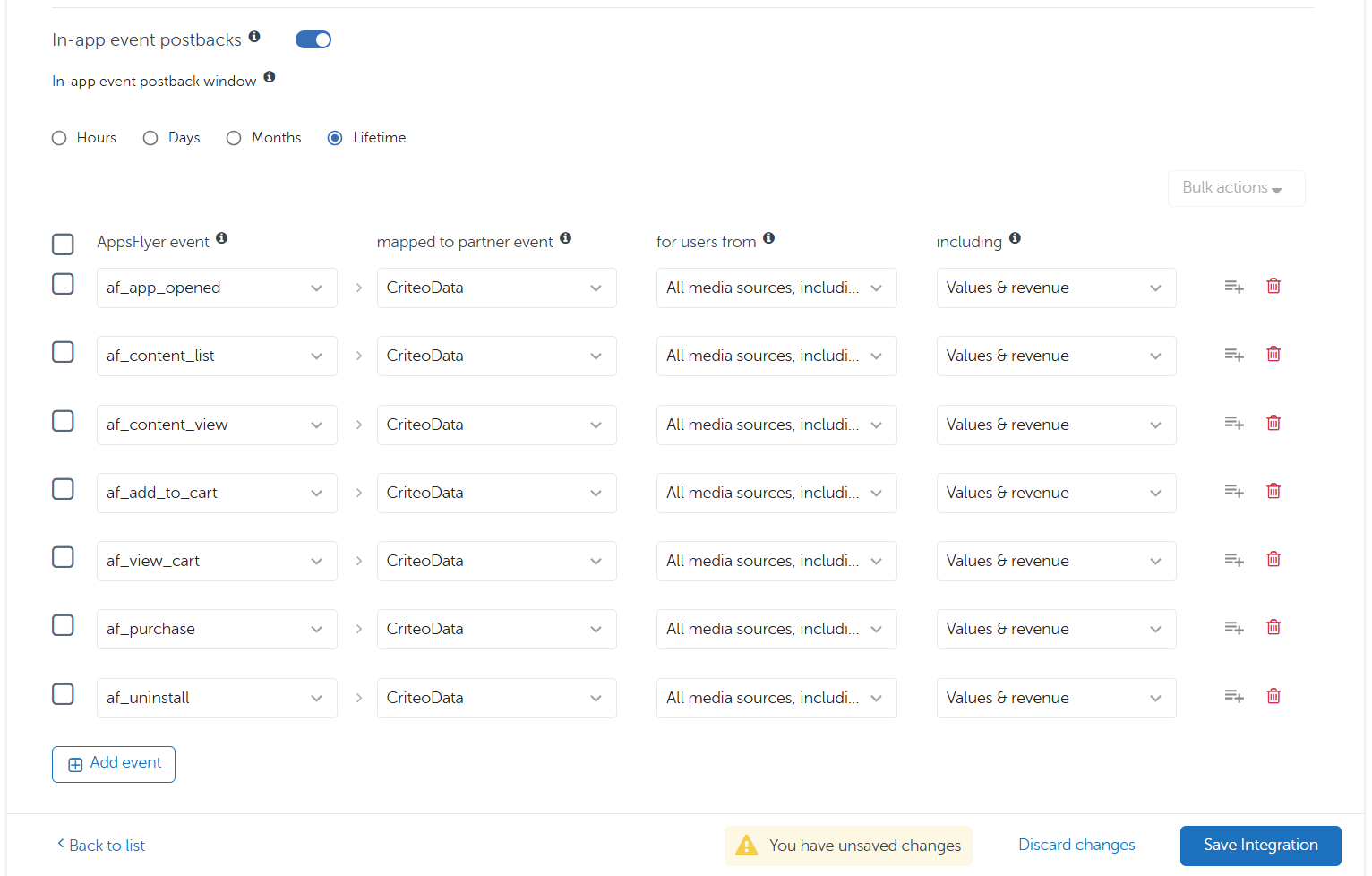
- To configure the Criteo postbacks, set In-App Events Postbacks to ON:
- Set In-App Events Postback Window to Lifetime, so that Criteo can receive postbacks from all active app users
- Map all relevant AppsFlyer events to CriteoData
- As sending option, select All media sources, including organic
- Include Values & revenue to forward all available event parameters
- Save the integration
Please see the section Recommended Events per Vertical below for the list of recommended events per vertical.
Criteo Permissions
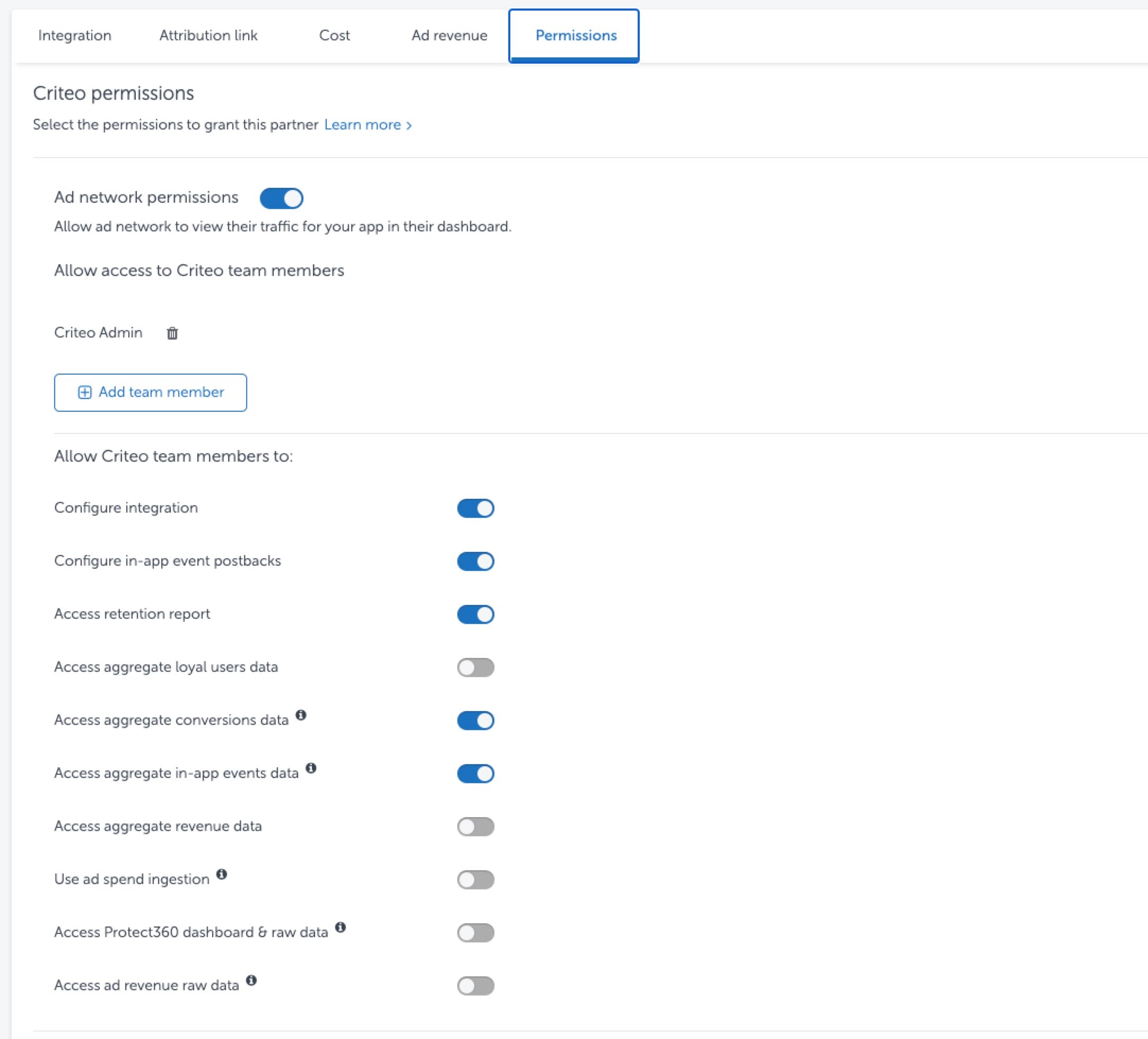
Under the Permissions tab, it is highly recommended to:- Enable Ad Network Permissions for Criteo to see your app in the dashboard
- Grant, at least, the following permissions to the Criteo team:
- Configure integration
- Configure In-app event postbacks
- Access retention report
- Access aggregated conversion data
- Access aggregate in-app events data
- Please don’t forget to Save.
Allowing Criteo to configure the integration and in-app event postbacks can increase the efficiency in the partner setup and allow quicker troubleshooting.
Tracking in AppsFlyer
Tracking Generation
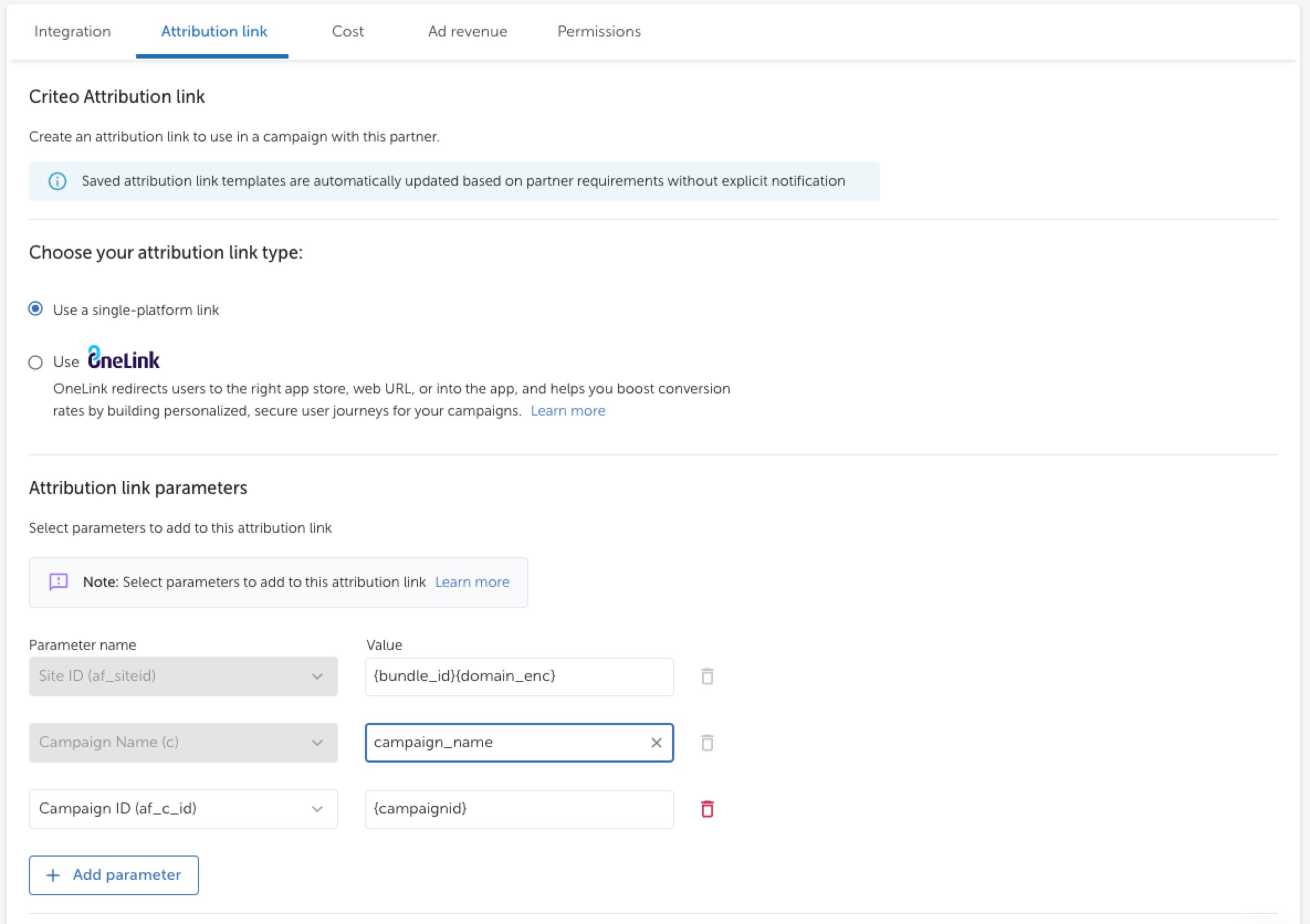
Under the Attribution Link tab, generate the Click Tracking Link and send it to your Criteo contact. Some typical settings:- Add campaign name
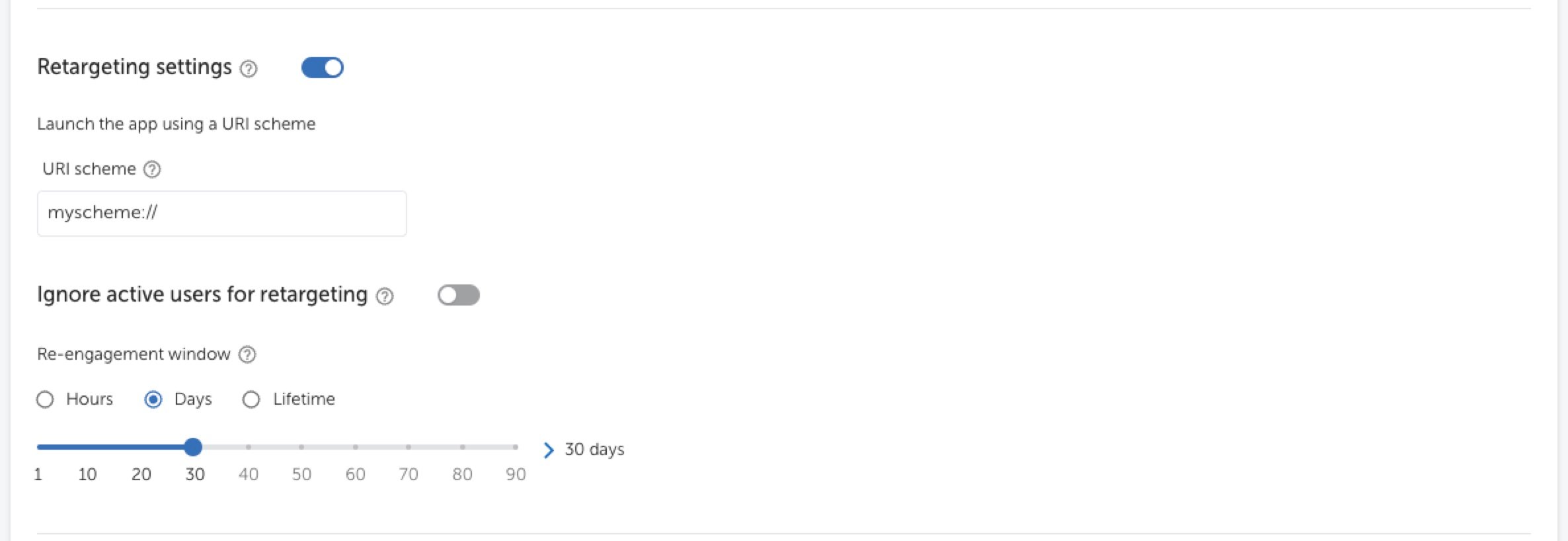
- Enable Retargeting settings (if applicable)
- Provide URI scheme deeplink
- Leave Ignore active users for retargeting OFF (recommended)
- This is a retargeting setting that determines whether users who are already active in your app can be counted as retargeting conversions. When set to OFF, AppsFlyer does not exclude active users. This means an active user can still be attributed to a retargeting campaign if they engage with a retargeting ad and meet the attribution criteria.
- Define Re-engagement window
- The re-engagement window is the period of time after a user interacts with a retargeting ad during which subsequent app opens and in-app events can be attributed to that retargeting campaign.
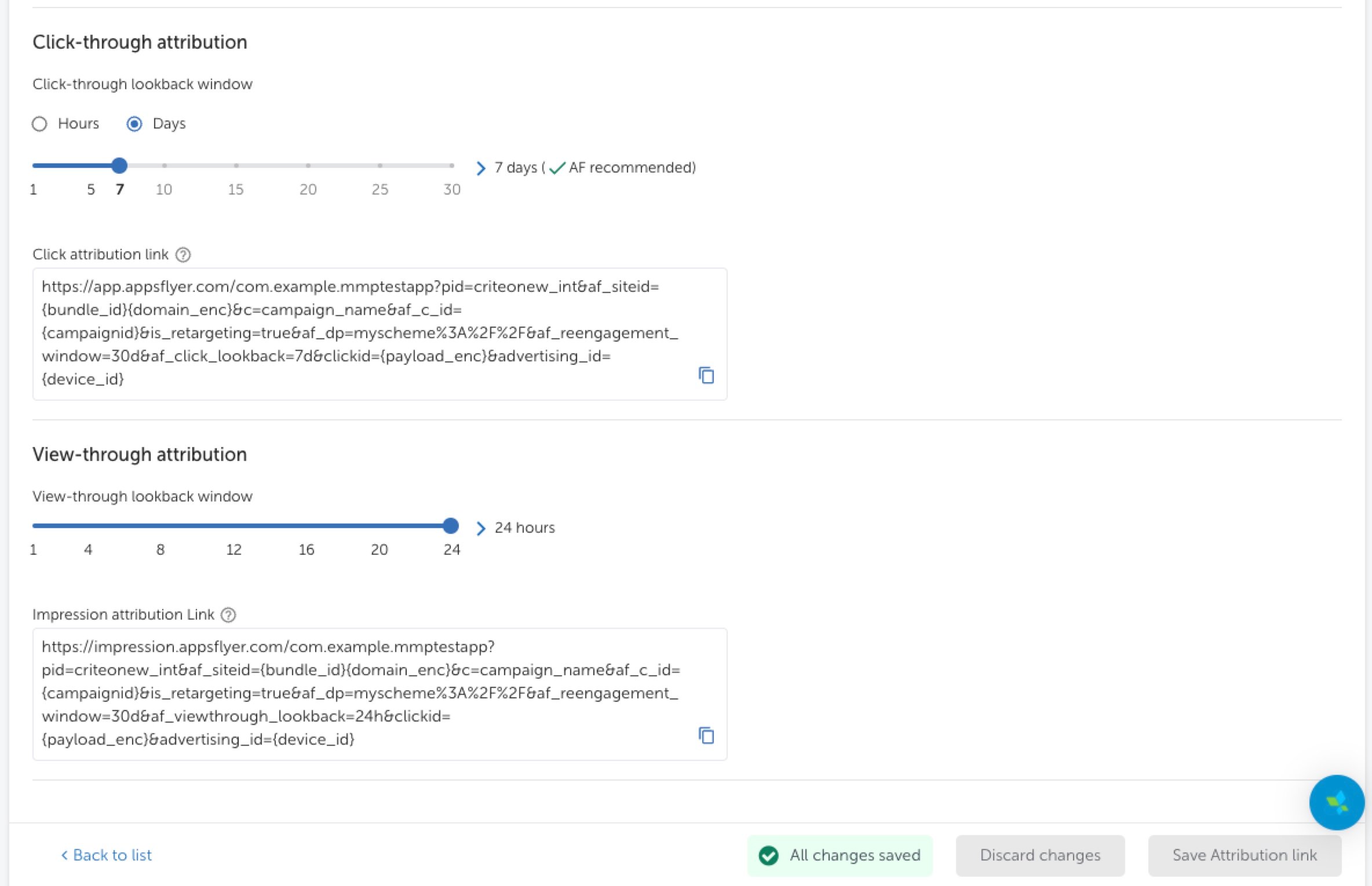
- Define Click-through attribution (recommended 7 days)
- Credits installs to the media source when users click an ad.
- Define View-through attribution (recommended 24 hours)
- Attributes installs to a media source after a user sees an ad impression but doesn’t click.
- Hit Save Attribution link and share with your Criteo contact the generated links
Recommended Events per Vertical
The recommendation is to send all events that describe the “user-flow” in the app. The table below shows the recommended events per vertical:Adding Additional In-App Events
In case you need to create or modify in-app events, please see the iOS and Android guides for how to implement them in your app:Additional Features
Cost Data
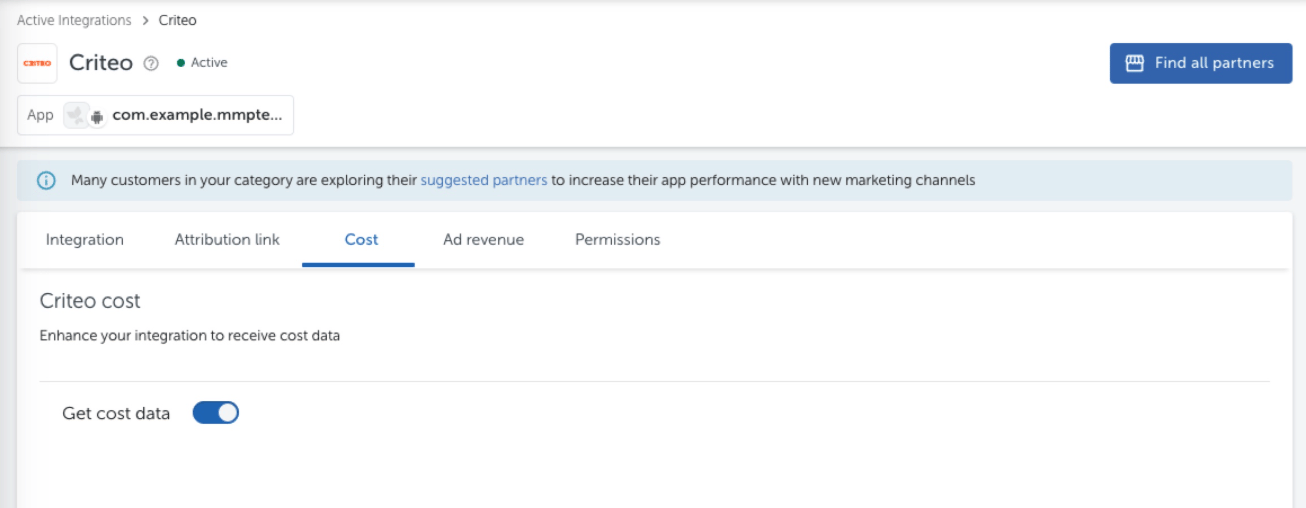
Criteo has the ability to share Cost Data from our campaigns with AppsFlyer. This feature is currently available only for accounts with AppsFlyer ROI360 and, if this is your case, the activation is very simple:- Select the Cost tab under our integration module
- If available, enable the checkbox Get cost data
- Hit Save Cost to confirm the change
Audiences
Criteo is connected with AppsFlyer Audiences, which allows our platform to receive and work with your audiences seamlessly with our campaigns. If this feature is available in your AppsFlyer plan and you already have Audiences built, follow the steps below to create an outgoing connection with our Criteo Commerce Growth platform:- Under Engage > Audiences > Connections, click in + New Connection
- Search for Criteo in Partner name
- Define an arbitrary Connection name of your choice
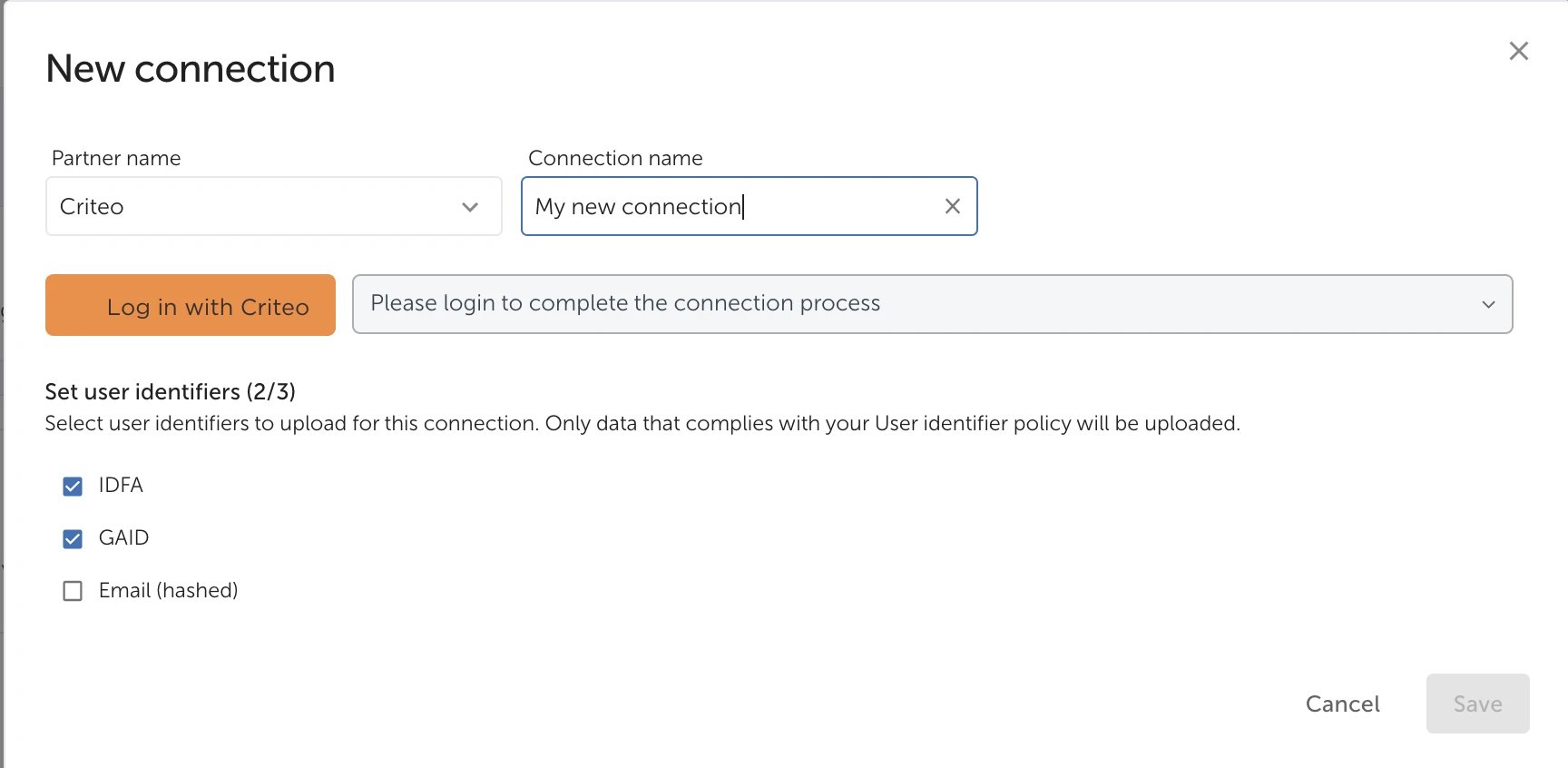
- Click on Log in with Criteo
- With it, you’ll be redirected to a Criteo page where you can review the permissions for AppsFlyer’s API app to access your account on Criteo platform
- Audience:
Manageaccess, to create/update audiences in our Criteo account on your behalf - Analytics:
Readaccess, to read statistics about your campaigns and enrich AppsFlyer dashboard - Campaign:
Readaccess, to read your campaigns status
- Audience:
- Under Portfolio access, make sure to Select all entities to allow AppsFlyer to access all your advertisers accounts (if applicable)
- Approve it!
- With it, you’ll be redirected to a Criteo page where you can review the permissions for AppsFlyer’s API app to access your account on Criteo platform
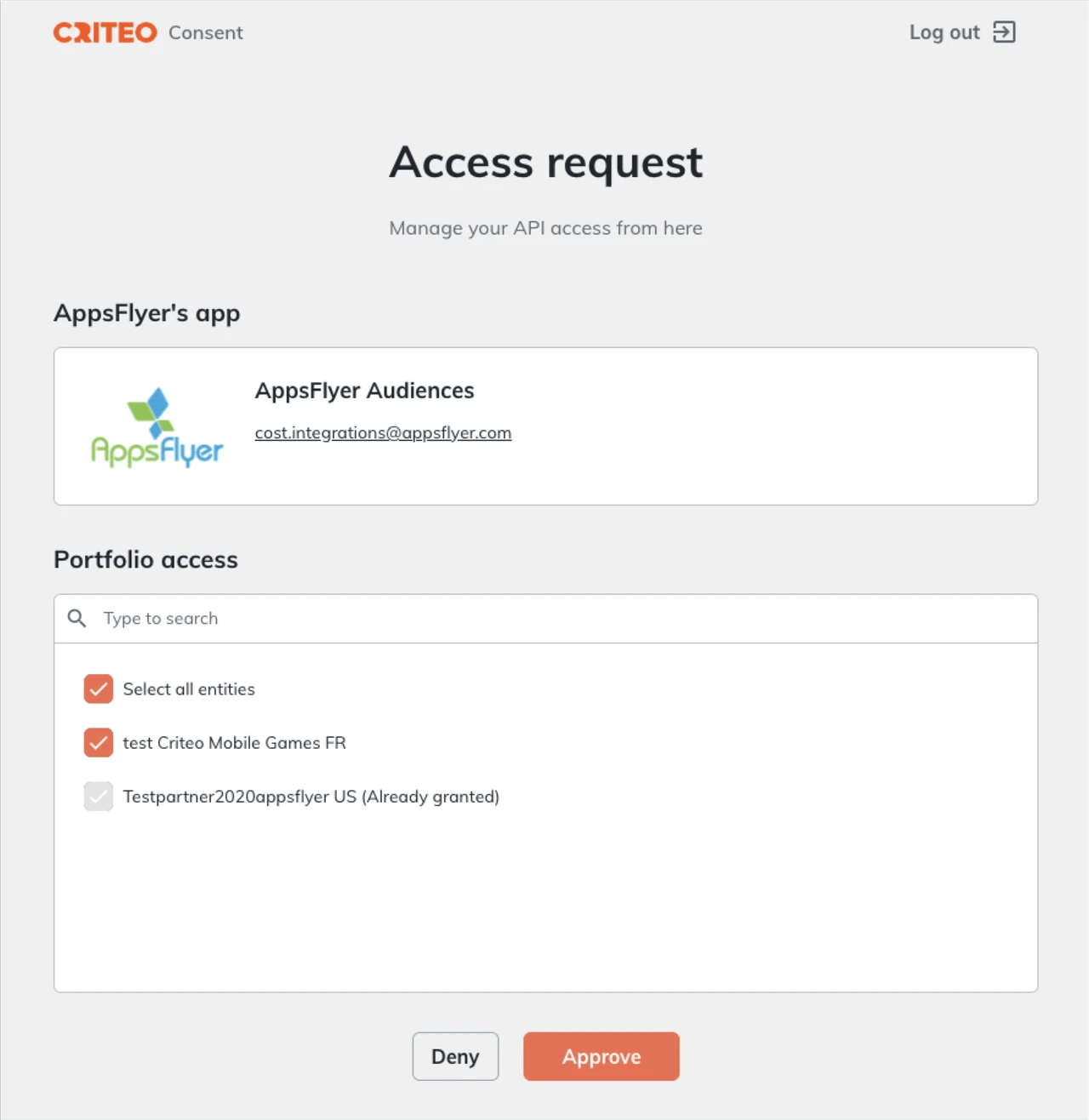
- Back to the previous screen, make sure to select all User Identifiers available: IDFA, GAID, Email, etc.
- Save it to complete the connection creation!
Agency-Managed Setups
AppsFlyer allows agency teams to manage app marketing campaigns on behalf of marketer clients (app owners) with different ad networks and have their data/measurement shared between all the entities. For those setups to work seamlessly for the client, agency, and Criteo, it’s very important to follow the instructions below:- Our integration module needs to be configured by an Agency user, not users connected to the app-owner team (described in section Partner Configuration above)
- Even if the module is already pre-configured by the app owner, an agency user is required to repeat the module setup to ensure that the postbacks sent to Criteo are sent respecting the attribution settings made to your agency account.
- The ad trackings need to include the correct Agency ID (
af_prtparameter — case-sensitive) on both click and impression trackings, if applicable.af_prtstands for Agency Partner ID (or agency account identifier). It’s a parameter added to attribution links to indicate that the traffic is being managed by a specific agency account rather than directly by the advertiser.- If the integration module is correctly enabled by the agency, your respective
af_prtparameter will be automatically included during the Tracking Generation.
- Your Agency ID needs to be included in Criteo’s list of authorized agencies before the launch of the campaign(s)
- If you believe it’s the first time Criteo and your Agency is running campaigns with AppsFlyer, make sure to ask your Criteo contact to add your Agency ID to our allowlist.