Overview
This page will guide you in setting up your Criteo App campaign(s) with Singular, either App Install or App Retargeting campaigns.Singular Dashboard Configuration
Keep in mind that the following settings are Criteo’s recommendations but the ultimate goal is to match the options you want to take into account for your setup!
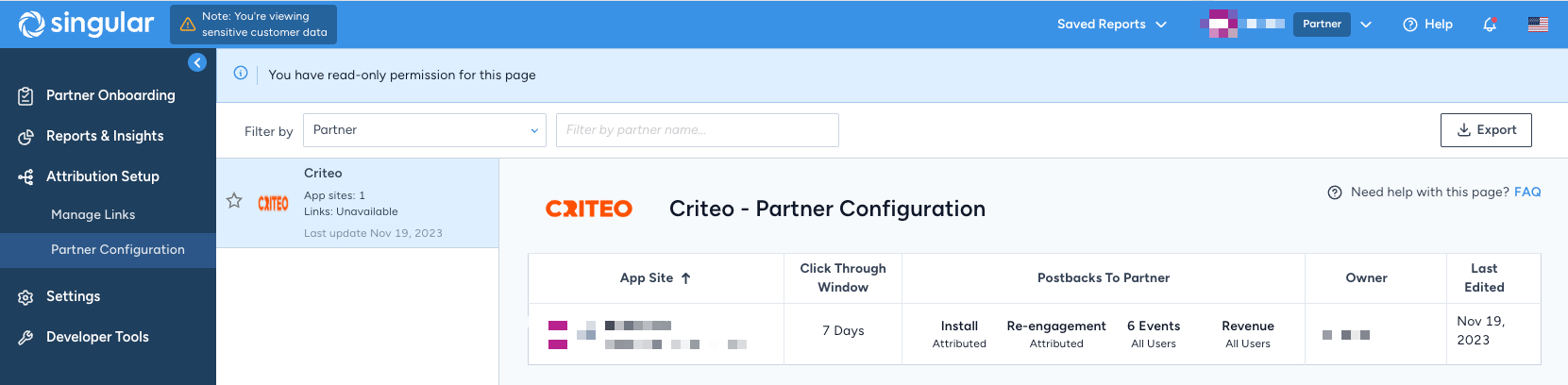
Adding Criteo in Partner Configuration
To add Criteo as a partner on Singular’s dashboard:- Login to Singular Dashboard
- Under Attribution Setup in the side bar, select Partner Configuration
- Search for “Criteo” into the text field at the top right
- Select your app that you want to connect to our campaigns
- You should see the Criteo partner set up now
Attribution Postbacks
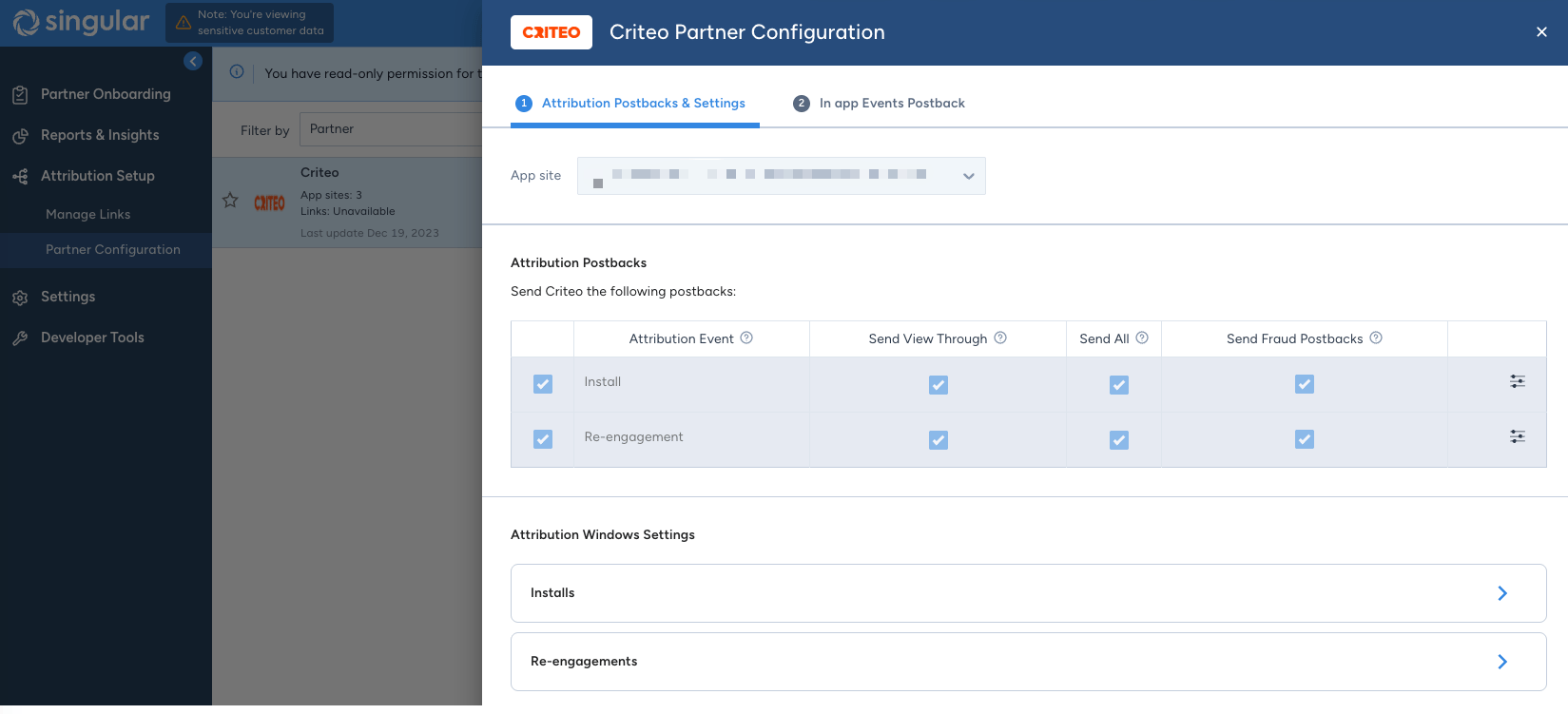
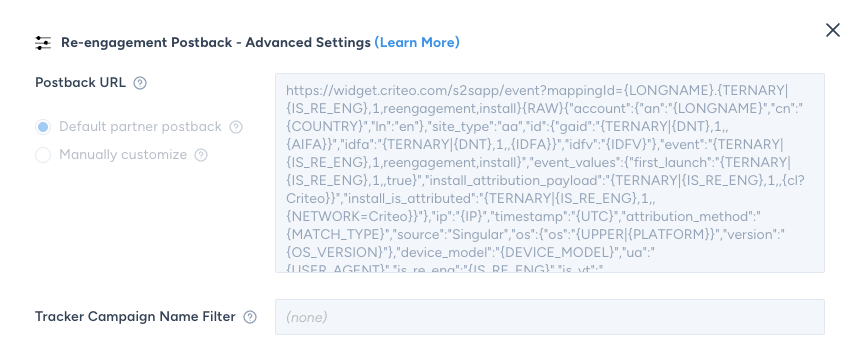
Firstly, set the configuration at the app-level, for both Install and Re-engagement events:- Send View Through: ON
- Send All: ON
- Sends postbacks for all users, to allow us to receive all postbacks and identify your existing app audience appropriately.
- Send Fraud Postbacks: ON
- Includes postbacks for events flagged as fraudulent, for troubleshooting.
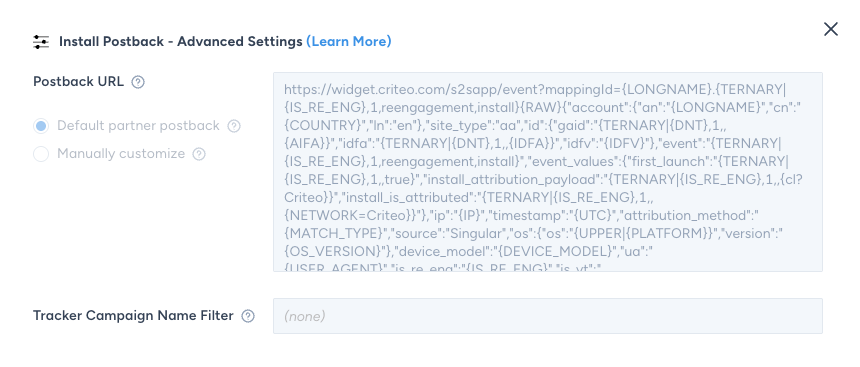
- Leave the Tracker Campaign Name Filter empty, to allow us to receive all installs/re-engagements independently of the campaign attributed to
- Postback URL can be left with the default postback template (unless your Criteo technical contact says otherwise)
Attribution Windows Setup
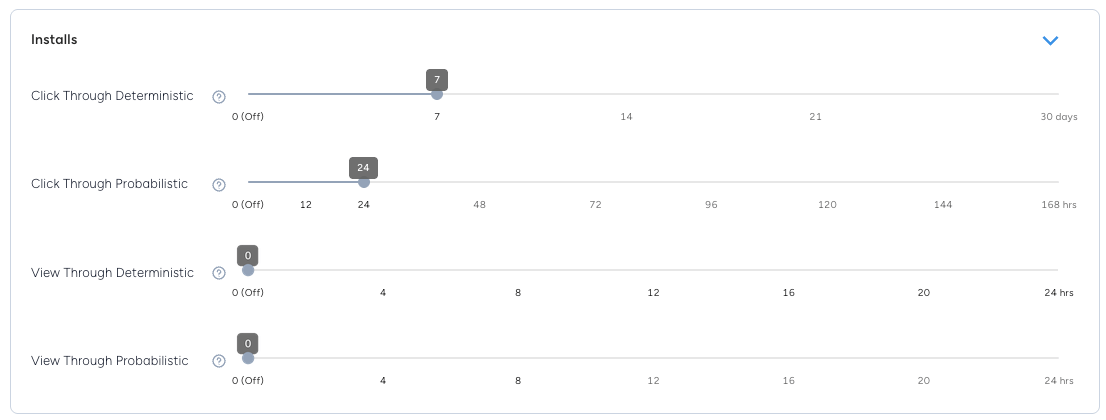
In order to minimize discrepancies between Criteo and Singular dashboards, we recommend using the following attribution settings:- Expand the Installs section:
- Click-through deterministic install window: 7 days
- Click-through probabilistic install window: 24 hours
- View-through deterministic install window: 0(off) [Increase this value if you take view-through attribution into account]
- View-through probabilistic install window: 0(off) [Increase this value if you take view-through attribution into account]
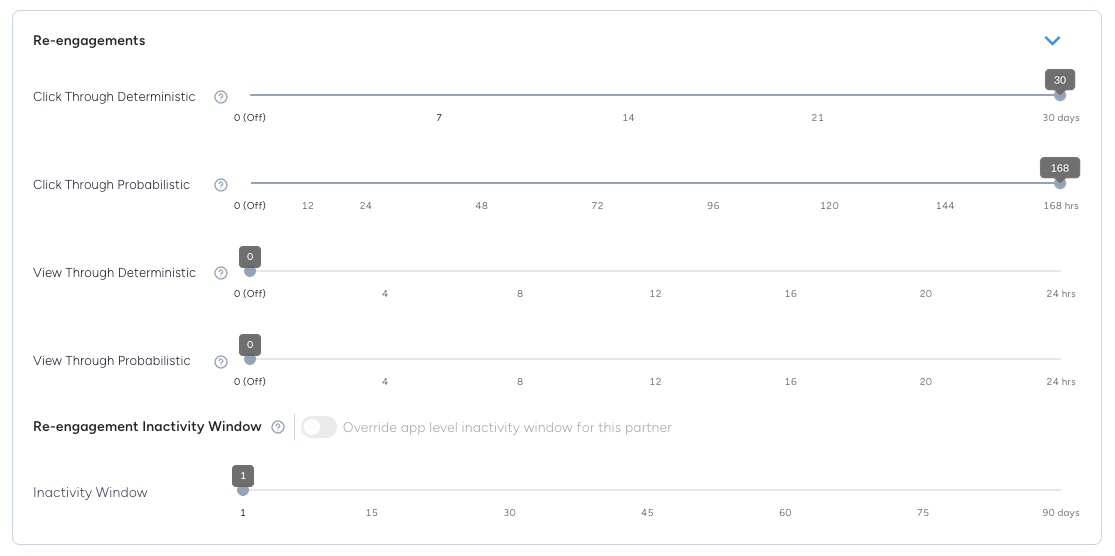
- Expand the Re-engagements section:
- Click-through deterministic re-engagement window: 30 days
- Click-through probabilistic re-engagement window: 168 hours
- View-through deterministic re-engagement window: 0(off) [Increase this value if you take view-through attribution into account]
- View-through probabilistic re-engagement window: 0(off) [Increase this value if you take view-through attribution into account]
- Re-engagement Inactivity Window: reduced to 1 days
In-app Events Postbacks
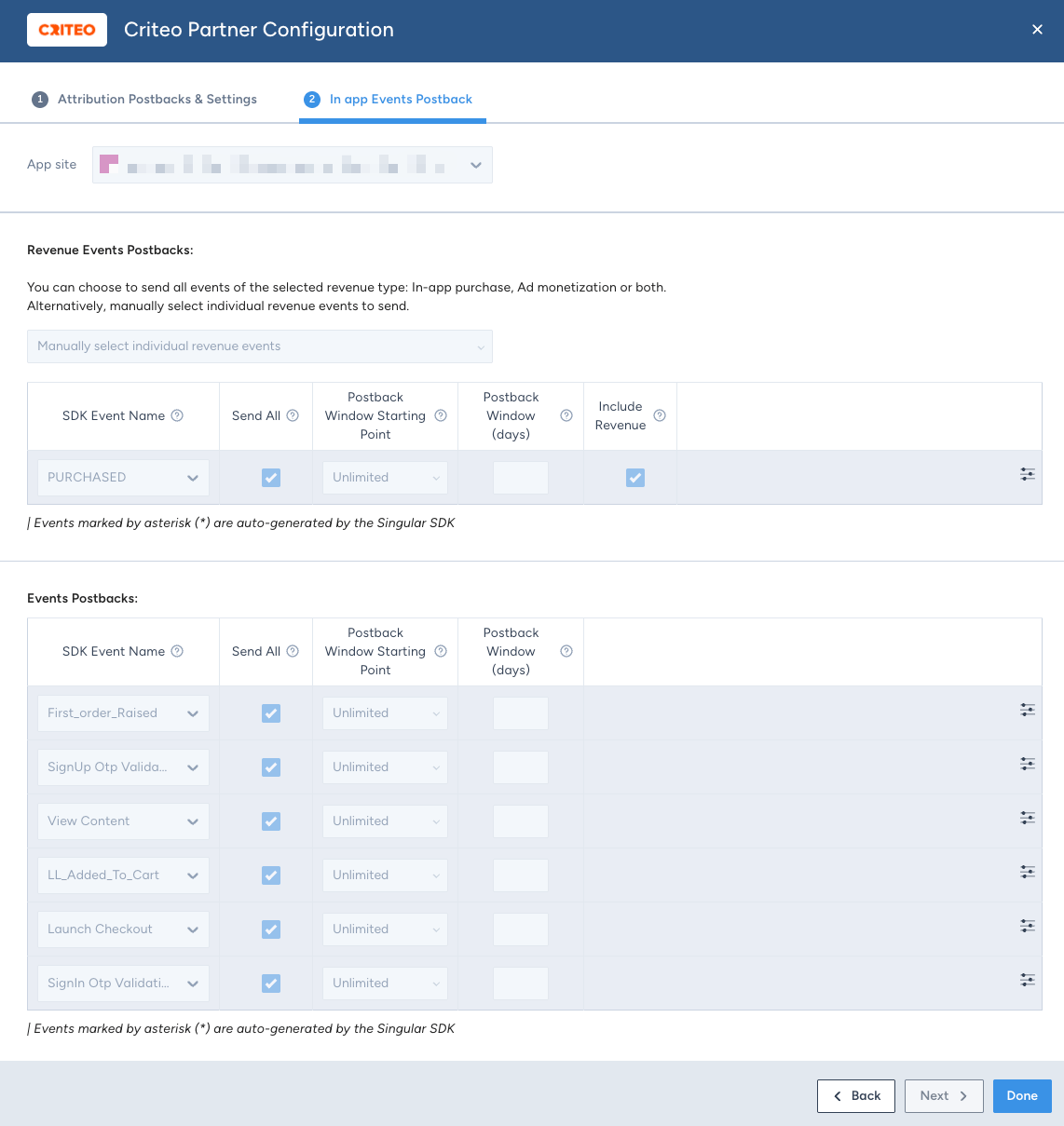
Next, the following section In app Events Postback lets you choose which events postbacks (callbacks) you want to send to Criteo about this app. For each of those events, please leave:- Tick Send All in order to send postback for all events triggered in your app, regardless of attributed source
- Lookback as Unlimited, so Criteo receives all event postbacks independently of the attribution/install time
- This is strongly recommended for Retargeting campaigns
- Include Revenue enabled, in order to forward revenue data to Criteo and allow us to measure ROAS/COS (enabling the possibility to optimize towards those metrics)
Tracking in Singular
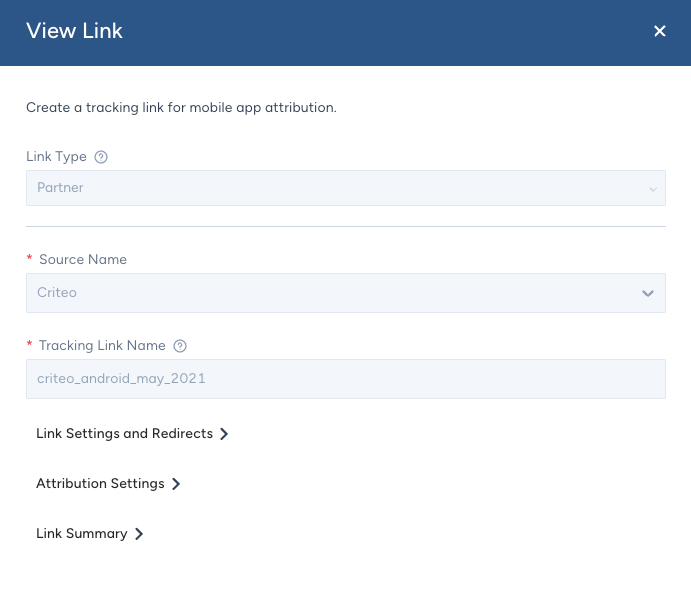
To account for Singular attribution settings in our Criteo campaigns, it’s required to use Singular Tracking links on our ads. To create it:- Navigate to section Attribution -> Manage Link
- In case of multiple apps, select the correct one and hit Create Link
- Select Partner from the Link Type dropdown
- Select Criteo from the Source Name dropdown
- Choose an arbitrary Tracking Link Name
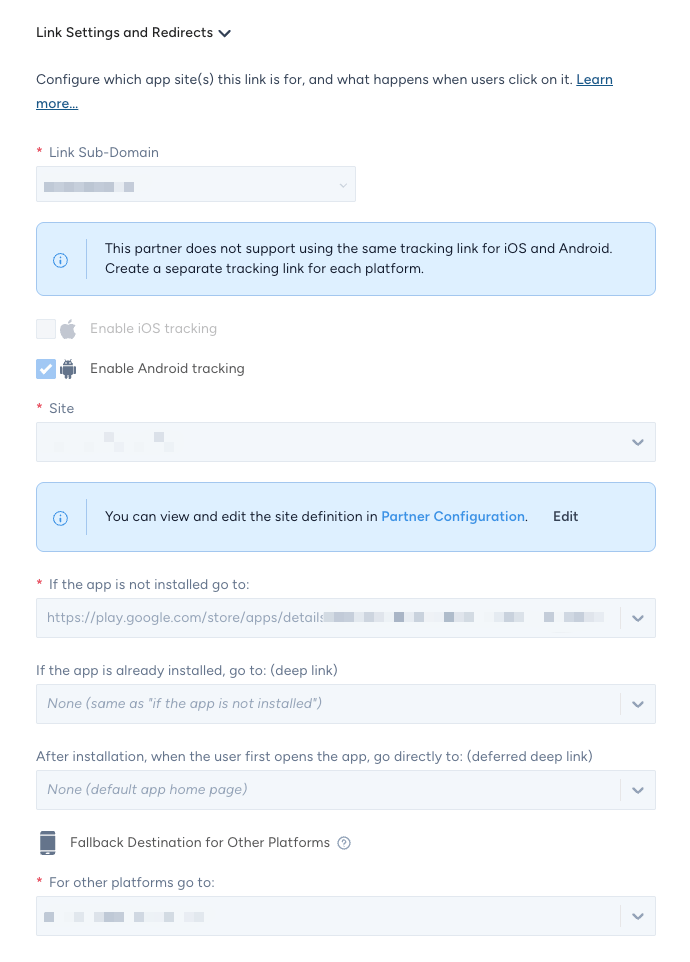
- Expand the Link Settings and Redirects section
- Set the Link Sub-Domain and Site from the dropdowns. More info
- Choose the desired OS to track with this link
- Criteo requires one Singular Link per OS
- In the option If the app is not installed go to:, choose the expected location the user should land in those cases (usually, Google Play / App Store)
- For the option If the app is already installed, go to:, you can leave it empty for most cases, as Criteo will configure the dynamic redirection through deeplinks in the catalog (see Products catalog for Dynamic campaigns)
- Set the Fallback Destination for Other Platforms
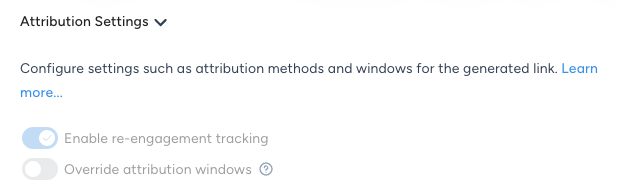
- Expand the Attribution Settings section
- Before generating the link, especially if you intend to run App Retargeting campaigns, make sure to turn ON the option Enable re-engagement tracking
- Keep the Override attribution windows toggle disabled - because we want to use the partner level configuration settings
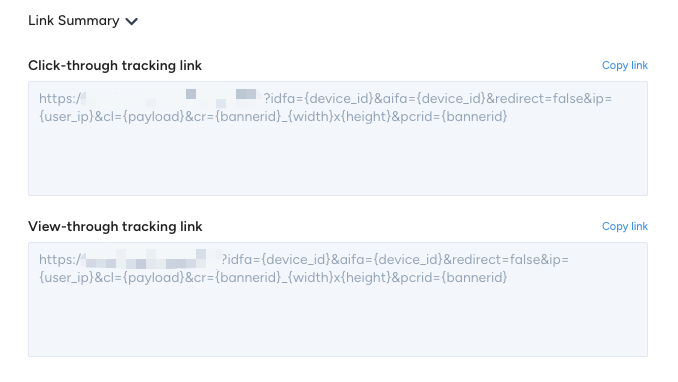
- Expand the Link Summary section
- Forward the links to your Criteo contact
Singular Data Connector
Additional metrics can be provided to Singular through our Criteo API, like Impressions and Cost data (including subsequent metrics, like CTR, eCPC, eCPI, etc.) In order to have those metrics available in our Singular dashboard reports, it is required to configure our respective Data Connector.Enabling the Data Connector
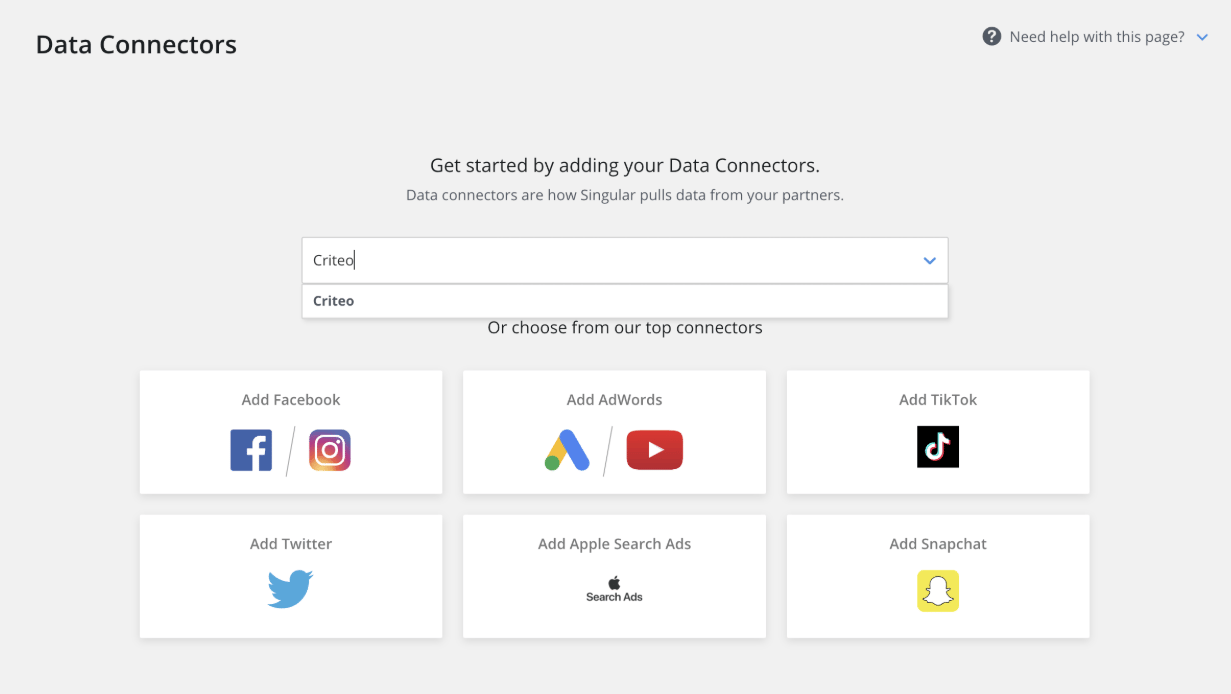
The next steps guide you in enabling our Data Connector:- On the Singular dashboard, go to Settings > Data Connectors
- Choose to Add Data Connector and search for Criteo in the search box
- Hit Sign in with Criteo
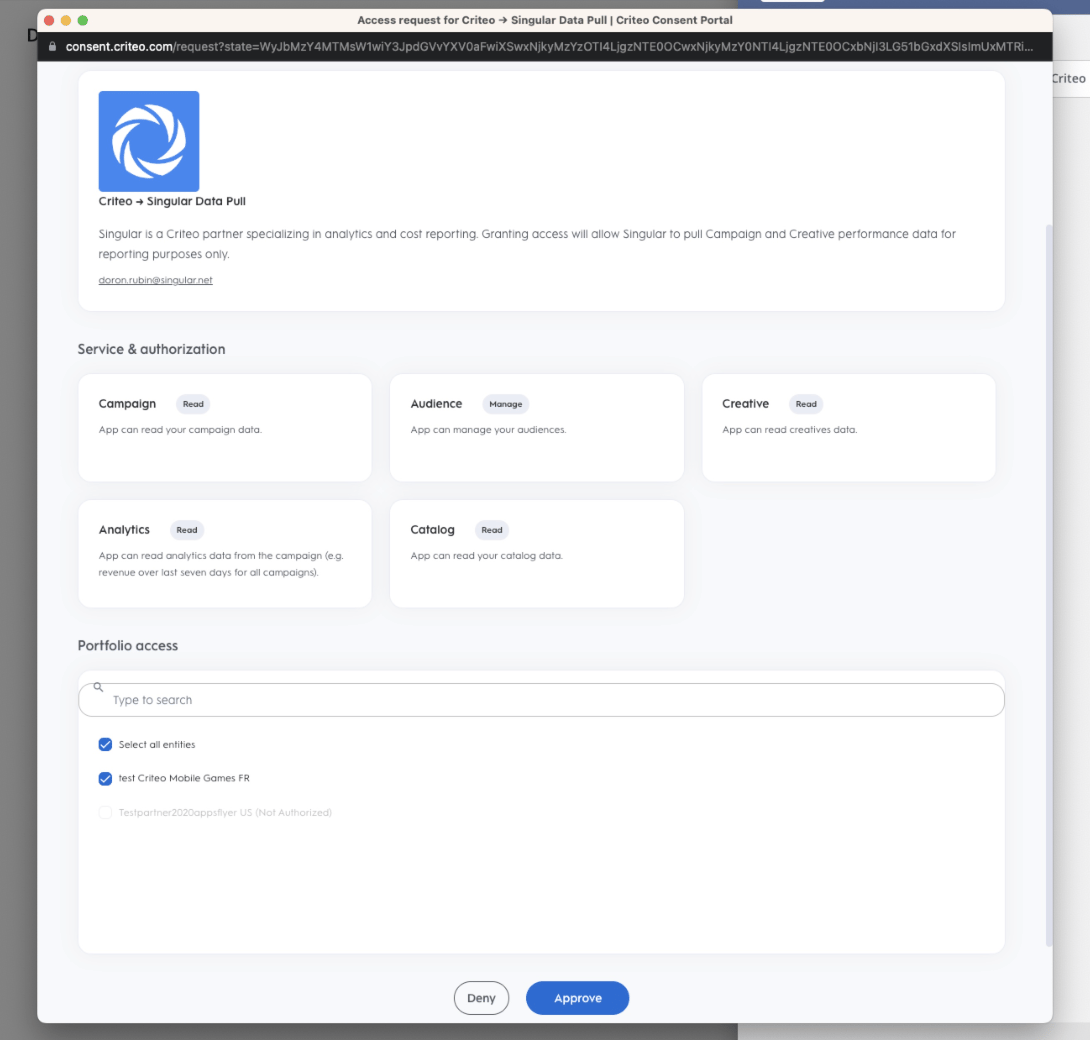
- In the pop-up that appears, you’ll be required to fill in your Criteo credentials and grant access to the Singular Data Pull app to allow it to read statistics data from your campaigns:
- In case of multiple advertiser accounts under Portfolio access, make sure to Select all entities to allow the app to access data from all your campaigns