

Introduction
This document provides implementation guidance for Onsite Video ads in iOS apps. It introduces a ready-to-integrate video ad wrapper that handles VAST parsing, video playback, and Open Measurement SDK compatibility for viewability and verification, helping retailers easily render, track, and measure in-app Onsite Video ad placements with minimal code.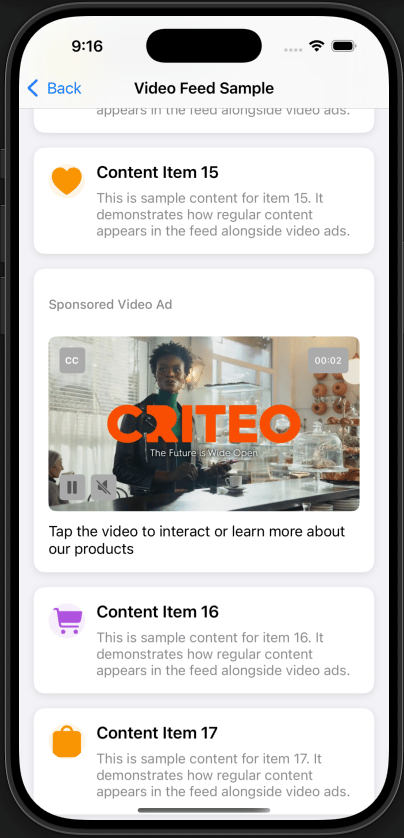
Example: Video Player in an iOS sample app
Integrate into your own project
-
Add the Criteo sample folders to your app target
- Download/clone the GitHub repo.
-
In Xcode, drag these sample source folders from
OM-Demo/into your project. (Copy items if needed, check your app target):
-
CriteoPlayer + Wrapper/ -
Managers/ -
Utilities/
- Use the wrapper where you need an ad.
-
Pick one of the patterns in this guide and adapt the snippet:
- Single Video: Small placement with one ad on screen.
- UIKit feed: Scrolling feeds require preloading and visibility‑driven playback.
- SwiftUI feed: SwiftUI app using a shared wrapper and a minimal UIKit bridge.
Instructions for Integrating OM SDK (OMID) into the iOS Sample App
Step 1: Register & Namespace
Why: Generates a unique, namespaced OM SDK so measurement is attributed to your organization.- Sign up at IAB Tech Lab Tools Portal with your work email.
- After login, confirm that a Namespace exists for your email domain.
Step 2: Build & Download (iOS)
Why: Produces your organization’s signed OMID artifacts (framework + JS) required at runtime.- Go to the OMID builder in IAB Tech Lab Tools Portal.
- Select your Namespace, then click Build iOS.
-
When it finishes (after ~10-15 minutes), go to the iOS tab, confirm the latest build by its timestamp (should be close to the current time), and download the artifacts. Inside the package you’ll find:
-
OMSDK_.xcframework(dynamic) -
OMSDK-Static_.xcframework(static) -
omsdk-v1.js - Demo project (reference only)
-
Step 3: Add the Dynamic XCFramework
Why: Dynamic needs Embed & Sign so the framework is present at runtime.-
In Xcode, drag
OMSDK_.xcframeworkinto your app project. - Edit the project’s target, (tab) General ▸ Frameworks, Libraries, and Embedded Content
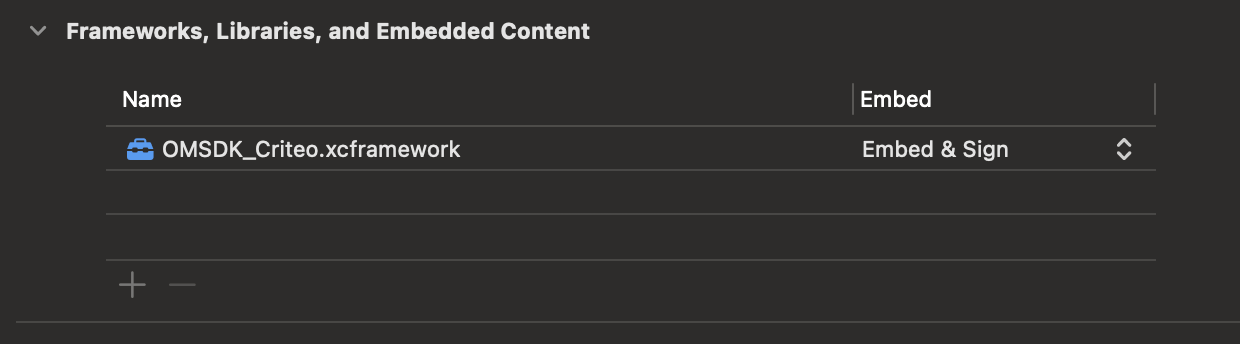
Ensure the framework is listed and set to “Embed & Sign”
-
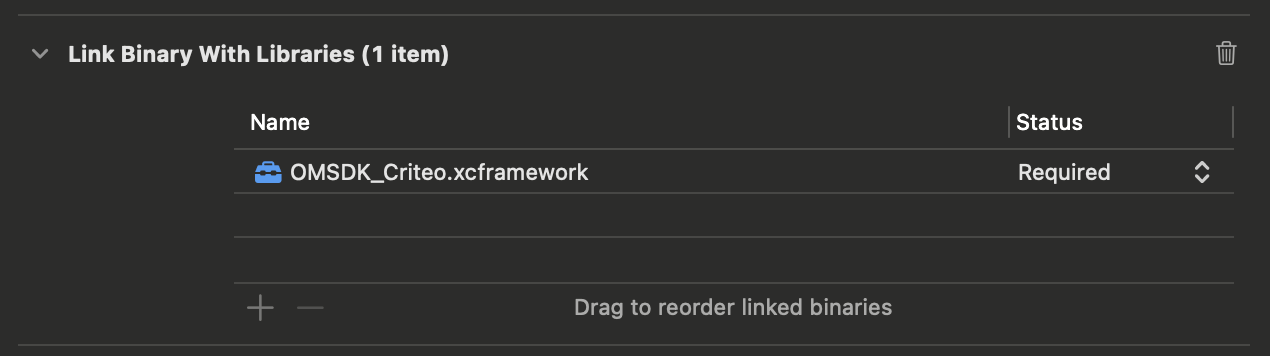
(tab) Build Phases ▸ Link Binary With Libraries
- Verify
OMSDK_.xcframeworkis linked.
- Verify
Step 4: Add the OMID JS library
Why: The OMID service script is required by the native session to initialize measurement.- In
OMSDK/Service, findomsdk-v1.js. Add it to your app bundle in a directory of your choice (e.g., Resources/OMID/). You can load its content using:
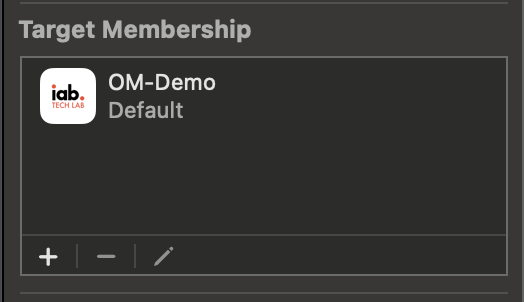
- In File Inspector, ensure Target Membership (panel) is enabled for your app target.
Step 5: Update the OMID Session Interactor
Why: Point the sample to your OMID and set partner metadata so events are attributed correctly. InManagers/OMIDSessionInteractor.swift, make the following changes:
-
Import module: replace
OMSDK_CriteowithOMSDK_<retailer-namespace>. -
Types: replace every
OMIDCriteotype withOMID<retailer-namespace>. -
Update
partnerNameto your organization’s name.
Step 6: Activate OMID
Why: OMID must be activated before anyOMIDAdSession is created; otherwise, session creation will fail.
Call activation once, on app launch (in AppDelegate):
Integration Key Concepts and Code Snippets
Short, descriptive snippets that explain behavior over boilerplate.What you integrated
-
CriteoVideoAdWrapper(public API): Orchestrates VAST parsing, asset download, OMID-compliant measurement, beacon tracking, and video player lifecycle management. -
CriteoVideoPlayer(internal): managed by the wrapper. -
Managers (internal):
NetworkManager,VastManager,CreativeDownloader,OMIDSessionInteractor,BeaconManager,ClosedCaptionsManager.
Single Video (UIKit)
Code Example:/OM-Demo/Examples Final/CriteoAdSingleVideoController_Sample.swift
Pattern:
- Create the wrapper early; optionally enable logs.
-
Begin playback on
onVideoLoaded. -
On exit,
pauseAndDetachand clear callbacks.
Feed (UIKit UITableView)
Code Example:
-
Controller:
/OM-Demo/Examples Final/CriteoAdTableViewController_Sample.swift -
Cell:
/OM-Demo/Examples Final/Supporting Views/CriteoAdCell_Sample.swift
- Preload once when the screen appears.
-
On cell visible:
resumePlayback()(autoplays unless user previously paused). -
On cell hidden:
pauseAndDetach()(free UI; state is preserved - position/mute/CC).
Feed (SwiftUI)
Code Example:/OM-Demo/Examples Final/CriteoAdSwiftUIListView_Sample.swift
Pattern:
-
Hold a shared wrapper in a view model; preload once in
.onAppear. -
Bridge via
UIViewRepresentable; call resume/pause based on visibility.
Loading from local XML (instead of URL)
-
Use the CriteoVideoAdWrapper
sourceconstructor instead of URL. -
Use
.xmlfromVASTSourcepublic enum.
Wrapper API – Quick Reference
Below are the entry points you’ll typically call from your app.Lifecycle
-
preloadAssets(): Download video & closed caption assets. -
resumePlayback(): Attach/create video player (and play automatically if player is not in pause state); Seek time can be provided if needed. -
pauseAndDetach(): Fade out the video player, pause the playthrough, remove the video player from the view & preserve the video player’s metadata (seek/mute/closed caption activation) for instant resume. -
pause(): Pause the video play-through.
UX
-
toggleMute(): Enable or disable video player’s mute state. -
isClosedCaptionsEnabled: Enable or disable video player’s closed captions activation state.
Callbacks
-
onVideoLoaded: Fired when assets are downloaded and the ad is ready to play. -
onVideoStarted: Fired when playback actually begins (after play/resume is effective). -
onVideoPaused: Fired when playback pauses. -
onVideoTapped: Fired when the user taps the video view (used for click-through). -
onVideoError: Fired when loading or playback fails; provides the underlying Error. -
onPlaybackProgress: Periodic updates with currentTime and duration (seconds) during playback. -
onUserPauseStateChanged: Fired when the player’s user-pause intent changes (true means don’t auto-resume on visibility).
Configuration
CriteoVideoAdConfiguration: Property description and default values. All parameters will have default values unless otherwise specified on init.
Parameter | Description | Default value |
|---|---|---|
| Whether to automatically load VAST/assets on init. |
|
| Initial mute state for the first play. |
|
| Wrapper view background color. |
|
| Wrapper view corner radius (pts) |
|
| Loading overlay background color. |
|
| Activity indicator color while loading. |
|
| Loading message text. |
|
| Loading text color. |
|
| Loading text font. |
|
| Error overlay background color. |
|
| Error text color. |
|
| Error text font. |
|
(Optional) Unique Identifier
identifier (string, optional):
Purpose
Assign each ad slot a stable key so we can persist user-facing state across view lifecycles and reuse it later. The wrapper saves/resumes the state of the video playback by identifier.
What is persisted (by this identifier)
- Last playback position
- User-pause intent
- Mute state
- Closed captions preference
- Apply to scenarios where scrolling feeds or navigation (where the same ad slot can be recreated, say
feed-item-123) occurs, and functionalities like “persist the playback position” and “respect user-initiated pauses” are desired.
- Single shared wrapper on one screen
- Demo scenarios where state survival isn’t required.
Sizing, UX, Performance
- Supports arbitrary video aspect ratios. Size the container to fit your layout. Add padding for header/footer UI if needed.
- Preload before the ad becomes visible for instant start.
- Always pause/detach when off-screen to free UI while keeping state.
- User pause prevents auto-resume until explicitly played again. For our comprehensive video player specifications, see this page.
Technical Details (Internal): Managers & Flow
A quick tour of what happens under the hood. You should not need to call these directly—CriteoVideoAdWrapper orchestrates them for you.
NetworkManager (VAST fetch & parse)
Why it matters: Downloads the VAST XML and transforms it into a structuredVASTAd.
VastManager (VAST structure & URLs)
Why it matters: Extracts media URL, verification script URL, click-through, and tracking events.CreativeDownloader (asset fetch & caching)
Why it matters: Downloads the video (and its closed captions) once and reuses them locally for a smooth start.OMIDSessionInteractor (measurement)
Why it matters: Starts/stops OMID session, registers friendly obstructions, and emits measurement events.
Note: When OMID is not used, a stub is provided within the OMIDSessionInteractor.swift file that logs but does not emit any beacons.
BeaconManager (URL tracking beacons)
Why it matters: Fires video tracking beacons for events related to impressions, quartiles, clicks, and user actions.ClosedCaptionsManager (WebVTT captions)
Why it matters: Parses and displays VTT closed captions with frame-accurate timing updates.CriteoVideoPlayer (UI & AVPlayer)
Why it matters: Presents controls, loads the cached asset, performs precise seeks, and relays events back to the wrapper.CriteoLogger (structured diagnostics)
Why it matters: Centralized logging by category (vast, network, video, beacon, omid, ui), you can enable logs globally or per wrapper instance.Troubleshoot
This section covers common problems you might encounter in your integration.Build & Linking
Symptom: [Build error] No such module 'OMSDK_'
Likely cause
The OMID framework isn’t linked to your app target, or is not embedded correctly, or the import name doesn’t match your namespace.Fix
Review Steps 2 & 3 from the Instruction section above. Ensure the framework is added to the target, set to Embed & Sign, and the import matches the namespace of your organization. (#if canImport(OMSDK_)).
OMID Activation
Symptom: [Runtime error] OMID is not active (fatal from createAdSession)
Likely cause
OMID is not activated before creating an OMID ad session. If OMID fails to initialize or if the SDK does not initialize properly, all subsequent steps will fail.Fix
-
Review Step 4 from the Instruction section above - ensure
omsdk-v1.jsis bundled (Target Membership enabled). -
Review Step 6 from the Instruction section above - Call
OMIDSDK.shared.activate()once at app launch.
Symptom: Unable to initialize OMID Partner object.
Likely cause
Partner initialization failed - Invalid partner metadata (empty name/version) or wrong module import.Fix
Review Step 5. Make sure to use your namespaced partner type (OMIDPartner), a valid partner name, and a non-empty version string (fallback to “1.0”). For the name parameter, use the unique partner name assigned to your organization at the time of integration.
Symptom: Unable to parse Verification Script URL
Likely cause
VASTverificationScriptURL is invalid.
Fix
Verify the ad response/vendor config. The VASTverificationScriptURL must be a valid http(s) URL.
VAST / Assets
Symptom: CriteoVideoAdError.invalidURL or CriteoVideoAdError.vastParsingFailed
Likely cause
Bad VAST URL, network issue, or malformed XML.Fix
- Check network reachability, and the VAST URL returns valid XML over HTTPS.
- Use the same XML locally to isolate network vs. parsing errors.
Symptom: CriteoVideoAdError.noVideoURL
Likely cause
VAST lacks an iOS-playable media file.Fix
Ensure the VASTMediaFiles section includes creatives with iOS-compatible media.
Symptom: CriteoVideoAdError.assetDownloadFailed
Likely cause
Media or caption URL unreachable / not HTTPS / blocked by App Transport Security (ATS).Fix
- Check network connectivity.
-
Verify the URL is reachable over
https://, not unsecured HTTP.
Playback
Symptom: Player failed to load or no playback
Likely cause
Unsupported codec/container, non-HTTPS, or ATS block.Fix
- Check that the media is iOS‑playable (codec/container),
- Confirm the media URL is over HTTPS, and not blocked by App Transport Security.
Click-through
Symptom: Click‑through does not open destination
Likely cause
Invalid/missing scheme or non-HTTPS redirect chain.Fix
- Ensure the redirection URL is valid and resolves to
https://ashttp://is not supported.