
Video Player Implementation (App: Android)
This document provides implementation guidance for integrating Onsite Video ads into native Android apps.
Onsite Video for Apps is in Beta
The documentation is subject to change. Please report any issues and check back for updates.
Introduction
This document provides implementation guidance for Onsite Video ads in native Android applications.
It introduces a ready-to-integrate video ad wrapper that handles VAST parsing, video playback, and Open Measurement SDK compatibility for viewability and verification, helping retailers easily render, track, and measure in-app Onsite Video ad placements with minimal code.
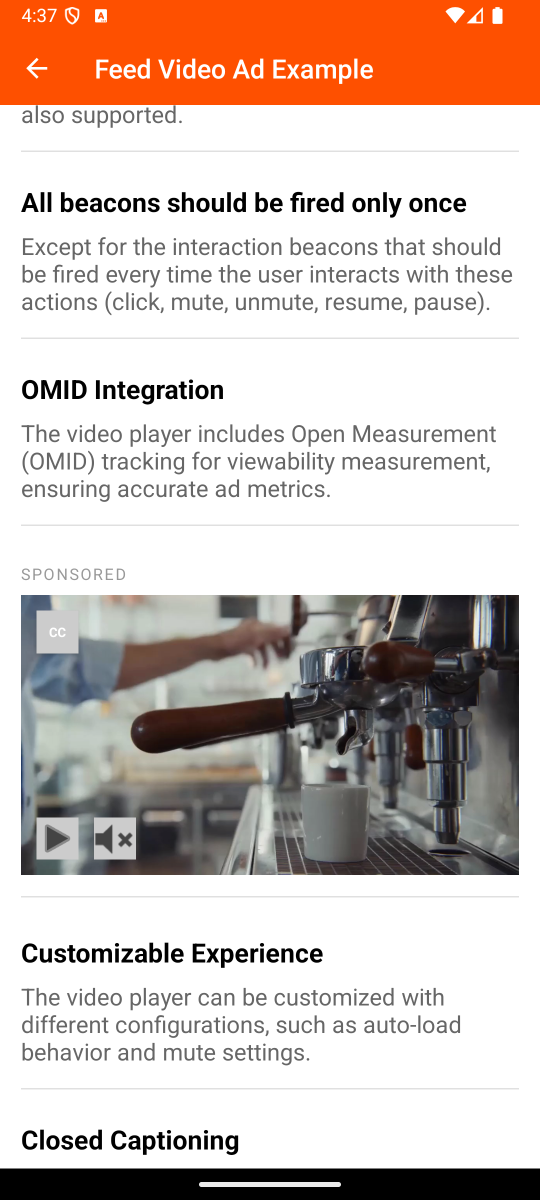
Version requirements
Android SDK 24+ (Android 7.0 Nougat)
Integration Steps
1. Add the Criteo Sample Folders to Your App Target
Add the Criteo sample folders to your app target. You can download/clone the GitHub repo here.
In Android Studio, drag the following sample source folders from:
/android-sample/src/main/java/com/iab/omid/sampleapp/Into your project:
player/: (CriteoVideoAdWrapper + CriteoVideoPlayer)manager/: (NetworkManager, VastManager, BeaconManager, CreativeDownloader, OMID interactors)util/: (CriteoLogger)
2. Use the Wrapper Where You Need an Ad
Pick one of the patterns in this guide and adapt the snippet:
- Single Video (Fragment): Small placement with one ad on screen.
- Feed (RecyclerView): Scrolling feeds require preloading and visibility-driven playback.
Instructions for Integrating Open Measurement SDK (OMID)
Step 1: Register & Namespace
Why: This generates a unique, Namespaced Open Measurement SDK (OMID) so measurement is attributed to your organization.
- Sign up at: https://tools.iabtechlab.com/login
- After login, confirm that a Namespace exists for your email domain.
Step 2: Build & Download (Android)
Why: This produces your organization's signed OMID artifacts (AAR + JS) required at runtime.
-
Select your Namespace, then click Build Android.
-
When it finishes (after ~10-15 minutes), go to the Android tab, confirm the latest build by its timestamp (it should be close to the current time), and download the artifacts. Inside the package, you'll find:
omsdk-android-{'version'}-{'namespace'}.aaromsdk-v1.js- Demo project (reference only)
Step 3: Add the OMID Android Archive (AAR) Library
Why: The AAR must be added to your project's dependencies so the OMID classes are available at compile time and runtime.
- Place the
omsdk-android-<version>-<namespace>.aarfile into your module'slibs/directory. - In your module's
build.gradle, ensure thelibs/directory is included as a flat file repository:
dependencies {
    implementation fileTree(include: ['*.aar'], dir: 'libs/')
}- Sync Gradle and verify the build succeeds.
Step 4: Add the OMID JS Library
Why: The OMID service script is required by the native session to initialize measurement.
- Place
omsdk-v1.jsin your module'sres/raw/directory (e.g.,src/main/res/raw/omsdk_v1.js). - Verify the file appears under
res/raw/in your Android Studio project view.
Step 5: Update the OMID Session Interactor
Why: Point the sample to your OM SDK and set partner metadata so events are attributed correctly. In
manager/omid/OMIDSessionInteractor.kt, make the changes described below.
- Import package: replace
com.iab.omid.library.criteowithcom.iab.omid.library.(retailer-namespace). - Types: replace every
OMIDCriteo...type prefix withOMID(retailer-namespace)... - Update the
PARTNER_NAMEbuild config field inbuild.gradleto your organization's partner name.
Step 6: Activate OMID
Why: OMID must be activated before any
AdSessionis created; otherwise, session creation will fail.
Call activation once in your Application subclass:
class AdApplication : Application() {

    override fun onCreate() {
        super.onCreate()
        OMIDSessionInteractorFactory.activateOMSDK(this)
    }
}
Ensure this Application subclass is referenced by your application so it runs at app startup.
Declare in AndroidManifest.xml:
<application
android:name=".AdApplication">Congratulations!
You are now ready to use Criteo's Android video implementation with the OMID.
Integration Key Concepts and Code Snippets
You will find in this section short, descriptive snippets that explain behavior over boilerplate.
What You Integrated
CriteoVideoAdWrapper(public API): Orchestrates VAST parsing, asset download, OMID-compliant measurement, beacon tracking, and video player lifecycle management.CriteoVideoPlayer(internal): managed by the wrapper; uses ExoPlayer (Media3) under the hood.Managers(internal):NetworkManagerVastManagerCreativeDownloaderOMIDSessionInteractorBeaconManager
Single Video (Fragment)
Code Example: src/main/java/com/iab/omid/sampleapp/BasicVideoPlayerFragment.kt
Pattern:
- Create the wrapper early; optionally enable logs.
- Resume playback in
onResume, pause inonPause. - On destroy,
release()the wrapper to free all resources.
class BasicVideoPlayerFragment : Fragment() {

    private var videoAdWrapper: CriteoVideoAdWrapper? = null

    override fun onViewCreated(view: View, savedInstanceState: Bundle?) {
        super.onViewCreated(view, savedInstanceState)

        setupVideoAd()
    }

    private fun setupVideoAd() {
        // 1. Configure the video ad wrapper
        val config = CriteoVideoAdConfiguration(
            autoLoad = true,
            startsMuted = true
        )

        val vastUrl = arguments?.getString("vast_url") ?: VAST_DEMO_URL_SINGLE_MEDIA

        // 2. Create the wrapper using the factory method
        videoAdWrapper = CriteoVideoAdWrapper.fromUrl(
            context = requireContext(),
            vastURL = vastUrl,
            configuration = config
        ).apply {
            layoutParams = FrameLayout.LayoutParams(
                FrameLayout.LayoutParams.MATCH_PARENT,
                FrameLayout.LayoutParams.WRAP_CONTENT
            )
        }

        // 3. Enable all log categories for debugging
        videoAdWrapper?.enableLogs = setOf(
            CriteoVideoAdLogCategory.VAST,
            CriteoVideoAdLogCategory.NETWORK,
            CriteoVideoAdLogCategory.VIDEO,
            CriteoVideoAdLogCategory.BEACON,
            CriteoVideoAdLogCategory.OMID,
            CriteoVideoAdLogCategory.UI
        )

        // 4. Set up optional callbacks
        videoAdWrapper?.onVideoLoaded = {
            Log.d(TAG, "Video loaded successfully and ready to play")
        }

        videoAdWrapper?.onVideoStarted = {
            Log.d(TAG, "Video playback started")
        }

        videoAdWrapper?.onVideoPaused = {
            Log.d(TAG, "Video playback paused")
        }

        videoAdWrapper?.onVideoTapped = {
            Log.d(TAG, "User tapped on video")
        }

        videoAdWrapper?.onVideoError = { error ->
            Log.e(TAG, "Video error: ${error.message}", error)
        }

        // 5. Add the wrapper to the layout
        view?.findViewById<FrameLayout>(R.id.videoAdContainer)?.addView(videoAdWrapper)
    }

    override fun onResume() {
        super.onResume()
        videoAdWrapper?.play()
    }

    override fun onPause() {
        super.onPause()
        videoAdWrapper?.pause()
    }

    override fun onDestroyView() {
        super.onDestroyView()
        videoAdWrapper?.release()
        videoAdWrapper = null
    }

    companion object {
        private const val TAG = "BasicVideoPlayerFragment"
    }
}What happens under the hood The wrapper fetches and parses the VAST, downloads the chosen media, starts the OMID session, and, on play, fires impression and quartiles beacons as playback progresses. The Android video player behavior aligns with our Video Player Specifications.
Feed (RecyclerView)
RecyclerView)Code Example
Fragment: src/main/java/com/iab/omid/sampleapp/FeedVideoPlayerFragment.kt
Pattern
- Set up a
RecyclerViewwith a scroll listener for visibility-based auto-play/pause. - On cell ≥50% visible:
play()(autoplays unless user previously paused). - On cell below 50% visible:
pause()(state is preserved — position/mute). - On Fragment destroy:
release()all wrappers to clean up resources.
class FeedVideoPlayerFragment : Fragment() {

    private var recyclerView: RecyclerView? = null
    private var adapter: FeedAdapter? = null

    override fun onViewCreated(view: View, savedInstanceState: Bundle?) {
        super.onViewCreated(view, savedInstanceState)
        setupRecyclerView(view)
    }

    override fun onResume() {
        super.onResume()
        // Initial visibility check after layout
        view?.post { checkVideoVisibility() }
    }

    override fun onPause() {
        super.onPause()
        adapter?.pauseAllVideos()
    }

    override fun onDestroyView() {
        super.onDestroyView()
        adapter?.cleanupVideos()
        recyclerView = null
        adapter = null
    }

    private fun setupRecyclerView(view: View) {
        adapter = FeedAdapter()

        recyclerView = view.findViewById(R.id.feedRecyclerView)
        recyclerView?.apply {
            layoutManager = LinearLayoutManager(requireContext())
            adapter = [email protected]

            // Add scroll listener to handle visibility-based auto-play/pause
            addOnScrollListener(object : RecyclerView.OnScrollListener() {
                override fun onScrolled(recyclerView: RecyclerView, dx: Int, dy: Int) {
                    super.onScrolled(recyclerView, dx, dy)
                    checkVideoVisibility()
                }

                override fun onScrollStateChanged(recyclerView: RecyclerView, newState: Int) {
                    super.onScrollStateChanged(recyclerView, newState)
                    if (newState == RecyclerView.SCROLL_STATE_IDLE) {
                        checkVideoVisibility()
                    }
                }
            })
        }
    }

    /**
     * Checks visibility of the video ad item and plays/pauses
     * based on 50% visibility threshold.
     */
    private fun checkVideoVisibility() {
        val layoutManager = recyclerView?.layoutManager as? LinearLayoutManager ?: return
        val firstVisible = layoutManager.findFirstVisibleItemPosition()
        val lastVisible = layoutManager.findLastVisibleItemPosition()

        for (i in firstVisible..lastVisible) {
            val viewHolder = recyclerView?.findViewHolderForAdapterPosition(i) ?: continue
            if (viewHolder is FeedAdapter.VideoAdViewHolder) {
                val visibilityPercentage = calculateVisibilityPercentage(viewHolder.itemView)
                viewHolder.onVisibilityChanged(visibilityPercentage >= 50)
            }
        }
    }
}
The VideoAdViewHolder manages play/pause based on visibility:
inner class VideoAdViewHolder(itemView: View) : RecyclerView.ViewHolder(itemView) {
    private val videoContainer: FrameLayout = itemView.findViewById(R.id.videoAdContainer)

    private var videoAdWrapper: CriteoVideoAdWrapper? = null
    private var isVideoVisible = false

    fun bind(item: FeedItem.VideoAd) {
        // Check if we already have a player for this URL in the adapter cache
        var player = videoAdWrappers[item.vastUrl]
        if (player == null) {
            player = CriteoVideoAdWrapper.fromUrl(
                context = itemView.context,
                vastURL = item.vastUrl,
                configuration = CriteoVideoAdConfiguration(autoLoad = false, startsMuted = true)
            )

            // Configure listeners
            player.enableLogs = setOf(CriteoVideoAdLogCategory.VIDEO, CriteoVideoAdLogCategory.OMID)
            player.onVideoLoaded = { Log.d(TAG, "Video ad loaded") }
            player.onVideoStarted = { Log.d(TAG, "Video ad started") }
            player.onVideoPaused = { Log.d(TAG, "Video ad paused") }

            videoAdWrappers[item.vastUrl] = player
        }

        videoAdWrapper = player

        // Attach to view hierarchy
        val parent = player.parent
        if (parent != videoContainer) {
            if (parent is ViewGroup) parent.removeView(player)
            videoContainer.addView(player)
        }
    }

    fun onVisibilityChanged(isVisible: Boolean) {
        if (isVideoVisible == isVisible) return
        isVideoVisible = isVisible

        if (isVisible) videoAdWrapper?.play() else videoAdWrapper?.pause()
    }
}
Cleanup on adapter destruction:
fun pauseAllVideos() {
    videoAdWrappers.values.forEach { it.pause() }
}

fun cleanupVideos() {
    videoAdWrappers.values.forEach { it.release() }
    videoAdWrappers.clear()
}
Loading from local XML (instead of URL)
- Use
CriteoVideoAdWrapper.fromXml()factory method instead offromUrl(). - Or use the
VASTSource.Xmlsealed interface variant withloadVideoAd().
// Using factory method
val videoAd = CriteoVideoAdWrapper.fromXml(
    context = this,
    vastXML = "<VAST version=\"3.0\">...</VAST>"
)
parentView.addView(videoAd)

// Or using loadVideoAd with VASTSource
val videoAd = CriteoVideoAdWrapper(context)
videoAd.loadVideoAd(VASTSource.Xml("<VAST version=\"3.0\">...</VAST>"))
Wrapper API – Quick Reference
Below are the entry points you'll typically call from your app.
Lifecycle
loadVideoAd(source: VASTSource): Start loading from a URL or raw XML source.play(): Resume or start video playback.pause(): Pause video playback and preserve state (position/mute).release(): Release all resources (call inonDestroyVieworonDestroy). The wrapper cannot be reused after this call.retry(): Retry loading after an error.
UX
toggleMute(): Enable or disable video player's mute state.seekTo(timeMs: Long): Seek to a specific playback position in milliseconds.
Callbacks
onVideoLoaded: Fired when assets are downloaded and the ad is ready to play.onVideoStarted: Fired when playback actually begins (after play/resume is effective).onVideoPaused: Fired when playback pauses.onVideoTapped: Fired when the user taps the video view (used for click-through).onVideoError: Fired when loading or playback fails; provides the underlying Throwable.onPlaybackProgress: Periodic updates with currentMs and durationMs (milliseconds) during playback.
Configuration
CriteoVideoAdConfiguration: Property description and default values. All parameters will have default values unless otherwise specified on init.
| Parameter | Description | Default value |
|---|---|---|
autoLoad | Whether to automatically load VAST/assets on init. | true |
startsMuted | Initial mute state for the first play. | true |
backgroundColor | Wrapper view background color. | Color.WHITE |
loadingBackgroundColor | Loading overlay background color. | #F2F2F7 |
loadingIndicatorColor | ProgressBar indicator color while loading. | #AEAEB2 |
loadingText | Loading message text. | "Loading video ad..." |
loadingTextColor | Loading text color. | #AEAEB2 |
errorBackgroundColor | Error overlay background color. | #F2F2F7 |
errorTextColor | Error text color. | Color.RED |
retryButtonText | Retry button label text. | "Retry" |
retryButtonColor | Retry button text color. | #007AFF |
retryButtonBackgroundColor | Retry button background color. | #E5E5EA |
Properties
isPlaying: Boolean — Whether the video is currently playing.isMuted: Boolean — Whether the video is currently muted.currentPositionMs: Long— Current playback position in milliseconds.state: CriteoVideoAdState— Current wrapper state (NotLoaded,Loading,Ready,Error).
Sizing, UX, Performance
- Supports arbitrary video aspect ratios. Size the container
FrameLayoutto fit your layout. The wrapper selects the best media file based on aspect ratio from the VASTMediaFiles. - The wrapper automatically pauses on
onDetachedFromWindow()(RecyclerView friendly). Callrelease()explicitly when the wrapper is no longer needed. - User pause prevents auto-resume until explicitly played again. For our comprehensive video player specifications, see this page.
Technical Details (Internal): Managers & Flow
A quick tour of what happens under the hood. You should not need to call these directly. CriteoVideoAdWrapper orchestrates them for you.
NetworkManager (VAST fetch & parse)
NetworkManager (VAST fetch & parse)Why it matters: Downloads the VAST XML and transforms it into a structured
VastAd.
// Wrapper calls this under the hood
val result: Result<VastAd> = networkManager.fetchAndParseVast(url)
VastManager (VAST structure & URLs)
VastManager (VAST structure & URLs)Why it matters: Extracts media URL, verification script URL, click-through, and tracking events.
// Example fields typically extracted from VastAd
ad.videoUrl                 // Creative video URL
ad.verificationScriptUrl    // OMID verification script
ad.vendorKey                // Vendor identifier for verification
ad.trackingEvents           // start / quartiles / complete / pause / resume
CreativeDownloader (asset fetch & caching)
CreativeDownloader (asset fetch & caching)Why it matters: Downloads the video (and its closed captions) once and stores them as local temp files for smooth playback.
val localFile: Result<File> = creativeDownloader.fetchCreative(remoteUrl)OMIDSessionInteractor (measurement)
OMIDSessionInteractor (measurement)Why it matters: Starts/stops OMID session, registers friendly obstructions, and emits measurement events.
// Created with vendorKey + verificationScriptURL + parameters from VAST
val omid = OMIDSessionInteractorFactory.create(
    context, adView, vendorKey, verificationScriptURL, verificationParameters
)
omid.startSession()
omid.fireImpression()
omid.fireStart(durationMs, volume)
Note: When OMID is not available, a stub (OMIDSessionInteractorStub) is automatically used via the OMIDSessionInteractorFactory. It logs all calls but does not emit any OMID beacons.
BeaconManager (URL tracking beacons)
BeaconManager (URL tracking beacons)Why it matters: Fires video tracking beacons for events related to impressions, quartiles, clicks, and user actions. Includes retry logic with exponential backoff.
beaconManager.fireBeacon(url = url, type = "firstQuartile")
beaconManager.fireImpressionBeacons(ad = vastAd)
beaconManager.fireClickTrackingBeacons(ad = vastAd)
CriteoVideoPlayer (UI & ExoPlayer)
CriteoVideoPlayer (UI & ExoPlayer)Why it matters: Presents controls (play/pause, mute, closed captions), loads the cached asset via ExoPlayer (Media3), and relays events back to the wrapper.
player.setVastAd(vastAd)
player.load(
    videoUri = videoUri,
    subtitleUri = subtitleUri,
    playWhenReady = true,
    startsMuted = true
)
player.seekTo(positionMs)
CriteoLogger (structured diagnostics)
CriteoLogger (structured diagnostics)Why it matters: Centralized logging by category (VAST, NETWORK, VIDEO, BEACON, OMID, UI), you can enable logs globally or per wrapper instance.
// Enable specific categories for a single wrapper instance
videoAd.enableLogs = setOf(
    CriteoVideoAdLogCategory.NETWORK,
    CriteoVideoAdLogCategory.BEACON
)

// Or set enabled categories globally via CriteoLogger
CriteoLogger.setEnabledCategories(CriteoLogger.Category.VIDEO, CriteoLogger.Category.NETWORK)

// Enable all logging categories
CriteoLogger.enableAllCategories()

// Set minimum log level
CriteoLogger.minimumLevel = CriteoLogger.Level.DEBUG   // development
CriteoLogger.minimumLevel = CriteoLogger.Level.WARNING // production
Troubleshoot
This section covers common problems you might encounter in your integration.
Build & Linking
- Symptom:
[Build error] Unresolved reference: Omidor missing OMID classes - Likely cause: The OMID AAR isn't added to your module's libs/ directory, or the
build.gradledependency onfileTreeis missing. - Fix: Review Steps 2 & 3 from the Instruction section above. Ensure the
.aarfile is inlibs/, andbuild.gradleincludes implementationfileTree(include: ['*.aar'], dir: 'libs/'). Re-sync Gradle.
OMID Activation
Runtime error
- Symptom:
[Runtime error] OMID is not active(logged byOMIDSessionInteractor) - Likely cause: OMID is not activated before creating an OMID ad session. If
Omid.activate(context)is not called or fails, all subsequent OMID session steps will fail. - Fix:
- Review Step 4 from the Instruction section above — ensure
omsdk_v1.jsis inres/raw/. - Review Step 6 from the Instruction section above — Call
OMIDSessionInteractorFactory.activateOMSDK(this)once in yourApplication.onCreate().
- Review Step 4 from the Instruction section above — ensure
Unable to initialize OMID Partner object
Partner object- Likely cause: Partner initialization failed — Invalid partner metadata (empty name/version) or wrong package import.
- Fix: Review Step 5. Make sure to use your namespaced import (
com.iab.omid.library.<retailer-namespace>), a validPARTNER_NAMEbuild config field, and a non-emptyVERSION_NAME. For the name parameter, use the unique partner name assigned to your organization at the time of integration.
Unable to parse Verification Script URL
- Likely cause: VAST
verificationScriptUrlis invalid. - Fix: Verify the ad response/vendor config. The VAST
verificationScriptUrlmust be a valid http(s) URL.
VAST / Assets
CriteoVideoAdError.InvalidURL or CriteoVideoAdError.VastParsingFailed
CriteoVideoAdError.InvalidURL or CriteoVideoAdError.VastParsingFailed- Likely cause: Bad VAST URL, network issue, or malformed XML.
- Fix:
- Check network reachability, and the VAST URL returns valid XML over HTTPS.
- Use the same XML locally via
CriteoVideoAdWrapper.fromXml()to isolate network vs. parsing errors.
CriteoVideoAdError.InvalidURL("No valid media file URLs found in VAST")
CriteoVideoAdError.InvalidURL("No valid media file URLs found in VAST")- Likely cause: VAST lacks an Android-playable media file (e.g., no MP4
MediaFileentries). - Fix: Ensure the VAST
MediaFilessection includes creatives with Android-compatible media (MP4 with H.264 codec recommended).
CriteoVideoAdError.AssetDownloadFailed
CriteoVideoAdError.AssetDownloadFailed- Likely cause: Media or caption URL unreachable / not HTTPS / blocked by Android's Network Security Configuration.
- Fix: Check network connectivity. Verify the URL is reachable over
https://If you need to allow cleartext HTTP for testing, configurenetwork_security_config.xmlaccordingly.
Playback
Player Failed to Load or No Playback
- Likely cause: Unsupported codec/container, non-HTTPS URL, or network security block.
- Fix: Check that the media uses an Android-supported format (MP4 with H.264/AAC recommended). Confirm the media URL is over HTTPS, and not blocked by the Network Security Configuration.
Click-through
Click‑through Does Not Open Destination
- Likely cause: Invalid/missing scheme, no app to handle the Intent, or non-HTTPS redirect chain.
- Fix: Ensure the click-through URL has a valid scheme (
https://). Verify yourAndroidManifest.xmlincludes aqueriesblock for https and http intents so the system can resolve the browser activity.