Video player implementation (App: iOS)
Hidden pageThis page is currently hidden in Criteo's documentation. This means it won't appear in the navigation menu and is only accessible with the link. To return to this page in the future, please make sure to bookmark it.
Commerce Video for Apps is in BetaThe documentation and features are likely to change, and the product might contain bugs.
Please report any issues and check back for updates.
Introduction
This document aims at providing a detailed guideline about implementing On-Site Commerce Video ads on mobile platform, for iOS.
Android vs iOSThis page only covers the video player implementation for iOS. Please refer to this page for the Android implementation.
App vs web (desktop & mobile)This page focuses on mobile app implementation. For a broader context, please visit the video player implementation guide for web.
Version requirementsFor iOS, the minimum iOS version supported is 9.0, but you can choose to support the latest 5 versions.
Video Player Implementation Guide
When it comes to building your video ad implementation, there are a few high-level steps to consider:
- Requesting and parsing the VAST tag,
- Creating the video player, that will show the ad,
- Setting up an ad session,
- Firing beacons at the proper time during video playback,
- Finishing the ad session,
- Handling closed captions.
Criteo supports VAST 4.2 (the IAB specs are available here).
Step 1: requesting and parsing the VAST tag
To obtain the data for your video player, start by fetching the VAST information from the Criteo API Ad Response.
Here is an example of how to request the VAST file (if required) and how to parse it, using XPath, to retrieve:
- The link of the video media files,
- VAST XML tracking beacons,
- OMID Verification URL and
VerificationParameters, - Closed captions file.
public func fetchVAST(_ remoteURL: URL,
_ statusHandler: @escaping (_ message: String) -> (),
_ completionHandler: @escaping (_ videoAdURL: URL,
_ captionsURL: URL,
_ verificationURL: String,
_ verificationParameters: String,
_ vendorKey: String,
_ tracking: Dictionary<String, URL>) -> (),
_ errorHandler: @escaping (_ message: String) -> ()) {
DispatchQueue.main.async {
statusHandler("Fetching VAST...");
}
print("Fetching VAST from '\(remoteURL)'.")
self.VASTDownloadTask = URLSession.shared.downloadTask(with: remoteURL) {
(fileURL, response, error) in
guard let fileURL = fileURL else {
DispatchQueue.main.async {
errorHandler("Unable to fetch VAST from remote URL: \(remoteURL)")
}
return
}
do {
let fileData = try Data(contentsOf: fileURL)
// Process the file data as needed
let mediaFile = self.evaluateXPath(xmlString: fileData, xpath: "//MediaFile/text()");
let captions = self.evaluateXPath(xmlString: fileData, xpath: "//ClosedCaptionFile/text()");
let verifScript = self.evaluateXPath(xmlString: fileData,
xpath: "//Verification[@vendor='criteo.com-omid']/JavaScriptResource/text()");
let verifParameters = self.evaluateXPath(xmlString: fileData,
xpath: "//Verification[@vendor='criteo.com-omid']/VerificationParameters/text()");
// Retrieve VAST tracking URLs
var tracking: Dictionary<String, URL> = Dictionary(minimumCapacity: 15);
let events = self.evaluateXPath(xmlString: fileData, xpath: "//Linear/TrackingEvents/Tracking/@event");
events.forEach {
let url = self.evaluateXPath(xmlString: fileData, xpath: "//Linear/TrackingEvents/Tracking[@event='"+$0+"']");
tracking[$0] = URL(string: url[0]);
}
tracking["impression"] = URL( string: self.evaluateXPath(xmlString: fileData, xpath: "//Impression")[0]);
tracking["error"] = URL(string: self.evaluateXPath(xmlString: fileData, xpath: "//Error")[0]);
tracking["click"] = URL(string: self.evaluateXPath(xmlString: fileData, xpath: "//VideoClicks/ClickTracking/text()")[0]);
// create URLs
let videoAdURL = URL(string: mediaFile[0])!;
let captionsURL = URL(string: captions[0])!;
let verificationURL = verifScript[0];
DispatchQueue.main.async {
completionHandler(videoAdURL, captionsURL, verificationURL, verifParameters[0], "criteo", tracking)
}
} catch {
DispatchQueue.main.async {
errorHandler("Unable to read file content: \(error.localizedDescription)")
}
}
}
self.VASTDownloadTask?.resume()
}And the parsing function to evaluate the XPath below:
private func evaluateXPath(xmlString: Data, xpath: String) -> [String] {
var results: [String] = [];
// Convert the XML string to a C string
let bytes = UnsafeMutablePointer<UInt8>.allocate(capacity: xmlString.count + 1)
defer { bytes.deallocate() }
xmlString.copyBytes(to: bytes, count: xmlString.count)
bytes[xmlString.count] = 0;
let xmlCString = UnsafeRawPointer(bytes).assumingMemoryBound(to: CChar.self)
// Parse the XML
let xmlDoc = xmlParseDoc(xmlCString)
guard let doc = xmlDoc else { return results }
// Create an XPath context
let xpathCtx = xmlXPathNewContext(doc)
guard let context = xpathCtx else {
xmlFreeDoc(doc)
return results
}
// Evaluate the XPath expression
let xpathObj = xmlXPathEvalExpression(xpath, context)
guard let xpathObject = xpathObj else {
xmlXPathFreeContext(context)
xmlFreeDoc(doc)
return results
}
// Extract the nodes
let nodes = xpathObject.pointee.nodesetval
if let nodeSet = nodes {
for i in 0..<nodeSet.pointee.nodeNr {
if let node = nodeSet.pointee.nodeTab[Int(i)] {
if let content = xmlNodeGetContent(node) {
let cString = content.withMemoryRebound(to: CChar.self, capacity: 1) { $0 }
if let result = String(cString: cString, encoding: .utf8) {
results.append(result)
}
xmlFree(content)
}
}
}
}
// Clean up
xmlXPathFreeObject(xpathObject)
xmlXPathFreeContext(context)
xmlFreeDoc(doc)
return results
}Step 2: creating the video player
UIKit vs SwiftUIOur iOS example for the video player is built with
UIKit, the traditional approach for building user interfaces using interface builder and View Controllers. If you are usingSwiftUI, please refer to this Apple documentation to integrateUIKitviews and view controllers insideSwiftUIviews.
Our video player is built with the native componentAVPlayer which offers methods like play(), pause(), along with properties such as: volume and duration to help us interact with the video player. To follow the video player specifications, we incorporate button control elements for Play/Pause , Mute/Unmute and to Enable/Disable CCs (close captions) with click listeners.
Additionally, be aware that local regulations may require a callout or pop-up for mandatory notices.
In practice, we add a UIView called playerView for the player container in the interface builder. This view will also be associated to the ad session and interact with the OM SDK.
The video player can be created programmatically, and added to this container.
func createMediaPlayer(withAsset asset: AVAsset) {
let player = AVQueuePlayer()
let looper = AVPlayerLooper(player: player, templateItem: AVPlayerItem(asset: asset!))
player.isMuted = true
self.attachUnMuteButtonImage()
guard let videoView = playerView else {
fatalError("VideoView is not initialized")
}
let videoPlayerLayer = AVPlayerLayer(player: player)
videoPlayerLayer.bounds = videoView.bounds
videoPlayerLayer.frame = videoView.bounds
videoPlayerLayer.videoGravity = AVLayerVideoGravity.resizeAspect;
videoPlayerLayer.player?.volume = 1.0;
videoView.layer.insertSublayer(videoPlayerLayer, at: 0)
}We use an AVQueuePlayer and AVPlayerLooper so the video ad loops infinitely instead of a simple AVPlayer. We also start the video muted by default, setting the isMuted property to true.
The media asset can be created with let asset = AVAsset(url: localVideoURL). For creating a media asset with closed captions, see the section below.
Step 3: setting up OMID ad session
Clients must support OMID to enable their player to run additional scripts, hence allowing Criteo to track video viewability. This allows Criteo to send its own verification script within the VAST XML to track video viewability.
About OMIDThe Open Measurement Interface Definition (OMID) is a standardized technology provided by IAB to measure and verify the viewability of digital ads, particularly video ads, across various platforms and devices.
OMID provides a consistent framework for measuring viewability metrics, such as viewable impressions and viewable video plays, in compliance with industry standards. Implementing OMID offers accurate insights into ad performance and user engagement, and is also used to track video viewability the same way across all retailers, ensuring coherence across networks.
OM SDK in this documentation refers to the OM SDK for mobile platforms (iOS).
Section 3.16 of the VAST specification outlines an optional AdVerifications element where these verifications reside. Each verification element nested inside AdVerifications details the resources needed for verification.
The Open-measurement SDKTo handle these resources, we pass them to the Open-Measurement SDK provided by IAB. The official OM SDK implementation guide for iOS can be found here. The documentation provides full code snippets for each step to integrate viewability.
At a high level, the process goes as follows:
- Load the OMID service script,
- Create an ad session configuration and the ad session itself,
- Register the player showing the ad and start the ad session,
- Trigger
adEvents&mediaEventsevents to OM SDK when Video & Ad related events occur.
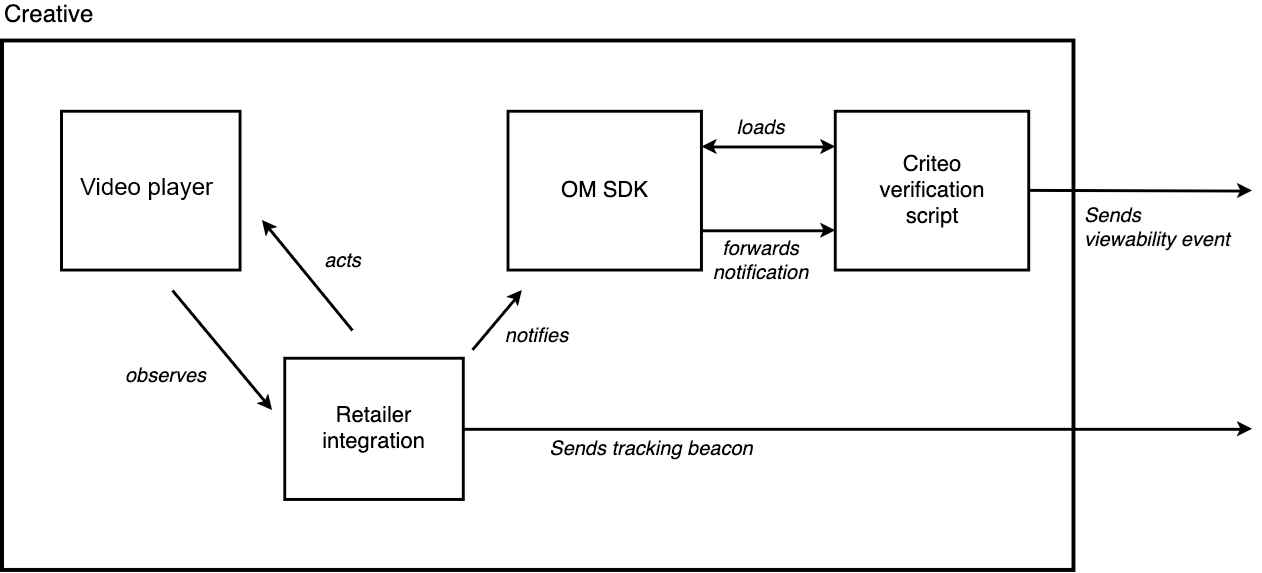
The IAB implementation guide is not complete enough to cover all the Criteo video player specifications. For that reason, it is highly recommended to also verify your integration followingthe IAB documentation for iOS. with the Criteo verification script.
The Criteo verification script comes from the VAST XML file.
Through the OM SDK, several events will be emitted by Criteo OMID Verification Script to Criteo servers:
| Level | Beacon name | Description |
|---|---|---|
OMID (VerificationParameters) | omidTrackView | Indicates that the OMID Ad session was properly initialized. |
OMID (VerificationParameters) | start | Indicates that the video just started, and the video is displayed 100% in the viewport. |
OMID (VerificationParameters) | firstQuartile | Indicates that the video just reached the 25% quartile, and the video is displayed 100% in the viewport. |
OMID (VerificationParameters) | midpoint | Indicates that the video just reached the 50% quartile, and the video is displayed 100% in the viewport. |
OMID (VerificationParameters) | thirdQuartile | Indicates that the video just reached the 75% quartile, and the video is displayed 100% in the viewport. |
OMID (VerificationParameters) | complete | Indicates that the video just completed, and the video is displayed 100% in the viewport. |
OMID (VerificationParameters) | twoSecondsFiftyPercentView | Indicates that the video was playing for 2 consecutive seconds, and the video is at least displayed 50% in the viewport. Note that, buffering the video or pausing, will reset the 2 seconds counter. |
| VAST XML - OMID | <Tracking event="verificationNotExecuted"> | Indicates that the verification script failed to initialize. |
The 100% in the viewport display is an industry standard to track playback events such as quartiles. The two consecutive seconds and 50% display in the viewport is an MRC standard.
1. Load the OMID service script
The provided IAB OM SDK is composed of a script (omweb-v1.js) and a mobile library that need to be included for the creative to support viewability.
The script can either be self-hosted or pulled from Criteo’s CDN, where we host copies. The file can be found on this page.
omweb-v1.jsis the OMID JS library for the web context.
2. Create an ad session configuration and the ad session itself
Before the ad session initialization, the OM SDK needs to be activated. The ad session also requires specifying some parameters related to the Criteo integration.
OMID
VerificationScript,VerificationParametersandVendorKeyare provided inside the VAST.
private static func createAdSession(adView: UIView?, vendorKey:String, verificationScriptURL: String, verificationParameters: String) -> OMIDCriteoAdSession {
// ensure OMID has been already activated
guard OMIDCriteoSDK.shared.isActive else {
fatalError("OMID is not active")
}
// Obtain ad session context. See below
let context = createAdSessionContext(withPartner: partner, adView: adView, vendorKey: vendorKey, verificationScriptURL: verificationScriptURL, verificationParameters: verificationParameters)
// Obtain ad session configuration. See below
let configuration = createAdSessionConfiguration()
do {
// Create ad session
let session = try OMIDCriteoAdSession(configuration: configuration, adSessionContext: context)
print("Session created")
// Provide main ad view for measurement
guard let adView = adView else {
fatalError("Ad View is not initialized")
}
session.mainAdView = adView
return session
} catch {
fatalError("Unable to instantiate ad session: \(error)")
}
}
private static func createAdSessionContext(withPartner partner: OMIDCriteoPartner, adView: UIView?, vendorKey: String, verificationScriptURL: String, verificationParameters: String) -> OMIDCriteoAdSessionContext {
do {
// Create verification resource using the values provided in the ad response
guard let verificationResource = createVerificationScriptResource(vendorKey: vendorKey,
verificationScriptURL: verificationScriptURL,
parameters: verificationParameters)
else {
fatalError("Unable to instantiate session context: verification resource cannot be nil")
}
return try OMIDCriteoAdSessionContext(partner: partner,
script: omidJSService,
resources: [verificationResource],
contentUrl: nil,
customReferenceIdentifier: nil)
} catch {
fatalError("Unable to create ad session context: \(error)")
}
}
private static func createAdSessionConfiguration() -> OMIDCriteoAdSessionConfiguration {
do {
return try OMIDCriteoAdSessionConfiguration(creativeType: .video,
impressionType: .beginToRender,
impressionOwner: .nativeOwner,
mediaEventsOwner: .nativeOwner,
isolateVerificationScripts: false)
} catch {
fatalError("Unable to create ad session configuration: \(error)")
}
}3. Register the player showing the ad and start the ad session
When the ad session is started, the Criteo verification script is automatically loaded. At this point, the Criteo verification script will start observing any AdEvents & MediaEvents that are triggered toward the OM SDK.
func startSession() {
print("Starting session for \(adSession.debugDescription)")
createAdEventsPublisher()
createMediaEventsPublisher()
adSession.start()
}
private func createAdEventsPublisher() {
// Create event publisher before starting the session
do {
self.adEvents = try OMIDCriteoAdEvents(adSession: adSession)
} catch {
fatalError("Unable to instantiate OMIDAdEvents: \(error)")
}
}
private func createMediaEventsPublisher() {
do {
self.mediaEvents = try OMIDCriteoMediaEvents(adSession: adSession)
} catch {
fatalError("Unable to instantiate OMIDMediaEvents: \(error)")
}
}4. Trigger adEvents & mediaEvents events to OM SDK when Video & Ad related events occur
adEvents & mediaEvents events to OM SDK when Video & Ad related events occurThrough those calls, the Criteo verification script will be able to compute advanced viewability events:
- Criteo will be able to track quartile events (if the video is 100% part of the viewport)
- Advanced events are computed to track if 50% of the video is playing & displayed in the viewport during 2 consecutive seconds.
All calls to both AdEvents & MediaEvents must be triggered aside of the existing tracking beacons for quartile & display events. Additionally, the video buffering events must be triggered.
Triggering OMID events is similar to triggering VAST trackers, both will be described in the following section.
Step 4: firing beacons during video playback
Once the creative is downloaded, we can start the OMID session and trigger the loaded event.
func didFinishFetchingCreative() {
sessionInteractor?.startSession()
// Report VAST properties to OMID
let VASTProperties = OMIDCriteoVASTProperties(autoPlay: true, position: .standalone)
sessionInteractor?.fireAdLoaded(vastProperties: VASTProperties)
// get the player ready and attach listeners
createMediaPlayer(withAsset: getVideoAndCaptions()!)
addQuartileTrackingToVideoPlayer()
attachPauseButtonImage()
presentAd()
}Right after the ad is presented, we can fire the impression beacons from VAST and to OMID.
func emitBeacon(type: Beacon) {
let task = URLSession.shared.dataTask(with: self.tracking![type.rawValue]!);
task.resume()
}
func didPresentAd() {
emitBeacon(type: .impression);
sessionInteractor?.fireImpression()
}The start, firstQuartile, midpoint, thirdQuartile and complete beacons are managed in a function triggered by a polling thread. For each of their playback events, we send both VAST and OMID beacons.
func addQuartileTrackingToVideoPlayer() {
guard let player = player else { return }
player.addPeriodicTimeObserver(forInterval: CMTimeMakeWithSeconds(1, preferredTimescale: 10),
queue: DispatchQueue.main) { [weak self] _ in
guard let self = self else { return }
self.recordQuartileChange()
}
currentQuartile = .tracking
}
func recordQuartileChange() {
guard let quartile = currentQuartile,
let currentItem = player?.currentItem
else {
return
}
let currentTime = currentItem.currentTime().seconds
let duration = currentItem.duration.seconds
guard duration > 0 else { return }
let progress = currentTime / duration
switch quartile {
case .tracking:
if (progress > 0) {
emitBeacon(type: .start);
sessionInteractor?.getMediaEventsPublisher().start(withDuration: CGFloat(duration),
mediaPlayerVolume: playerVolume())
currentQuartile = .start
}
case .start:
if (progress > 0.25) {
emitBeacon(type: .firstQuartile);
sessionInteractor?.getMediaEventsPublisher().firstQuartile()
currentQuartile = .firstQuartile
}
case .firstQuartile:
if (progress > 0.5) {
emitBeacon(type: .midpoint);
sessionInteractor?.getMediaEventsPublisher().midpoint()
currentQuartile = .midpoint
}
case .midpoint:
if (progress > 0.75) {
emitBeacon(type: .thirdQuartile);
sessionInteractor?.getMediaEventsPublisher().thirdQuartile()
currentQuartile = .thirdQuartile
}
case .thirdQuartile:
if (progress >= 1.0) {
emitBeacon(type: .complete);
sessionInteractor?.getMediaEventsPublisher().complete()
currentQuartile = .complete
}
case .complete:
break
}
}To ensure accurate beacon tracking, playback beacons (start and quartiles beacons) should only be emitted once, during the first play of the video, while the video is playing.
However, interaction beacons (such as click, mute, unmute, pause, and resume) must be emitted each time the corresponding user action occurs.
We handle the pause/resume beacons by attaching an event listener to the button. If the player is currently playing, we pause and emit the OMID and VAST pause beacons. Otherwise, we emit the resume beacons. We also change the image of the button to represent a play and pause button.
@IBAction func tappedPlayingControl() {
changePlayingControls()
}
func changePlayingControls() {
if let player = player, player.rate == 0 {
play()
attachPauseButtonImage()
sessionInteractor?.getMediaEventsPublisher().resume()
emitBeacon(type: .resume)
} else {
pause()
attachPlayButtonImage()
sessionInteractor?.getMediaEventsPublisher().pause()
emitBeacon(type: .pause)
}
}We handle the click beacon by creating a Tap Gesture Recognizer in the Interface Builder which is linked to the playerView and triggers a clickHandler action in the Controller. In this function, we send the OMID and VAST click beacons and instruct the browser to open the URL from the VAST tag, only if a redirection URL is provided.
If the redirection URL is not provided, we pause/resume the video and trigger the corresponding tracking beacons:
@IBAction func handleClick() {
let clickThroughURL = self.tracking![Beacon.click.rawValue];
if((clickThroughURL) != nil) {
sessionInteractor?.getMediaEventsPublisher().adUserInteraction(withType: .click)
emitBeacon(type: .click)
UIApplication.shared.open(clickThroughURL!)
} else {
changePlayingControls();
}
}Finally, we handle the mute/unmute beacons similarly, by attaching a listener to the button. It changes the state of the player, the image of the button, and triggers the VAST and OMID tracking beacons.
@IBAction func toggleMute() {
player.isMuted = !player.isMuted
player.isMuted ? attachUnMuteButtonImage() : attachMuteButtonImage();
sessionInteractor?.getMediaEventsPublisher().volumeChange(to: playerVolume())
emitBeacon(type: player.isMuted ? .mute : .unmute);
}
OMID & buttonsAs the OM SDK has access to the video player
UIView, it checks and sends the percentage of the video being visible. So, if the buttons are on the overlay of the player, make sure to declare them:adSession.addFriendlyObstruction(element, // muteButton, playButton purpose: .mediaControls, detailedReason: "Media Controls over video");
Step 5: finishing the ad session
It is important to handle correctly the destruction of the player and the ad session:
func willDismissAd() {
// Finish measurement
print("Ending measurement session now")
sessionInteractor?.stopSession()
}
func didDismissAd() {
// Destroy the ad
destroyAd()
}
/**
Releases any resources that the ad may still be using after dismissal.
*/
func destroyAd() {
hidePlayerControls()
guard let videoPlayerLayer = playerLayer else { return }
videoPlayerLayer.player = nil
videoPlayerLayer.removeFromSuperlayer()
try? FileManager.default.removeItem(at: localAssetURL)
}Extra: Handling closed captions (CC)
Instead of creating a AVAsset using only the video URL, we are creating a AVMutableComposition with 3 tracks:
- one for the video,
- a second one for the audio,
- and a third one for the captions.
Here is the full code example:
func getVideoAndCaptions() -> AVMutableComposition? {
let videoAndCaptions = AVMutableComposition()
let videoTrack = videoAndCaptions.addMutableTrack(withMediaType:.video , preferredTrackID: kCMPersistentTrackID_Invalid)
let localVideoAsset = AVURLAsset(url: localAssetURL)
do {
guard localVideoAsset.tracks.count > 0 else
{
// error msg
return nil;
}
try? videoTrack?.insertTimeRange(CMTimeRangeMake(start: CMTime.zero, duration: localVideoAsset.duration),
of: localVideoAsset.tracks(withMediaType: .video)[0],
at: CMTime.zero)
}
let audioTrack = videoAndCaptions.addMutableTrack(withMediaType:.audio , preferredTrackID: kCMPersistentTrackID_Invalid)
do {
guard localVideoAsset.tracks.count > 0 else
{
// error msg
return nil;
}
try? audioTrack?.insertTimeRange(CMTimeRangeMake(start: CMTime.zero, duration: localVideoAsset.duration),
of: localVideoAsset.tracks(withMediaType: .audio)[0],
at: CMTime.zero)
}
let subtitleAsset = AVURLAsset(url: localCaptionsURL)
let subtitleTrack = videoAndCaptions.addMutableTrack(withMediaType: .text, preferredTrackID: kCMPersistentTrackID_Invalid)
do {
guard subtitleAsset.tracks.count > 0 else{
//error msg
return nil;
}
try? subtitleTrack?.insertTimeRange(CMTimeRangeMake(start: CMTime.zero, duration: localVideoAsset.duration),
of: subtitleAsset.tracks(withMediaType: .text)[0],
at: CMTime.zero)
}
return videoAndCaptions;
}
NotePrior to iOS 15,
AVMutableCompositiononly supports the insertion of locally stored assets; remote items cannot be used. As a result, we download and store the media file and closed captions locally before initializing the player.
public func fetch(_ remoteURL: URL,
_ localAssetURL: URL,
_ statusHandler: @escaping (_ message: String) -> (),
_ completionHandler: @escaping (_ fileURL: URL) -> (),
_ errorHandler: @escaping (_ message: String) -> ()) {
DispatchQueue.main.async {
statusHandler("Fetching file...");
}
self.creativeDownloadTask = URLSession.shared.downloadTask(with: remoteURL) {
(fileURL, response, error) in
guard let fileURL = fileURL else {
DispatchQueue.main.async {
errorHandler("Unable to fetch file from remote URL: \(remoteURL)")
}
return
}
try? FileManager.default.moveItem(at: fileURL, to: localAssetURL)
DispatchQueue.main.async {
completionHandler(fileURL)
}
}
self.creativeDownloadTask?.resume()
}Updated 3 months ago
